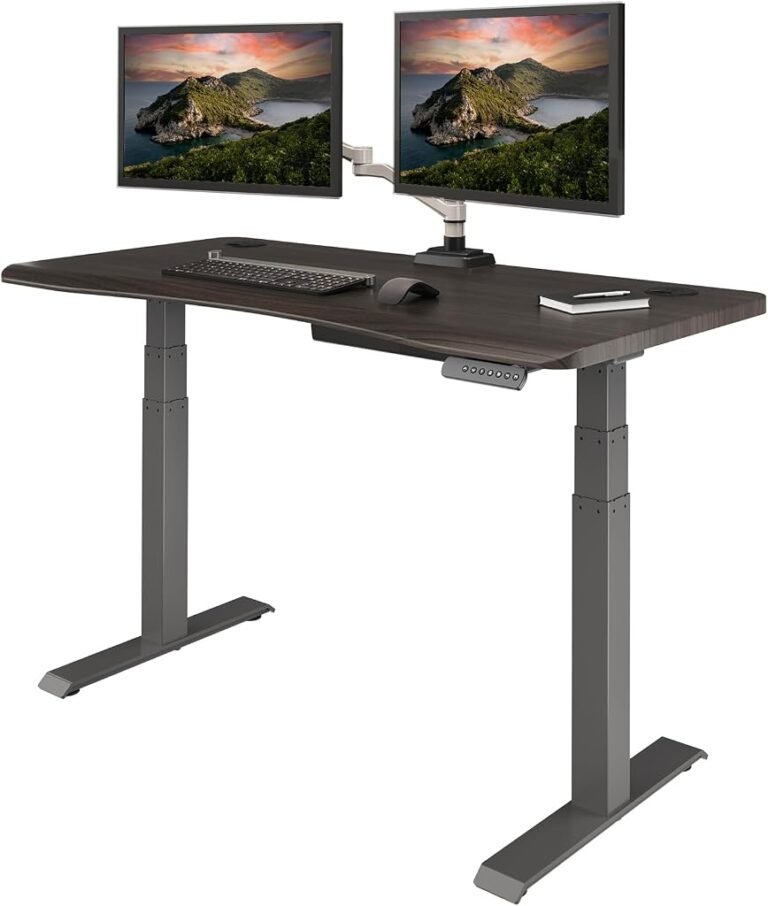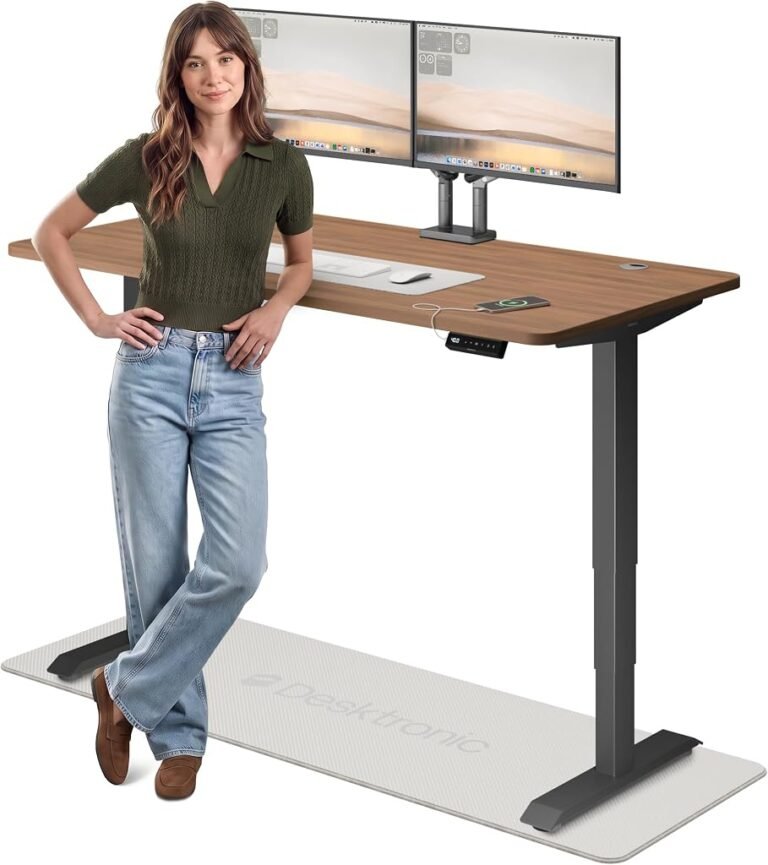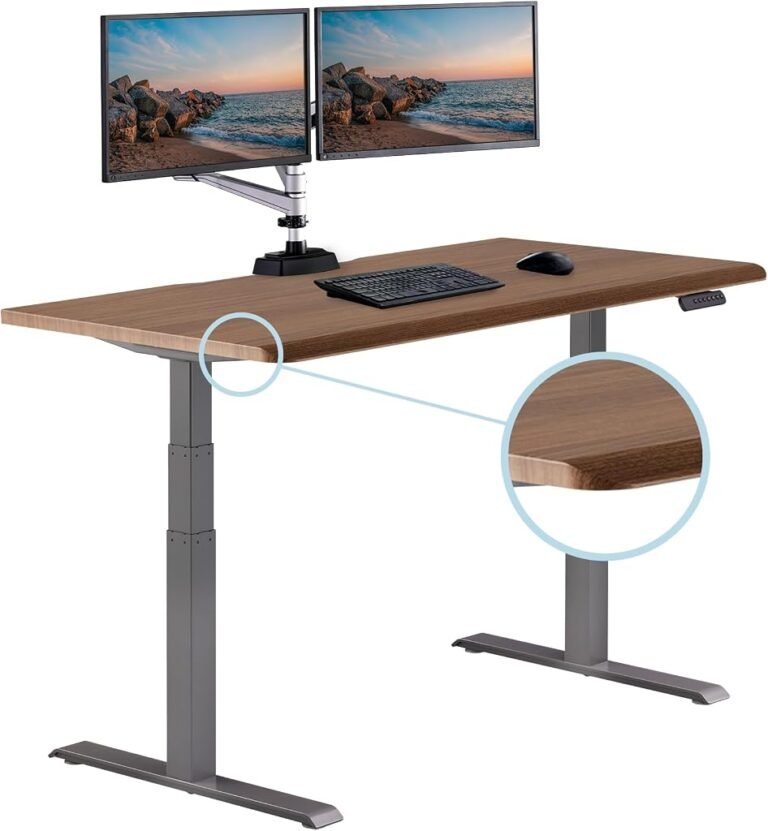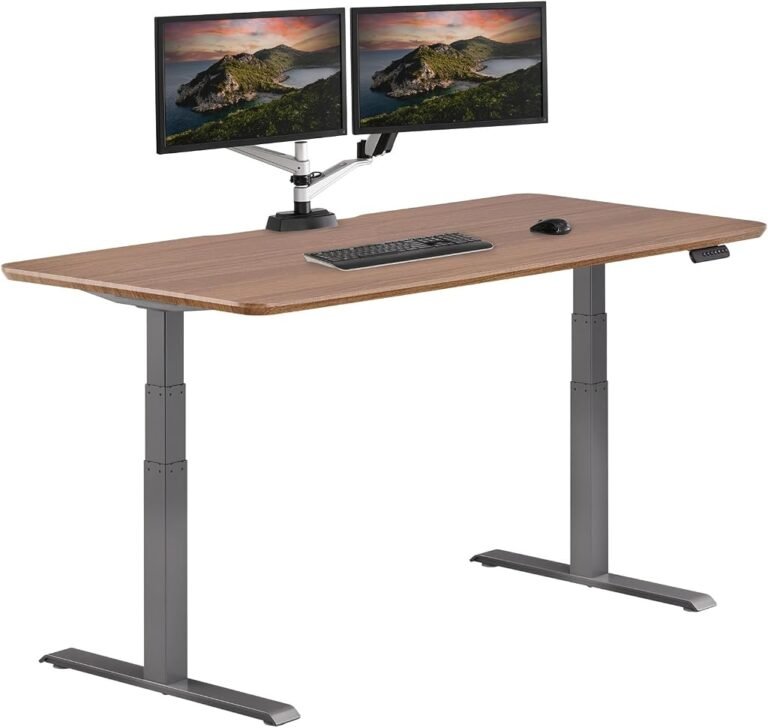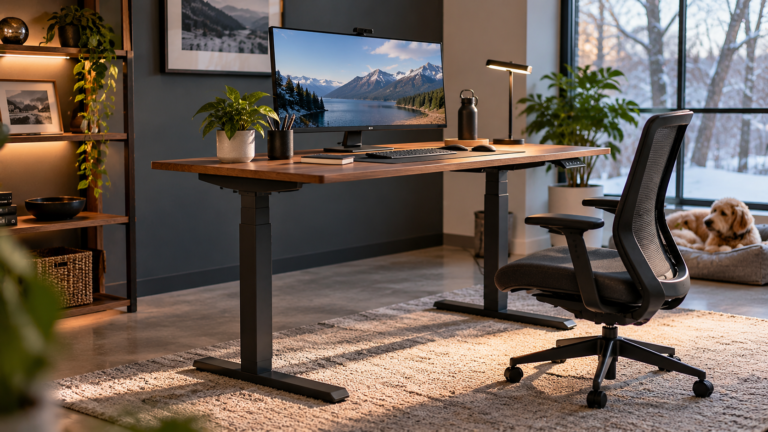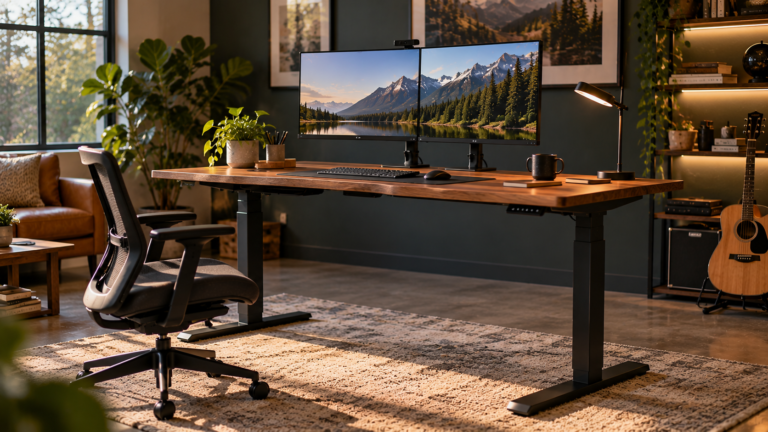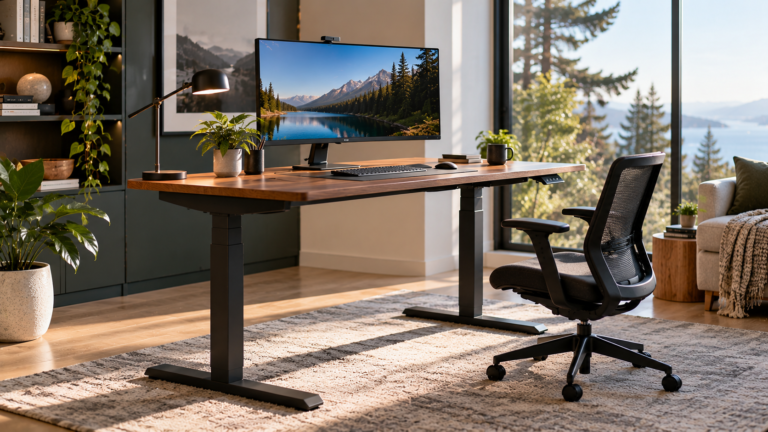
A standing desk that comfortably accommodates one monitor can become surprisingly crowded when a second or third display is added. Screens compete for horizontal space, monitor stands consume desktop depth, and mounting arms introduce additional demands on the desk’s frame.
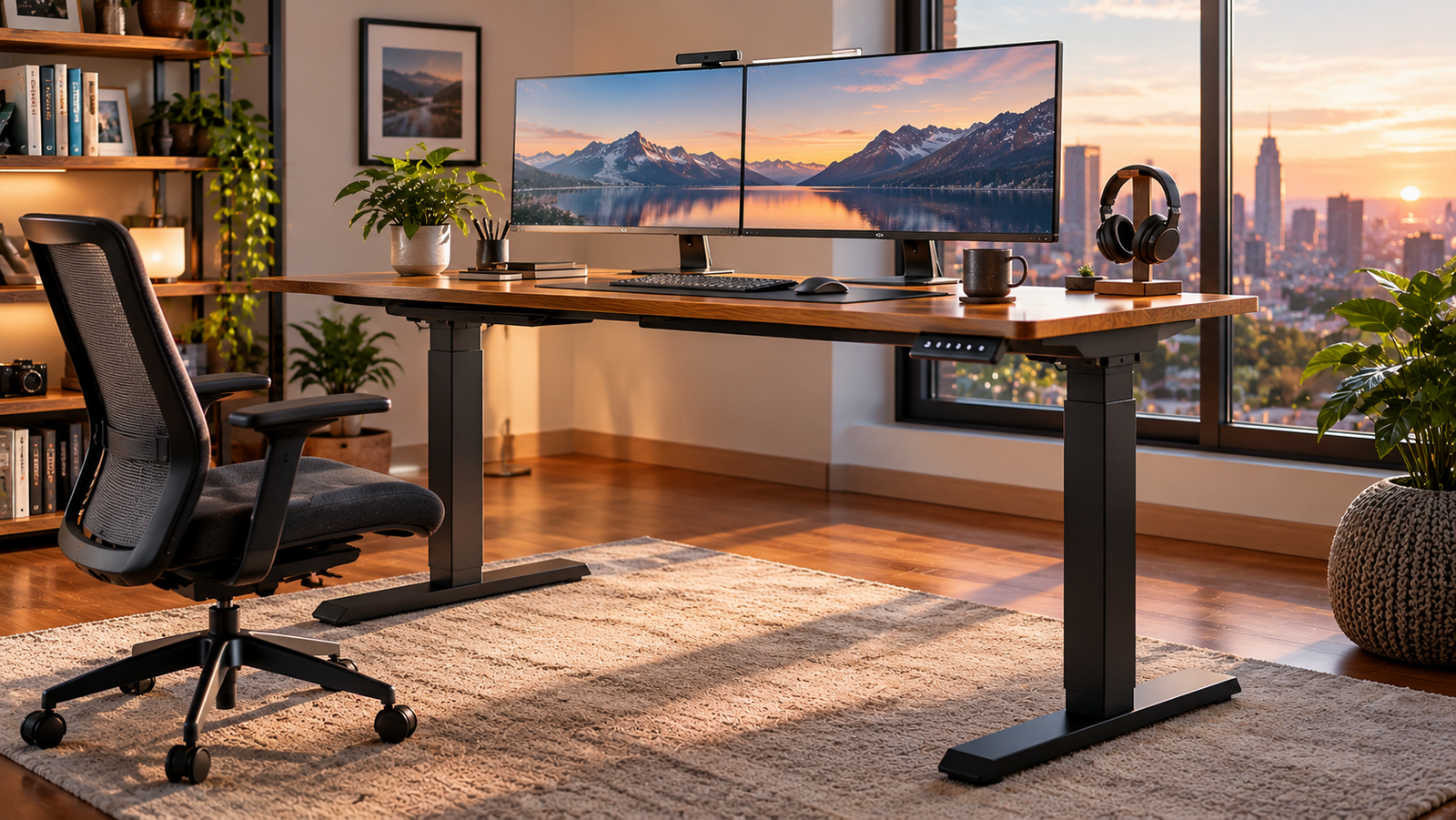
The difficulty is not simply fitting several monitors onto a surface. They must be positioned at comfortable viewing distances, arranged to minimize unnecessary neck movement, and supported securely while the desk moves between sitting and standing heights.
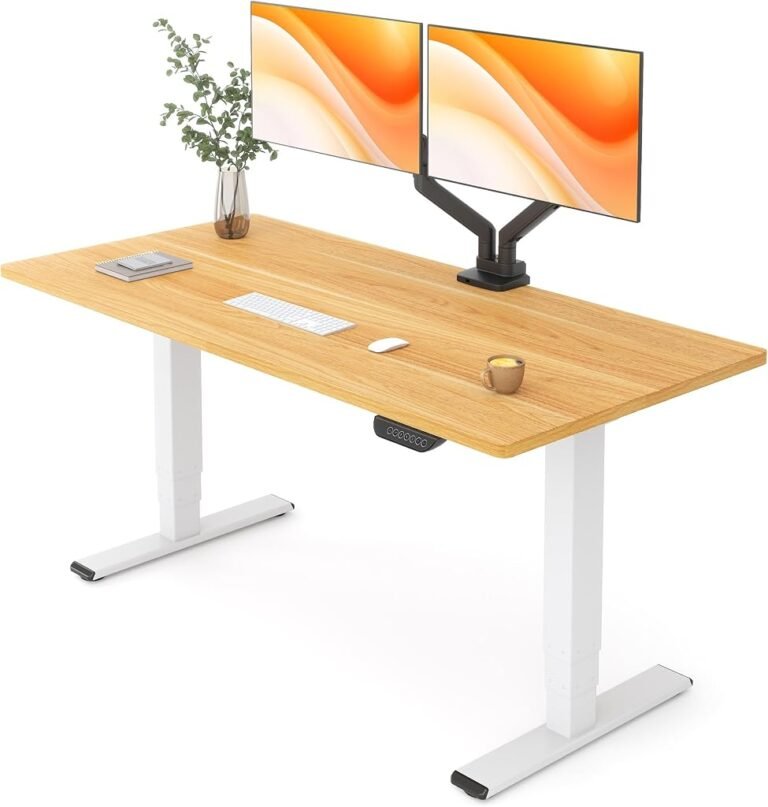
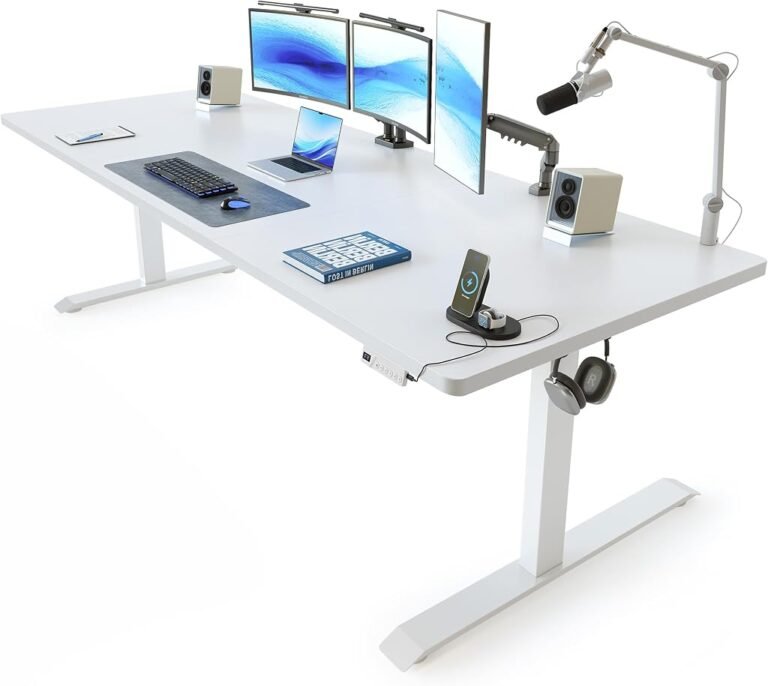
For most conventional dual-monitor workstations, a 55- to 60-inch-wide standing desk provides a practical starting point. Three-monitor arrangements generally benefit from 60 to 72 inches or more, particularly when the displays are large or positioned side by side.
However, these are planning ranges rather than universal ergonomic requirements.
A compact dual-monitor arrangement using adjustable arms may fit on a 48-inch desk. Conversely, two large monitors with substantial stands can make a 60-inch desktop feel restrictive.
Desktop depth, monitor dimensions, mounting hardware, and the user’s working habits all affect the space required.
The most reliable approach is to measure the complete workstation before choosing the desk.
Why Monitor Count Alone Does Not Determine Desk Size
A monitor’s advertised size describes its diagonal screen measurement, not its physical width.
This distinction matters when calculating how much horizontal space a workstation requires.
Two monitors advertised as 27-inch displays do not necessarily need 54 inches of desk width.
For a conventional 16:9 screen, the visible display width can be calculated using the screen’s diagonal measurement and aspect ratio.
A 27-inch, 16:9 display has a theoretical visible width of approximately 23.5 inches.
The calculation is:
Screen width = diagonal × 16 ÷ √(16² + 9²)
For a 27-inch monitor:
27 × 16 ÷ √337 ≈ 23.5 inches
Two such screens have a combined visible width of approximately 47 inches.
That figure excludes bezels, gaps, monitor stands, and the space required to angle the displays.
It also assumes the screens are positioned in a straight line.
In practice, monitors are often angled toward the user, reducing their combined horizontal projection.
The correct desk width therefore depends on the actual arrangement rather than the sum of advertised diagonal sizes.
Recommended Standing Desk Widths for Different Monitor Setups
The following table provides practical starting ranges for conventional monitor configurations.
These are planning estimates, not manufacturer specifications or mandatory ergonomic dimensions.
| Monitor Configuration | Suggested Desk Width | Main Consideration |
|---|---|---|
| One 24-inch monitor | 40–48 inches | Keyboard, mouse, and accessories |
| Two 24-inch monitors | 48–55 inches | Screen angles and mounting hardware |
| Two 27-inch monitors | 55–60 inches | Horizontal space and comfortable positioning |
| Two 32-inch monitors | 60–72 inches | Screen width and viewing distance |
| Three 24-inch monitors | 60–72 inches | Side-monitor angles and support |
| Three 27-inch monitors | 72 inches or more | Mounting flexibility and neck movement |
| One 34-inch ultrawide plus a secondary display | 60–72 inches | Screen arrangement and desk depth |
| Three large monitors with separate stands | 72 inches or more | Stand footprints and equipment distribution |
The table assumes typical landscape-oriented displays.
Portrait orientation, monitor arms, curved screens, and stacked arrangements can substantially change the required width.
A 72-inch desk is not automatically necessary for every three-monitor setup.
Likewise, a 48-inch desk is not guaranteed to accommodate two monitors comfortably simply because both stands physically fit.
The intended viewing arrangement remains the deciding factor.
How Much Space Do Two Monitors Need?
Dual-monitor workstations are common because they allow users to keep separate applications visible simultaneously.
A worker might use one display for a primary document and another for reference material, communication, or data.
The arrangement can reduce repeated window switching, but only if both screens remain comfortable to view.
Two 24-Inch Monitors
A conventional 24-inch, 16:9 display has a theoretical visible width of approximately 20.9 inches.
Two screens placed side by side therefore have a combined visible width of about 41.8 inches before accounting for bezels.
A 48-inch desk may accommodate this arrangement, particularly when monitor arms are used.
However, the remaining horizontal space may be limited if speakers, a desktop computer, or other accessories must sit beside the screens.
A 55-inch desk provides additional flexibility.
Two 27-Inch Monitors
Two conventional 27-inch, 16:9 displays have a combined theoretical visible width of approximately 47 inches.
A 55-inch desk can accommodate many arrangements, but a 60-inch surface provides more room for positioning and accessories.
The difference between these desk widths is not trivial.
A 60-inch desk provides five additional inches of horizontal working space compared with a 55-inch model.
Those inches can accommodate a small speaker, document holder, or greater flexibility in monitor placement.
Two 32-Inch Monitors
A 32-inch, 16:9 display has a theoretical visible width of approximately 27.9 inches.
Two screens therefore span approximately 55.8 inches before accounting for bezels.
A 60-inch desk may physically accommodate them, but the arrangement can become restrictive when both monitors use separate stands.
A 72-inch desktop provides more flexibility.
It also allows the displays to be positioned without forcing every accessory into the remaining central space.
How Much Space Do Three Monitors Need?
Three-monitor workstations introduce a different challenge.
The issue is no longer simply horizontal width.
The user must also consider viewing angles, neck rotation, monitor weight, and the distance between the eyes and each screen.
Three 27-inch displays placed in a straight line have a combined theoretical visible width of approximately 70.6 inches.
That arrangement would be difficult to accommodate on a conventional 60-inch desktop without overhang.
However, placing the side monitors at inward angles reduces their horizontal projection.
A triple-monitor arm may also allow the displays to extend beyond the desk’s physical edges.
This makes a narrower desktop possible, although mounting compatibility and structural support become more important.
Why Angled Monitors Change the Calculation
Consider three hypothetical monitors, each with a visible width of 23.5 inches.
If the center display faces forward and the two outer displays are angled inward by 30 degrees, their combined horizontal projection is approximately:
23.5 + 2 × (23.5 × cos 30°) ≈ 64.2 inches
This is a simplified geometric calculation.
It excludes bezels, screen thickness, mounting hardware, and gaps.
Nevertheless, it illustrates why three angled monitors can require less horizontal space than three displays arranged in a straight line.
The trade-off is that the outer screens may require greater head movement.
A physically compact arrangement is not necessarily the most comfortable one.
Monitor Positioning Matters More Than Maximum Screen Count
The Occupational Safety and Health Administration provides useful guidance for arranging multiple displays.
Its computer workstation evaluation checklist recommends positioning the primary monitor directly in front of the user, with additional monitors immediately beside it.
When time is divided evenly between screens, OSHA recommends arranging them close together within a comfortable viewing angle.
This distinction helps determine the most suitable layout.
One Primary Monitor
If most work takes place on one display, that monitor should remain directly ahead.
The secondary screen can sit to one side.
This arrangement reduces the need for sustained head rotation during primary tasks.
Two Equally Used Monitors
When two displays receive approximately equal attention, placing them close together with their inner edges near the user’s central line of sight may be more comfortable.
The screens can be angled inward slightly.
The user should avoid maintaining a rotated neck position for extended periods.
Three Monitors
With three displays, the center monitor usually serves as the primary screen.
The outer monitors can be angled toward the user.
Frequently used applications should remain on the center display or the most comfortable secondary position.
Applications requiring only occasional attention can be placed farther to the side.
The arrangement should reflect actual working patterns rather than visual symmetry alone.
Desk Depth: The Dimension Buyers Frequently Underestimate
Width determines how many monitors can be arranged horizontally.
Depth determines how comfortably those monitors can be viewed.
A wide but shallow desk may provide abundant space for equipment while placing the screens too close to the user’s eyes.
According to OSHA’s monitor ergonomics guidance, the generally preferred viewing distance is approximately 20–40 inches, measured from the eyes to the screen.
The appropriate position within that range varies with screen size, text readability, and individual visual requirements.
A larger monitor may be more comfortable at a greater distance.
However, desktop depth is not identical to viewing distance.
The user’s eyes are positioned behind the desk’s front edge, while the screen may sit several inches forward of the rear edge.
Is a 24-Inch-Deep Desk Enough?
A 24-inch-deep standing desk can accommodate many dual-monitor setups.
However, large monitor stands may consume a substantial portion of the available surface.
If a stand positions the screen several inches forward from the desk’s rear edge, the remaining distance between the display and keyboard may become restrictive.
A monitor arm can improve flexibility by allowing the screen to sit farther back.
Nevertheless, the arm must be compatible with the desktop and mounting location.
When a 30-Inch-Deep Desk Makes More Sense
A 30-inch-deep desktop provides six additional inches of front-to-back space compared with a 24-inch surface.
That represents a 25% increase in depth.
For users with large monitors, this difference can be substantial.
The extra space can help accommodate monitor stands, keyboards, documents, and other accessories without forcing them into a narrow working area.
A deeper desktop is particularly useful when the monitors cannot be mounted on adjustable arms.
Monitor Arms Versus Original Monitor Stands
Monitor mounting hardware can change the amount of desk space required.
Original monitor stands often use broad bases designed to provide stability.
These bases may extend significantly forward and backward.
A monitor arm replaces the original stand with a mounting system attached to the desktop or another supporting structure.
This can free working space and provide greater control over screen position.
However, monitor arms introduce their own requirements.
Clamp Compatibility
Many monitor arms use clamps attached to the rear edge of the desktop.
The clamp must fit the desktop thickness and provide adequate contact with the mounting surface.
Desks with rear cable trays, drawers, decorative panels, or structural crossbars may restrict available clamp positions.
Desktop Strength
A monitor arm concentrates force around its mounting point.
The load is not simply the combined weight of the monitors.
Extended arms create leverage that can increase mechanical stress on the mounting area.
The desk manufacturer and monitor-arm manufacturer should both permit the intended installation.
Weight Capacity
Monitor arms have their own supported weight ranges.
A display must fall within the applicable range after removing its original stand.
Mounting several monitors on one arm assembly also increases the importance of checking the total supported load.
A monitor arm can reduce the required desktop footprint, but it does not eliminate structural considerations.
How Monitor Weight Affects Standing Desk Selection
A standing desk’s lifting capacity should be evaluated against the complete workstation.
Multiple monitors can contribute substantial weight, particularly when combined with mounting arms, computers, speakers, and accessories.
Consider the following illustrative arrangement:
| Equipment | Example Weight |
|---|---|
| Three monitors | 42 lb |
| Triple-monitor mounting system | 18 lb |
| Desktop computer | 24 lb |
| Keyboard and mouse | 5 lb |
| Speakers and accessories | 11 lb |
| Total Equipment Weight | 100 lb |
These figures are hypothetical and do not describe a particular product.
They illustrate how a workstation’s equipment load can accumulate.
A desk rated to support 150 pounds may provide sufficient capacity for this example if the rating applies to the installed equipment load.
However, some manufacturers specify frame capacity differently.
The weight of the desktop may need to be included.
Buyers should verify how the capacity is defined before calculating the remaining allowance.
Why Stability Becomes More Important With Multiple Monitors
A standing desk can support the weight of several displays while still exhibiting noticeable movement.
Load capacity and stability are different characteristics.
Load capacity concerns how much weight the desk can lift or support.
Stability concerns how much the structure moves when force is applied.
The distinction becomes particularly noticeable when the desktop is raised.
The Effect of Monitor Arms
A monitor positioned on an extended arm can make small desk movements more visible.
The arm creates additional leverage, and the display may move slightly even when the desktop itself appears relatively stable.
This does not necessarily indicate that the desk is unsafe.
However, visible screen movement can become distracting during detailed work.
The Importance of Frame Geometry
Standing desk stability depends on several factors:
- Lifting-column design and extension height
- Width and construction of the supporting feet
- Frame rigidity and cross-support arrangements
- Desktop dimensions and material
- Equipment distribution
- Monitor-arm extension
- Floor level and assembly quality
A desk with a higher weight rating is not automatically more stable than one with a lower rating.
Likewise, dual-motor construction does not independently guarantee reduced movement.
For multi-monitor installations, frame rigidity deserves attention alongside lifting capacity.
Comparing Common Standing Desk Sizes
Standing desks are available in numerous dimensions, but several widths are particularly common.
The following comparison illustrates how much nominal surface area different desktops provide.
| Desktop Size | Surface Area | Relative to 48 × 24 Inches |
|---|---|---|
| 48 × 24 inches | 1,152 sq in | Baseline |
| 55 × 28 inches | 1,540 sq in | 33.7% more |
| 60 × 24 inches | 1,440 sq in | 25% more |
| 60 × 30 inches | 1,800 sq in | 56.3% more |
| 71 × 30 inches | 2,130 sq in | 84.9% more |
| 72 × 30 inches | 2,160 sq in | 87.5% more |
| 83 × 37 inches | 3,071 sq in | 166.6% more |
These calculations describe rectangular surface dimensions.
They do not account for cutouts, cable-management compartments, rounded edges, or other features that reduce usable working area.
The comparison reveals an important point: a slightly narrower desk can provide more surface area if it is deeper.
For example, a 55 × 28-inch desktop provides 100 more square inches than a 60 × 24-inch desktop.
Consequently, choosing a desk solely by width can overlook meaningful differences in working space.
Large Standing Desks: When 71 Inches or More Makes Sense
A 71-inch-wide standing desk provides additional flexibility for demanding multi-monitor workstations.
The extra width can accommodate large displays while leaving room for speakers, documents, or a desktop computer.
For example, the VIVO DESK-KIT-1B6-P3B-71 uses a 71-inch-wide format with an overall depth of approximately 30 inches.
This type of arrangement can be useful for dual-monitor setups involving large screens or three-monitor configurations that require additional horizontal clearance.
However, buyers should examine how the desktop’s surface is divided.
Cable-management compartments and other integrated features may affect the uninterrupted working area.
When an 83-Inch Desk Is Appropriate
An 83-inch-wide desktop provides substantially more horizontal space.
This can be useful for three large monitors, multiple computers, or workstations that combine digital tasks with substantial physical materials.
An 83 × 37-inch rectangular surface has a nominal area of 3,071 square inches.
That is approximately 21.3 square feet.
Compared with a 60 × 30-inch desktop, it provides about 70.6% more surface area.
The additional space can be valuable, but it also creates practical demands.
The room must accommodate a desktop nearly seven feet wide.
The frame must support the intended load.
The user must also avoid spreading frequently used equipment so widely that repeated reaching or neck rotation becomes uncomfortable.
A larger desk should improve equipment organization rather than encourage unnecessary movement.
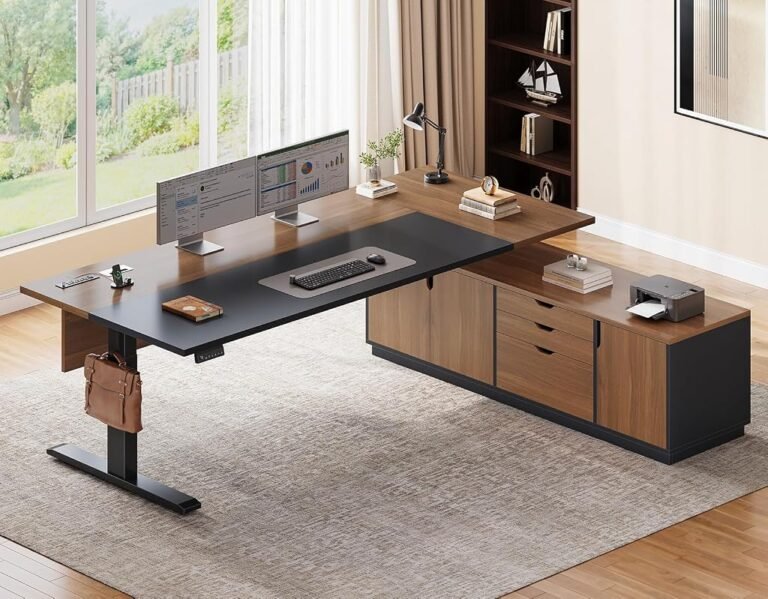
L-Shaped Standing Desks for Multiple Monitors
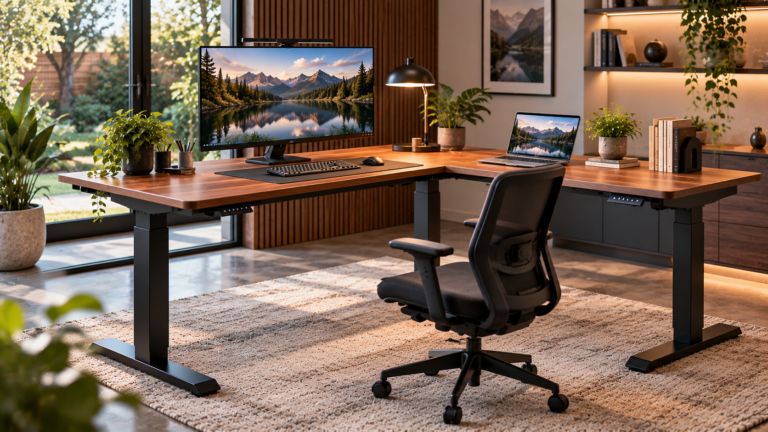
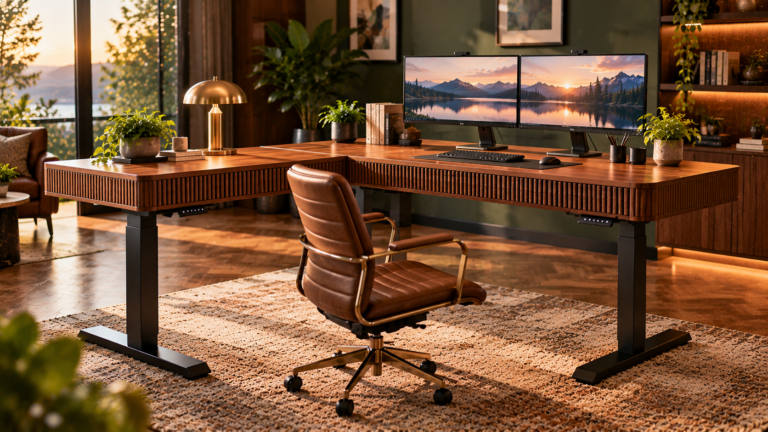
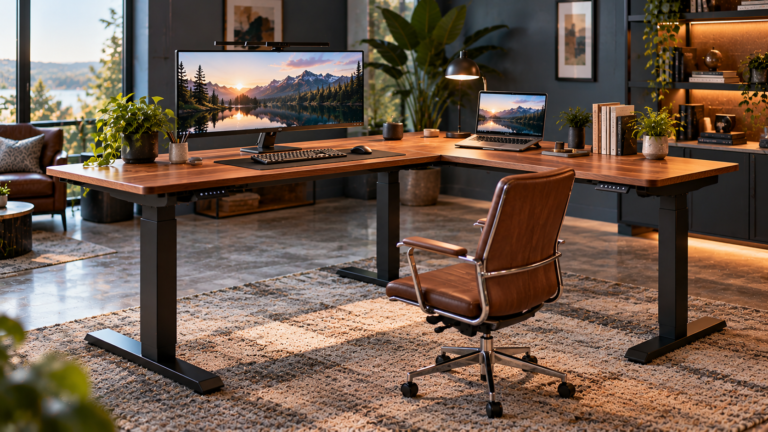
An L-shaped desk provides another approach to managing several displays.
Instead of placing every monitor along one straight edge, the workstation uses two connected working surfaces.
This can separate different activities.
For example, one section might accommodate the primary computer setup while the other supports documents, a second computer, or occasional tasks.
However, an L-shaped arrangement is not automatically preferable for three monitors.
The corner geometry can complicate monitor placement.
The user may also need to rotate the chair or body frequently when switching between work areas.
A conventional rectangular desk may provide a simpler ergonomic arrangement when all three displays are used continuously.
L-shaped desks are more persuasive when the additional surface supports genuinely separate tasks.
Keyboard and Mouse Space Must Be Preserved
Monitor planning should not consume the entire desktop.
The keyboard and mouse require a comfortable working area directly in front of the user.
According to OSHA’s keyboard positioning guidance, the keyboard should be positioned so the shoulders remain relaxed, elbows stay close to the body, and wrists remain approximately straight.
A desk that forces the keyboard too far forward or sideways can undermine these principles.
Avoid Excessive Reaching
The mouse should remain close enough to use without repeatedly extending the arm.
If a large keyboard pushes the mouse far to one side, a more compact keyboard may improve the arrangement.
The objective is not to minimize equipment size at any cost.
It is to preserve comfortable access to frequently used devices.
Leave Space for Documents
Some workstations also require notebooks, printed reports, or reference materials.
A document holder can help keep these materials near the monitor.
OSHA’s document-holder recommendations favor positioning reference documents at approximately the same height and viewing distance as the screen.
This can reduce repeated head movement between documents and displays.
The required desk space therefore depends partly on whether the workstation supports purely digital tasks or a combination of screen-based and paper-based work.
Cable Management for Two or Three Monitors
Additional monitors introduce additional cables.
Depending on the equipment, these may include power connections, video cables, USB connections, and peripheral wiring.
An adjustable desk adds another requirement: cables must accommodate vertical movement.
A cable that reaches comfortably when the desk is lowered may become stretched at standing height.
This can create tension at connectors or interfere with the lifting mechanism.
Practical Cable Planning
A multi-monitor workstation should be arranged so that:
- Power and signal cables have sufficient slack at maximum desk height.
- Wiring remains clear of lifting columns and moving components.
- Monitor-arm movement does not pull against connectors.
- Power strips are mounted or positioned securely.
- Cable bundles do not interfere with the user’s legs.
- Connections remain accessible for maintenance.
Cable management should be checked after the monitors have been positioned and before the workstation enters regular use.
The final test is to move the desk through its full adjustment range while observing the wiring.
Room Space: The Desk Must Fit Beyond Its Measurements
Desktop dimensions describe the furniture, not the complete working area.
A desk measuring 72 × 30 inches requires more than six feet of wall space and 30 inches of floor depth.
The chair needs room to move.
The user needs space to enter and leave the workstation.
Nearby drawers, cabinets, and doors must remain accessible.
Monitor arms may also extend behind the desktop.
A Practical Floor-Planning Example
Consider a 72-inch-wide desk positioned against a wall.
The room must accommodate the desk itself, the chair’s movement, and any surrounding circulation area.
If the desk is placed between cabinets, additional clearance may be needed for installation and maintenance.
A desk that fits mathematically into a room can still create an uncomfortable working environment if movement around it becomes restricted.
Before purchasing, buyers should mark the proposed desk footprint on the floor.
This simple exercise often reveals whether the selected dimensions are practical.
How to Calculate the Required Desk Width
A useful desk-width estimate can be developed through five steps.
Step 1: Measure the Actual Monitors
Record each monitor’s physical width, including its frame.
Do not rely solely on the advertised diagonal size.
Step 2: Choose the Viewing Arrangement
Determine whether the monitors will be positioned side by side, angled inward, stacked, or arranged with one display in portrait orientation.
Step 3: Account for Mounting Hardware
Measure the footprint of original stands or confirm the requirements of the selected monitor arm.
Step 4: Include Accessories
Allow room for speakers, a laptop, documents, and other equipment that must remain on the desktop.
Step 5: Check Ergonomic Positioning
Confirm that the final arrangement allows the primary display to remain directly ahead and the keyboard to sit comfortably in front of the user.
The result is a more reliable estimate than choosing a desk based solely on the number of monitors.
Common Mistakes When Choosing a Multi-Monitor Standing Desk
Several purchasing errors recur in multi-monitor workstation planning.
Choosing Width Without Checking Depth
A wide but shallow desktop may leave insufficient room for comfortable monitor placement.
Assuming Monitor Diagonal Equals Monitor Width
Advertised screen size does not describe the display’s horizontal dimensions.
Ignoring Monitor Stand Footprints
Two monitors may fit across a desktop while their stands consume much of the available working area.
Overlooking Mounting Compatibility
Monitor arms require suitable attachment points and adequate structural support.
Treating Load Capacity as a Stability Rating
A desk can lift heavy equipment without remaining completely steady during typing.
Forgetting Cable Movement
Cables must accommodate the desk’s highest position and the movement of adjustable monitor arms.
Buying the Largest Available Desk
Additional surface area provides limited benefit when the room becomes cramped or frequently used equipment is spread too far apart.
These mistakes can be avoided through measurement and layout planning.
A Practical Standing Desk Buying Guide for Multiple Monitors
Before selecting a standing desk, buyers should verify the following:
- Monitor dimensions: Measure the actual width and depth of every display.
- Monitor arrangement: Decide which screen will be primary and how often the others will be used.
- Desktop width: Allow enough room for the screens and necessary accessories.
- Desktop depth: Confirm comfortable viewing distance and adequate keyboard space.
- Mounting compatibility: Check whether the desktop supports the intended monitor arms.
- Lifting capacity: Calculate the combined equipment weight and verify how the rating is defined.
- Frame stability: Consider desk height, monitor-arm extension, and equipment distribution.
- Height adjustment range: Confirm suitable seated and standing keyboard positions.
- Cable routing: Allow sufficient slack for the desk’s full movement.
- Room dimensions: Check the complete workstation footprint, including chair clearance.
A careful evaluation of these factors is more useful than selecting a desk based on monitor count alone.
Final Considerations
The amount of standing desk space required for multiple monitors is determined by the complete workstation rather than the number of screens.
For two conventional 24-inch monitors, a 48- to 55-inch desk may provide sufficient space.
Two 27-inch displays generally benefit from a 55- to 60-inch surface.
Larger dual-monitor arrangements and three-monitor setups often justify 60 to 72 inches or more.
However, these dimensions are starting points.
Monitor arms, screen orientation, viewing angles, and accessory placement can change the required width considerably.
Desktop depth deserves equal attention.
A 30-inch-deep workstation can provide substantially more flexibility than a 24-inch surface, particularly when large monitors use their original stands.
Structural support is another important consideration.
Multiple displays increase equipment weight, while extended mounting arms can make desk movement more noticeable.
The selected frame must therefore accommodate both the load and the intended working arrangement.
The most effective multi-monitor workstation is not necessarily the largest one.
It is the arrangement that places the primary display comfortably ahead, keeps secondary screens within a reasonable viewing angle, preserves keyboard and mouse space, and allows the desk to move without cable interference.
For buyers planning a new setup, the most useful investment of time comes before purchase: measuring the monitors, mapping the equipment layout, and checking the desk’s usable dimensions.
Those measurements turn a general desk-size recommendation into a workstation that supports the actual work being performed.