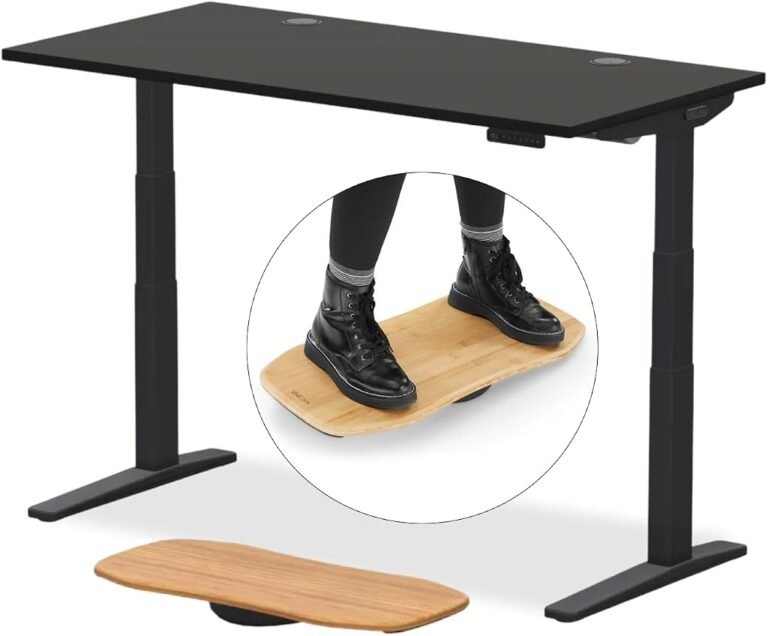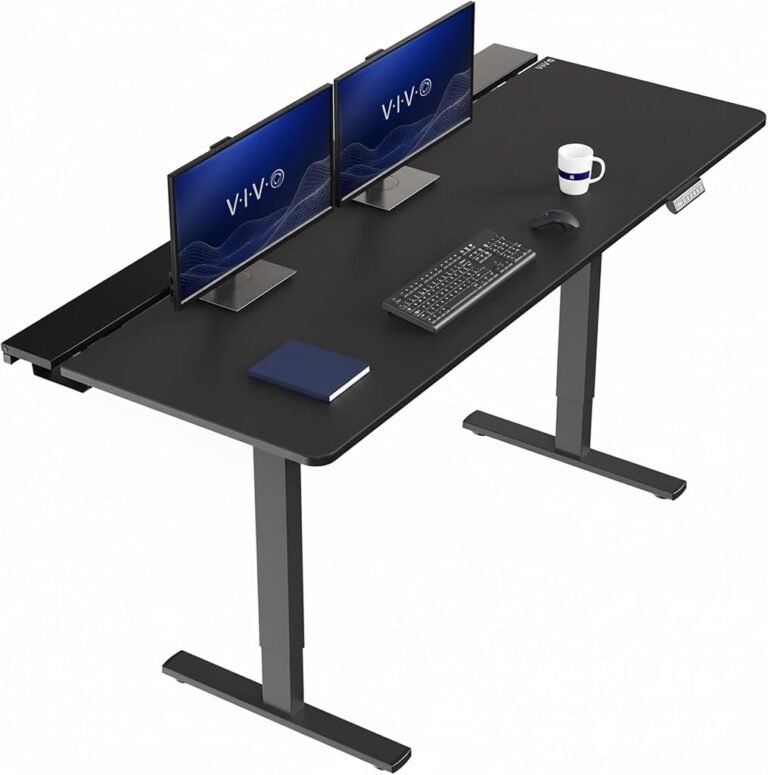
An electric standing desk that refuses to move can look like a motor failure. Often, the cause is less dramatic.

A loose power connection, interrupted control cable, triggered protection system, obstruction, lost position reference, or overloaded desktop can produce remarkably similar symptoms. The desk may remain completely silent, move only downward, stop after a few centimeters, display an error code, or leave one side at a different height from the other.
The sensible response is diagnosis rather than force.
Electric desks combine mains-powered equipment, low-voltage controls, motors, lifting columns, and moving furniture. Troubleshooting should therefore proceed from external, reversible checks toward manufacturer-specific procedures. Opening electrical housings or dismantling motors is not a reasonable first response.
The following checklist establishes that order.
Step 1: Stop Pressing the Controls and Inspect the Desk
Repeatedly pressing the height controls rarely provides useful diagnostic information once a desk has stopped responding.
Start with a visual inspection.
Look beneath and around the desk for anything unusual:
- A disconnected plug
- A loose control cable
- A pinched wire
- A cable caught around a frame component
- An object blocking downward movement
- Furniture directly above the desktop
- An uneven lifting column
- A damaged power lead
- A control panel displaying an error
- Equipment that has shifted into the desk’s path
If a power cable is visibly damaged, unplug the equipment if this can be done safely and stop using the desk until the cable or affected component has been assessed according to the manufacturer’s instructions.
The same caution applies to unusual electrical smells, smoke, visible scorching, or abnormal heat. These are not reset problems.
Step 2: Confirm That the Outlet Has Power
The simplest failure can imitate the most expensive one.
Verify that the wall outlet actually supplies power. A known-working lamp or another suitable device can help establish whether the outlet is functioning.
If the desk is connected through a power strip or surge protector, check that device as well. Confirm that its switch has not been turned off and that any protection mechanism has not interrupted power.
Avoid building a chain of extension cords and power strips simply to test the desk.
The U.S. Consumer Product Safety Commission advises consumers not to overload extension cords or use damaged cords. Electrical troubleshooting should reduce uncertainty without creating another hazard.
If the outlet works but the desk remains unresponsive, move to the desk’s own power connections.
Step 3: Check Every External Connector
An electric standing desk typically has more than one electrical connection.
Depending on its design, there may be connections between the wall supply, power unit, control box, handset, and one or more lifting motors.
A plug can appear connected while sitting slightly outside its fully seated position.
Disconnect power before handling connectors unless the manufacturer’s instructions explicitly specify another procedure.
Then inspect accessible connections.
Look for plugs that are loose, crooked, partially inserted, or under tension from cable routing. Confirm that each connector is installed in its correct socket according to the desk’s manual.
Do not force connectors.
Some plugs are keyed and fit only in one orientation. Forcing an incompatible connection can damage pins or housings.
Once the accessible connections have been checked, restore power and test the desk.
Step 4: Look at the Handset or Control Panel
The control panel can narrow the diagnosis quickly.
If its display is completely dark, the desk may not be receiving power, or a connection between the control system and handset may be interrupted.
If the display is illuminated but the desk does not move, the fault may lie elsewhere.
Some desks show error codes, reset messages, or unusual numerical displays after power interruption or synchronization problems.
Do not assume that error codes are universal.
They are not.
The same letters or numbers can have different meanings across control systems. The desk’s manual or manufacturer’s support documentation should determine how a particular code is interpreted.
This is one area where generic internet instructions can create unnecessary trouble. A reset sequence that is correct for one controller may be irrelevant to another.
Step 5: Check for an Obstruction
Electric desks move through a surprisingly large volume of space.
A windowsill, cabinet, chair arm, drawer unit, shelf, wall-mounted object, or equipment cable can interfere with movement.
Inspect both above and below the desktop.
This matters particularly when a desk moves downward. A filing cabinet placed beneath one side can stop the desktop before it reaches its expected seated height. Depending on the desk’s protection system, movement may halt or reverse.
Do not deliberately test collision protection with hands, body parts, or fragile objects.
Instead, clear the movement path and operate the desk normally.
Cable trays deserve inspection as well. An accessory added after installation can interfere with a crossbar, lifting column, or other moving component if placed incorrectly.
Step 6: Reduce the Load
A heavily loaded desk may behave differently from an empty one.
Monitors, desktop computers, speakers, books, mounting arms, printers, drawers, and other accessories all contribute to the load placed on the lifting system.
If the desk stopped moving after equipment was added, remove nonessential items and test it again.
Do not guess at the allowable load.
Consult the manufacturer’s specification for the exact model and configuration.
Load limits are also relevant when using monitor arms or under-desk computer mounts. Equipment suspended away from the desktop’s center can affect how forces are distributed across the workstation.
A standing desk buying guide should therefore treat lifting capacity as more than a large number in a specification list. The useful figure is the capacity remaining after the normal workstation has been assembled.
Step 7: Consider Whether the Desk Needs a Reset
Power interruption can sometimes leave an adjustable desk requiring recalibration or reset.
The correct procedure varies by manufacturer and controller.
A common design approach uses the lowest desk position as a reference point, but the exact button sequence, required hold time, and display behavior differ between products.
Use the manufacturer’s reset procedure for the specific desk.
Avoid repeatedly experimenting with random button combinations.
A proper reset may require lowering the desk fully and continuing to hold a control until the system acknowledges the reference position. Other desks use different sequences.
If the desk moves downward but refuses to move upward, a reset requirement is one possible explanation. It is not the only one.
Step 8: Allow the Motors to Cool
Electric lifting systems are not necessarily intended for uninterrupted operation.
Moving a desk repeatedly during assembly, testing, troubleshooting, or demonstration can activate thermal or duty-cycle protection on some systems.
If the desk stopped after repeated movement, stop operating it and consult the manual for its duty-cycle or cooling instructions.
Do not continue pressing the controls while waiting.
The protection exists to limit stress on the drive system.
Once the specified cooling period has passed, test the desk normally.
If ordinary daily adjustments repeatedly trigger shutdowns despite operation within the manufacturer’s stated limits, further investigation is warranted.
Step 9: Inspect the Cable Layout for Tension
Cable management can create electrical faults when a desk changes height.
A cable that reaches comfortably at seated height may become taut when the desktop rises. Over time, that tension can partially disconnect a plug or stress a connector.
Move the desk only if it can be operated safely and observe the wiring throughout its available range.
Pay particular attention to cables running between:
- The control box and handset
- The control box and lifting columns
- The desk and wall outlet
- Moving and stationary equipment
- Any under-desk power accessories
Cables should have controlled slack without hanging into moving mechanisms.
If a connector repeatedly works loose, the underlying cable route may need correction rather than simply being pushed back into place.
Step 10: Diagnose Uneven Movement Carefully
A desk that rises unevenly requires a different response from one that is completely dead.
Stop operation if one side is visibly moving while the other remains stationary.
Continuing to operate a badly uneven desk can place additional stress on the frame, desktop, and lifting components.
Check for obvious obstructions and accessible loose motor connections after disconnecting power.
Then consult the manufacturer’s synchronization or reset instructions.
Dual-motor and multi-leg systems depend on coordinated movement. An uneven position can arise from a synchronization problem, interrupted motor connection, obstruction, or component fault.
Do not manually force one side into position unless the manufacturer specifically instructs that procedure.
Step 11: Check Whether a Child Lock or Control Lock Is Active
Some electric standing desks include a locking function.
When activated, the controls may appear unresponsive even though the desk has power.
The display may show a lock symbol or another indicator, depending on the controller.
Consult the desk’s operating instructions for the unlocking procedure.
This is particularly easy to overlook after cleaning the desk, pressing several buttons simultaneously, or allowing another person to use the workstation.
A locked controller is a user-interface condition, not a mechanical failure.
Step 12: Treat Error Codes as Model-Specific Information
Error codes can be useful, but only when interpreted correctly.
Record the exact code before attempting a reset. Taking a photograph of the display can prevent uncertainty later.
Then consult official documentation for the exact model.
Useful information to record includes:
- The displayed error
- Whether the desk moves up, down, both ways, or neither
- Whether one side moves differently
- Whether the failure followed a power outage
- Whether equipment was recently added
- Whether cables were recently reorganized
- Whether the desk was moved to another room
- Whether the problem began during repeated adjustments
This information can make manufacturer support considerably more efficient.
Step 13: Know When to Stop Troubleshooting
There is a point where further DIY diagnosis becomes inappropriate.
Stop operating the desk if there is:
- Smoke or a burning smell
- Visible electrical damage
- A frayed or crushed power cord
- Liquid inside electrical components
- Repeated tripping of electrical protection
- Abnormal heat from electrical hardware
- Grinding or severe mechanical noise
- A lifting column that moves while another remains stationary
- Visible structural damage
- Movement that creates an immediate crushing or tipping hazard
Electrical enclosures should not be opened merely to investigate why the desk has stopped moving.
The Occupational Safety and Health Administration’s electrical guidance reflects the broader principle that electrical hazards require appropriate controls and qualified handling.
For a consumer standing desk, manufacturer support is generally the appropriate next destination when external checks and documented reset procedures fail.
Step 14: Prepare Useful Information Before Contacting Support
Support conversations improve when the problem is described precisely.
Before contacting the manufacturer, record the desk’s model information and symptoms.
A useful report might state that the control display illuminates, the desk moves downward but not upward, all accessible connectors have been reseated with power disconnected, the movement path is clear, and the manufacturer’s reset procedure did not restore normal operation.
That is considerably more diagnostic than saying only that the desk is broken.
Photographs can also help document:
- Controller error codes
- Cable connections
- Uneven lifting columns
- Damaged components
- Model and serial labels
Do not dismantle the desk beyond the level authorized by its instructions simply to produce additional evidence.
A Fast Troubleshooting Checklist
For a desk that suddenly stops moving, the practical sequence is:
- Stop operating it and inspect for visible hazards.
- Verify that the wall outlet works.
- Check the power strip or surge protector if one is used.
- Disconnect power and inspect accessible plugs and cables.
- Restore power and inspect the handset or display.
- Remove objects from the desk’s movement path.
- Reduce excessive desktop load.
- Check whether a control lock is active.
- Follow the exact manufacturer’s reset procedure.
- Allow the system to cool if repeated movement preceded the failure.
- Inspect cable routing for tension or disconnected plugs.
- Stop operation if the desk moves unevenly.
- Record any error code.
- Contact the manufacturer if documented troubleshooting does not restore normal operation.
This order matters because it begins with simple external causes before moving toward controller, synchronization, or component problems.
Preventing the Next Failure
Some standing-desk problems cannot be prevented, but workstation setup can reduce avoidable ones.
Cables should have enough controlled slack to accommodate the full adjustment range. Heavy equipment should remain within the manufacturer’s load specifications. Objects should not be stored where they can block downward travel.
The desk should also be connected according to its electrical instructions rather than through improvised chains of adapters and extension equipment.
Periodically inspecting the underside of the workstation can reveal cable tension, loose accessories, and objects migrating into the movement path.
Documentation deserves preservation as well.
Keeping the manual or saving the manufacturer’s support page makes reset procedures and error codes much easier to retrieve when the desk stops responding months or years after installation.
Final Considerations
An electric standing desk that stops moving does not automatically have a failed motor.
Power interruptions, loose connectors, control locks, obstructions, excessive loads, cable tension, thermal protection, and lost position references can all interrupt normal operation.
Troubleshooting works best when approached systematically.
Start outside the desk. Verify the outlet, power equipment, cables, controller, load, and movement path. Use only the manufacturer’s documented reset procedure for the specific model. If repeated movement preceded the shutdown, allow the system to cool according to its operating instructions.
Uneven movement, electrical damage, smoke, burning odors, severe mechanical noise, or repeated electrical faults call for a different response: stop operating the desk and seek appropriate support.
The dividing line is straightforward. External inspection and documented resets are reasonable troubleshooting. Opening electrical housings, forcing lifting columns, bypassing protective systems, or improvising repairs introduces risks that exceed the purpose of routine desk maintenance.
A standing desk is furniture with an electromechanical system attached. Troubleshooting should respect both halves of that description.