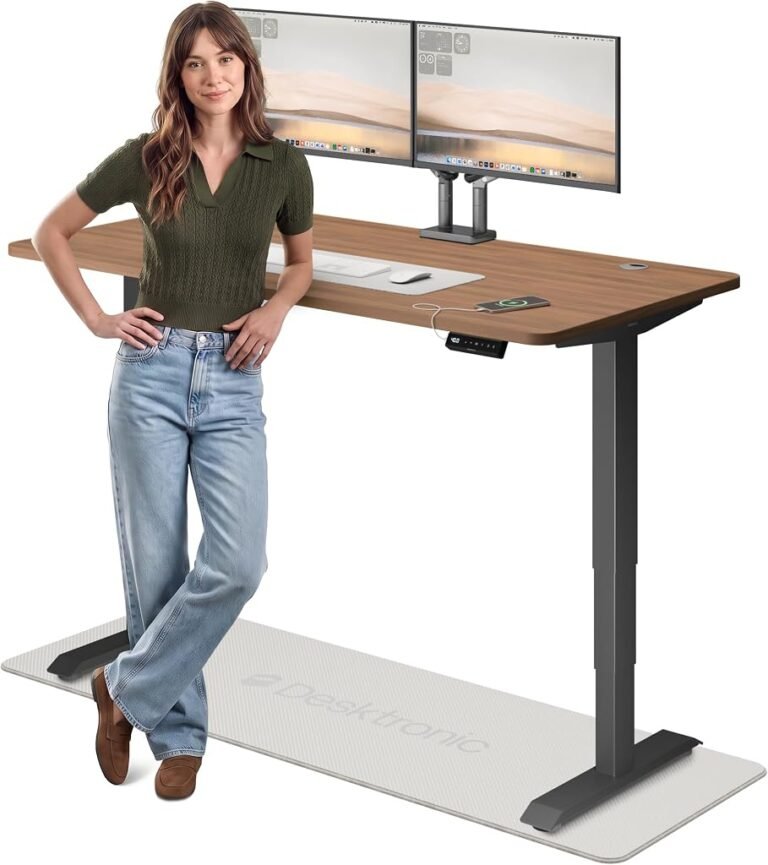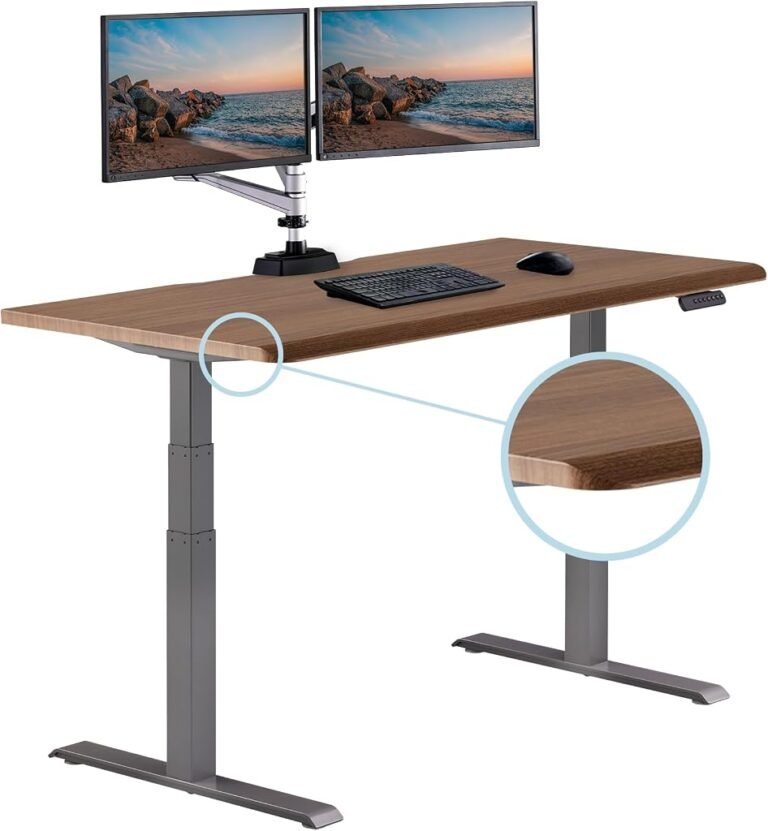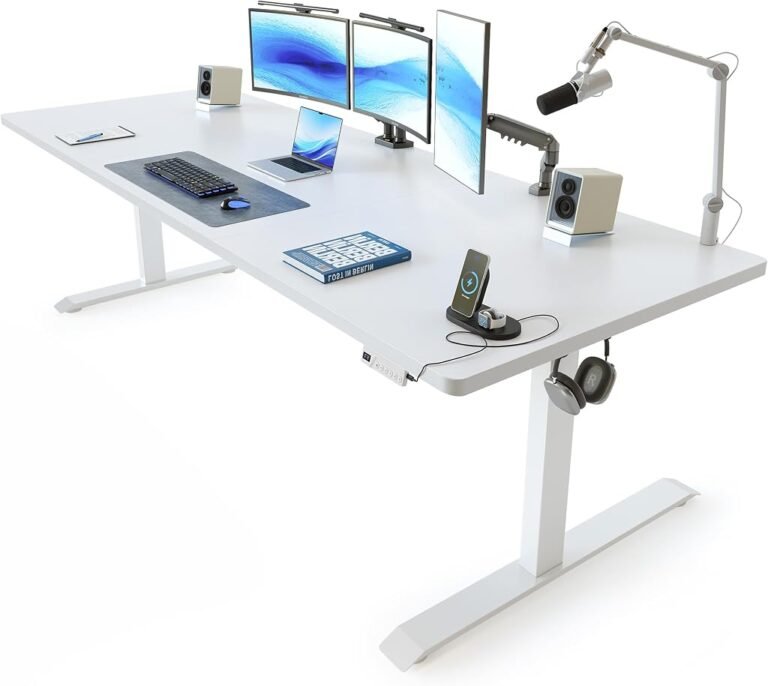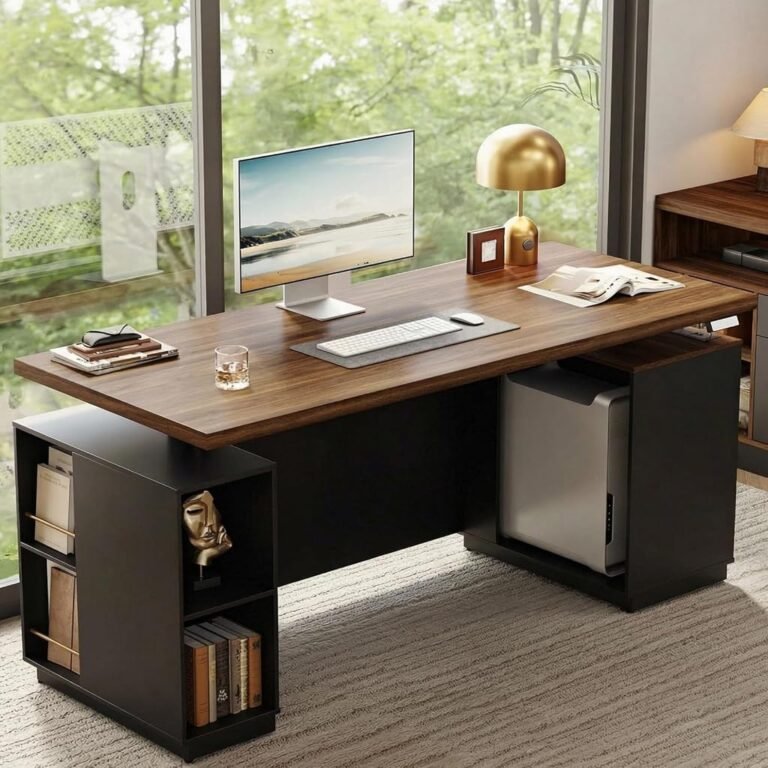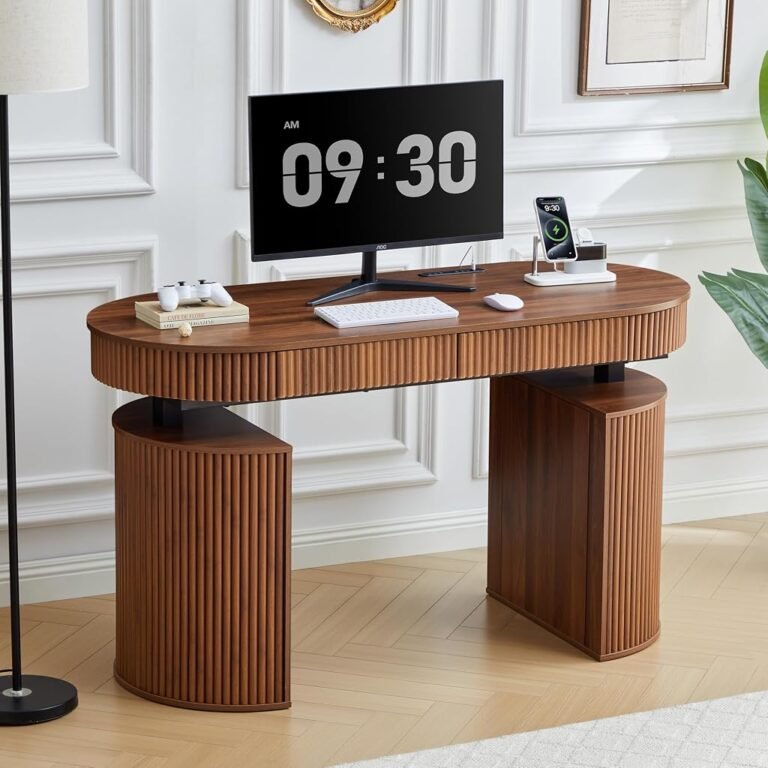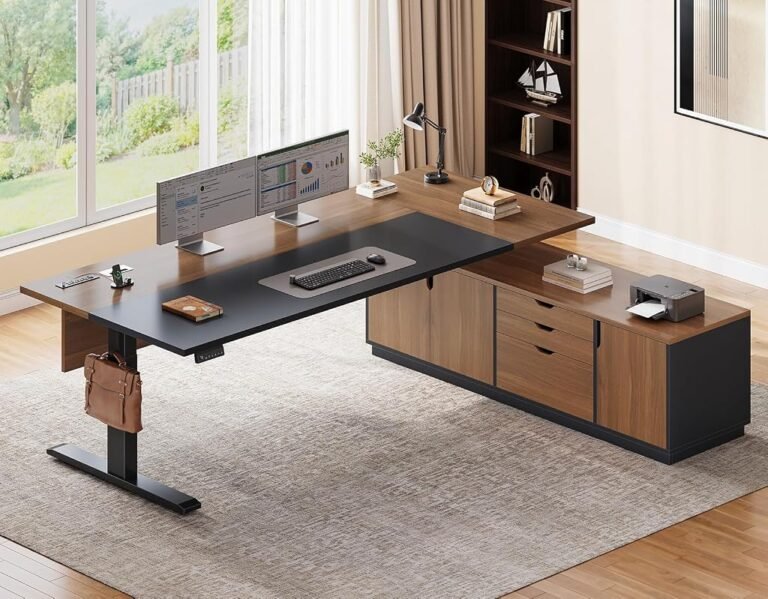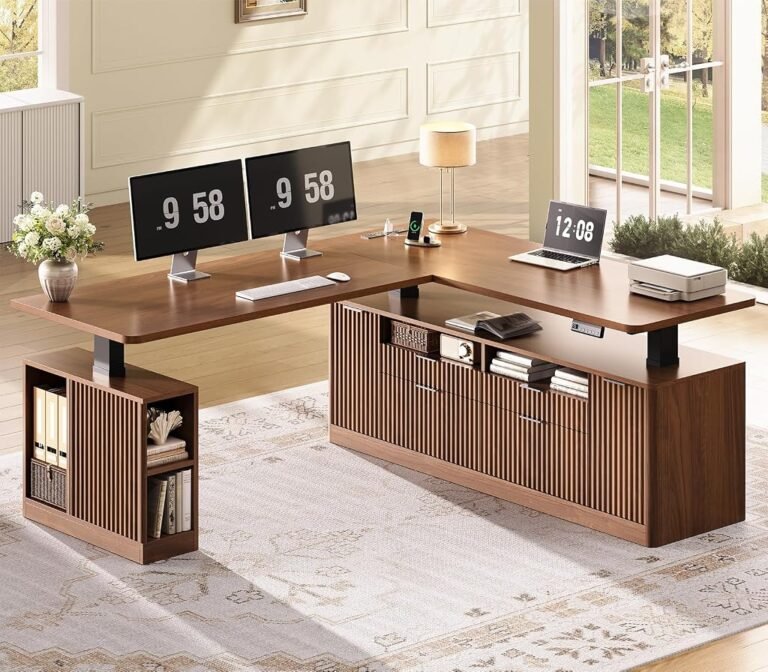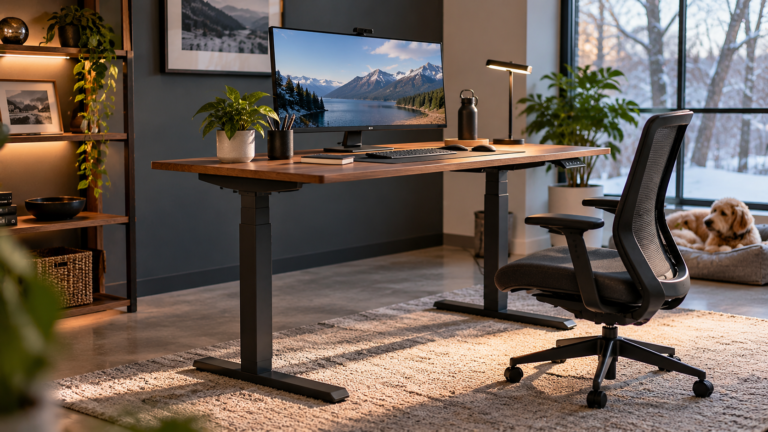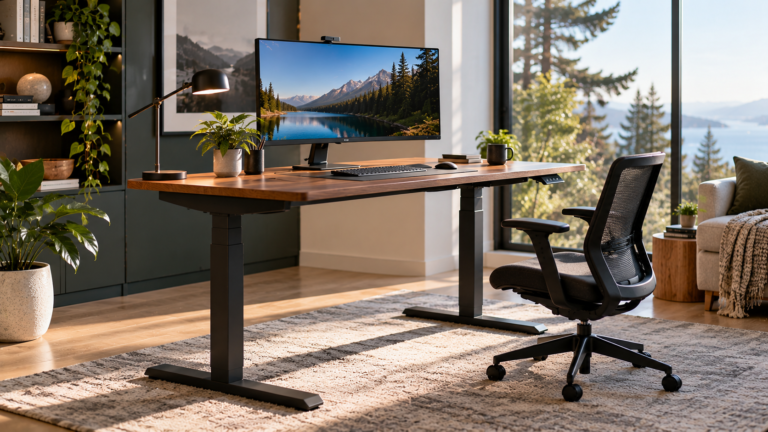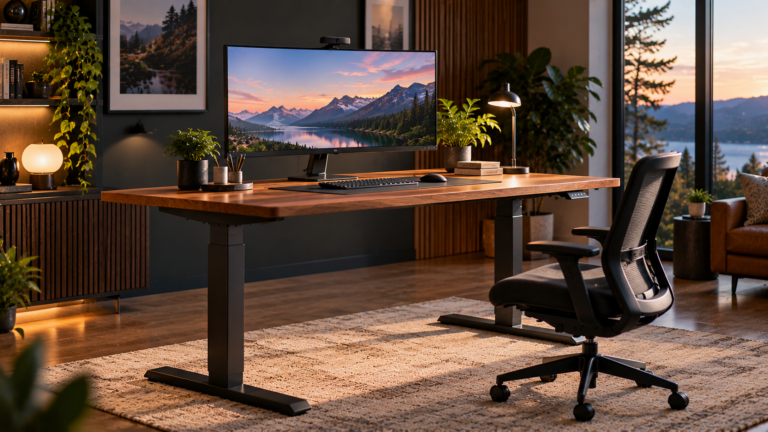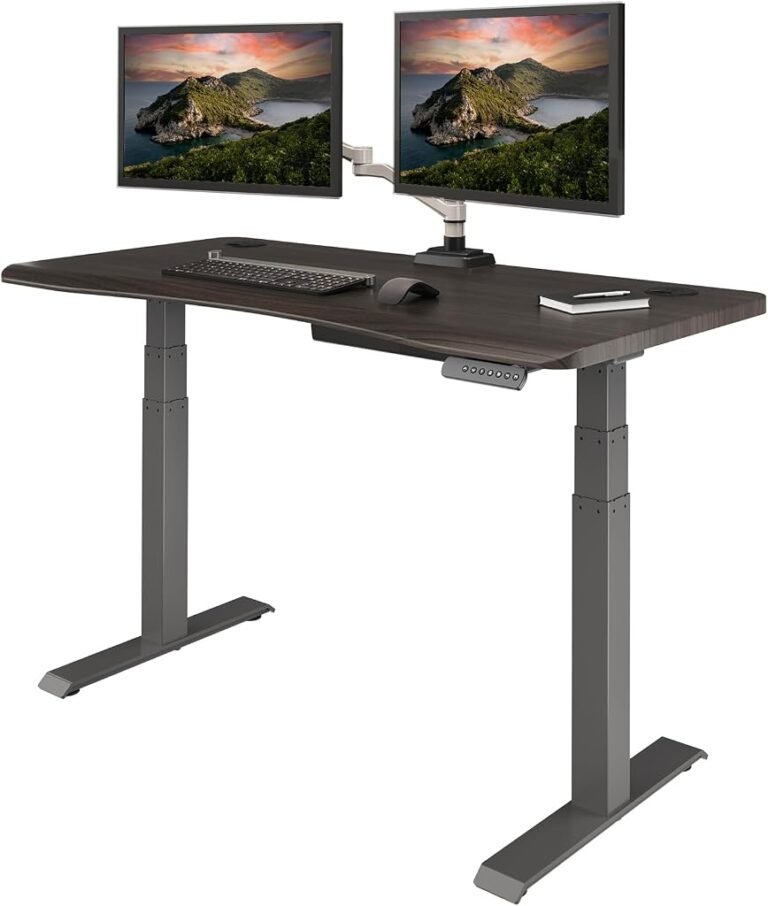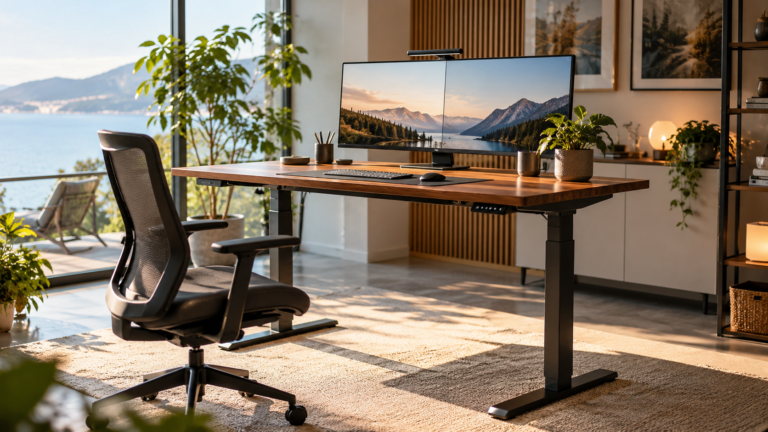
A standing desk can move through dozens of height settings, yet only a relatively narrow range may provide comfortable working conditions for a particular person. The difference between an ergonomic workstation and an uncomfortable one often comes down to a few centimeters.
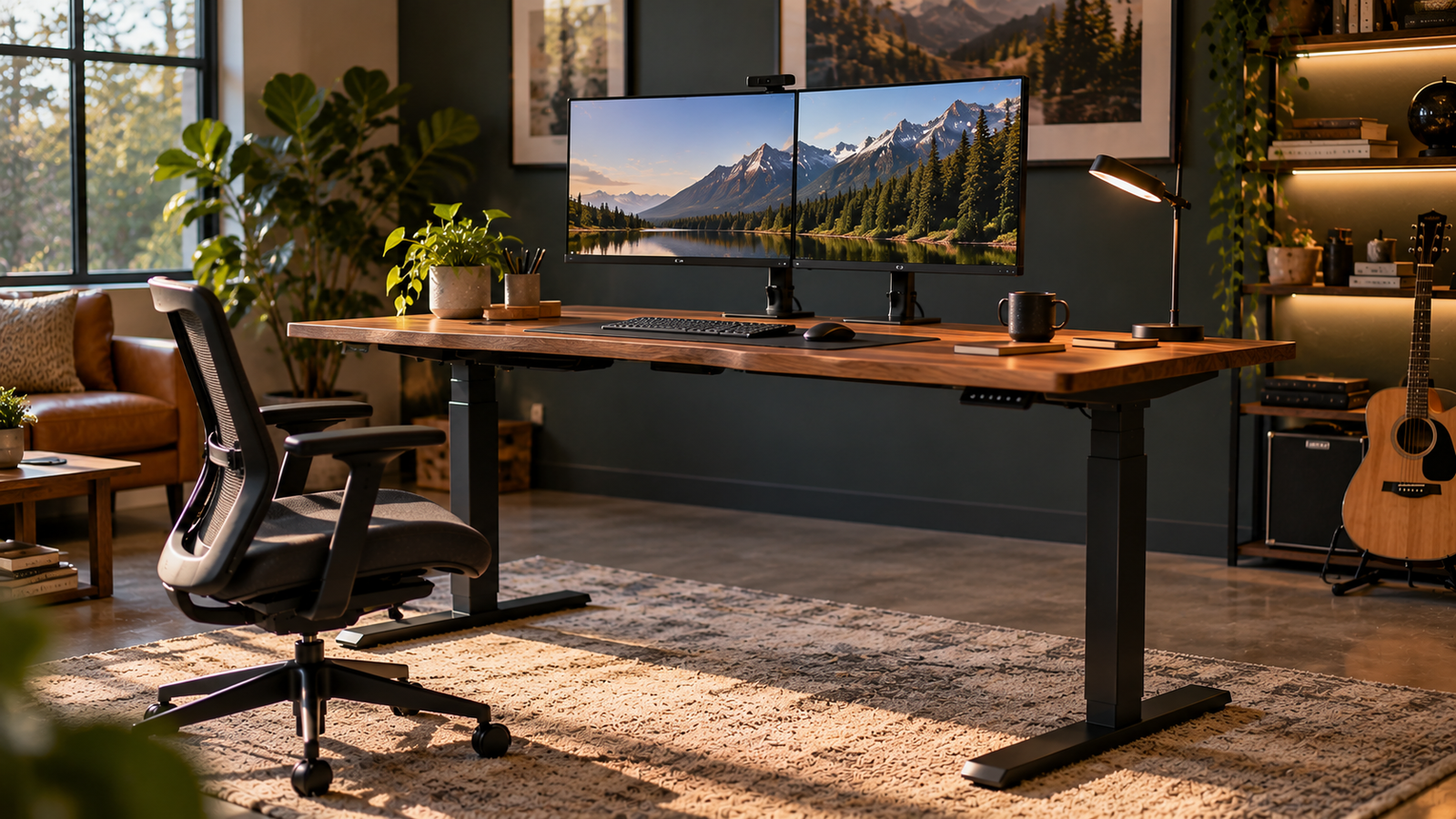
A desktop positioned too high can encourage raised shoulders and awkward wrist angles. Set too low, it can force the user to lean forward, bend the neck, or extend the arms unnecessarily. These problems can occur whether the worker is sitting or standing.
The challenge is that no single desk height works for everyone.
Two people of identical overall height may have different arm lengths, torso proportions, and seated elbow heights. Chair adjustments, footwear, keyboard thickness, and monitor placement introduce further variation.
Consequently, setting a standing desk correctly requires more than consulting a height chart.
It involves measuring the user’s working posture, adjusting the desktop to match elbow height, positioning the monitor independently, and checking whether the resulting arrangement remains comfortable during actual work.
The process is straightforward once the relationship between body position and workstation dimensions is understood.
Why Standing Desk Height Matters
Standing desks are designed to allow workers to alternate between seated and upright positions. However, changing posture does not automatically produce an ergonomically suitable workstation.
The desk must accommodate the body’s natural alignment in both positions.
According to the Occupational Safety and Health Administration’s guidance on neutral working postures, comfortable computer work generally involves relaxed shoulders, elbows close to the body, straight wrists, and a balanced head position.
OSHA identifies an elbow angle of approximately 90–120 degrees as compatible with neutral working posture.
These principles apply whether the worker is sitting or standing.
When the keyboard is positioned too high, the user may compensate by elevating the shoulders. When it is too low, the worker may bend the wrists, lower the shoulders excessively, or lean forward.
Neither arrangement is desirable for sustained computer work.
Correct desk height helps reduce the need for these compensations.
However, desk height is only one component of ergonomic positioning. Chair support, monitor location, keyboard design, and opportunities for movement also influence comfort.
Step 1: Measure the Correct Sitting Desk Height
The most reliable starting point is the user’s seated elbow height.
This measurement identifies where the keyboard should be positioned when the person is sitting comfortably.
Establish a Natural Sitting Position
Before adjusting the desk, the chair should be positioned correctly.
The worker should sit with the back supported, shoulders relaxed, and feet resting comfortably on the floor.
The thighs should be approximately horizontal, although slight variations are acceptable.
If the chair must be raised to achieve a suitable keyboard position, a footrest may be necessary.
The objective is to avoid sacrificing leg support to compensate for an unsuitable desktop height.
Find the Seated Elbow Position
With the shoulders relaxed, the upper arms should hang naturally beside the torso.
The elbows should bend comfortably, generally around a right angle or slightly more open.
The forearms should remain approximately parallel to the floor.
At this point, the distance from the floor to the underside of the forearms provides a useful reference for keyboard placement.
The desktop should then be adjusted so the hands can reach the keyboard without raising the shoulders or bending the wrists sharply.
Account for Keyboard Thickness
A common measurement error involves treating desktop height and keyboard height as identical.
They are not.
A keyboard resting on a desktop adds height above the working surface.
For example, consider a hypothetical seated elbow height of 27 inches.
If the keyboard’s effective typing surface is approximately 1 inch above the desktop, a desktop height near 26 inches may provide a suitable starting point.
The precise adjustment depends on keyboard design and hand position.
The objective is not to reproduce a predetermined number.
It is to align the hands, wrists, and forearms comfortably during typing.
Verify the Position While Typing
After setting the desk, the worker should type normally for several minutes.
The following observations help identify whether the height is suitable:
- Shoulders remain relaxed rather than elevated.
- Elbows stay reasonably close to the torso.
- Wrists remain approximately straight.
- Forearms do not require sustained upward reaching.
- The worker can reach the keyboard without leaning forward.
- The chair provides adequate back and leg support.
If the shoulders rise during typing, the keyboard may be too high.
If the wrists bend upward or the worker leans toward the desktop, the height or keyboard placement may require adjustment.
Small changes can make a meaningful difference.
Step 2: Set the Correct Standing Desk Height
Standing height should be measured independently from sitting height.
Simply raising the desk by a fixed number of inches does not account for differences in body proportions.
The correct standing position begins with the worker’s natural elbow height while upright.
Stand in a Comfortable Position
The worker should stand with the feet approximately hip-width apart and body weight distributed comfortably.
The knees should remain relaxed rather than rigidly locked.
The head should face forward, with the shoulders resting naturally.
There is no need to force an exaggerated upright posture.
The objective is a balanced position that can be maintained comfortably while working.
Position the Elbows
With the upper arms beside the torso, the elbows should bend to approximately 90 degrees or a slightly more open angle.
The forearms should extend forward without requiring the shoulders to rise.
The keyboard should be positioned near this natural working height.
Cornell University’s Ergonomic Workstation Advisor recommends positioning the keyboard approximately 1 inch below standing elbow height as a starting point.
This provides a useful practical reference.
However, the final position should be adjusted according to keyboard thickness, wrist alignment, and individual comfort.
Adjust the Desktop
The desk should be raised until the keyboard can be used without unnecessary shoulder elevation or forward bending.
A worker with a standing elbow height of 43 inches, for example, might begin with the effective keyboard surface near 42 inches.
If the keyboard adds approximately 1 inch above the desktop, the desktop itself might initially be positioned around 41 inches.
These measurements are illustrative.
Actual working height should be determined through direct measurement.
Check the Standing Posture
Once the desk is positioned, the worker should type and use the mouse normally.
The head should remain balanced above the torso.
The shoulders should not rise.
The elbows should remain close to the body, and the wrists should avoid pronounced upward or downward bending.
If the worker leans forward to reach the keyboard, moving the keyboard closer may be more effective than changing desk height.
This distinction matters because horizontal reach and vertical positioning are separate ergonomic variables.
Step 3: Position the Monitor Correctly
Correct keyboard height does not guarantee correct monitor positioning.
The monitor must be adjusted separately.
This is particularly relevant for standing desks because the relationship between eye height and elbow height varies between individuals.
A desktop positioned correctly for typing may leave a monitor too low or too high.
Set the Monitor’s Vertical Position
OSHA’s computer monitor ergonomics guidance recommends positioning the top of the screen at or slightly below eye level for typical users.
The monitor should be directly in front of the worker.
This arrangement helps reduce the need to tilt the head backward or rotate the neck.
For users wearing bifocal or progressive lenses, a lower screen position may be more comfortable.
Establish a Comfortable Viewing Distance
OSHA identifies a preferred monitor viewing distance of approximately 20–40 inches.
The appropriate position within that range depends on screen size, visual requirements, and text readability.
A large monitor may be comfortable farther away than a compact laptop display.
The worker should be able to read text without leaning forward.
If the screen must be moved unusually close, increasing text size may be preferable to adopting an uncomfortable posture.
Adjust the Monitor Independently
A monitor arm can be useful when the desk’s correct keyboard height places the screen at an unsuitable viewing position.
The arm allows the display to move vertically and horizontally without changing the keyboard height.
For laptop users, a separate keyboard and mouse can make this adjustment easier.
Raising a laptop screen to eye level while continuing to use its built-in keyboard may create an uncomfortable arm position.
Separating the display from the input devices resolves that conflict.
Step 4: Adjust the Keyboard and Mouse Together
The keyboard and mouse should function as a coordinated input area.
A correctly positioned keyboard provides limited benefit if the mouse requires excessive reaching.
The mouse should remain close to the keyboard and at approximately the same working height.
OSHA’s keyboard positioning recommendations emphasize relaxed shoulders, elbows close to the torso, and straight wrists.
The agency also recommends arranging input devices to avoid unnecessary reaching.
Avoid Excessive Keyboard Tilt
Many keyboards include rear feet that raise the back edge.
Although this arrangement may feel familiar, it can increase wrist extension for some users.
A flat or slightly negatively tilted keyboard may support a more neutral wrist position.
The correct choice depends on the keyboard design and the user’s posture.
Keep Frequently Used Equipment Within Reach
Items used repeatedly should be positioned close enough to access without leaning or twisting.
These may include:
- Keyboard and mouse
- Telephone or headset controls
- Frequently referenced documents
- Writing materials
- Docking station controls
- Other regularly used peripherals
Equipment used less frequently can be placed farther away.
This arrangement reduces repeated reaching movements throughout the working day.
Step 5: Understand Why Height Charts Are Only Starting Points
Standing desk height charts commonly associate a person’s overall height with suggested sitting and standing desk positions.
These charts can help estimate whether a desk’s adjustment range is likely to be suitable.
However, they cannot establish the ideal setting for every individual.
Two people measuring 5 feet 10 inches may have different standing elbow heights.
One may have relatively long legs and a shorter torso.
The other may have a longer torso and different arm proportions.
Their preferred keyboard heights may therefore differ.
Chair height introduces additional variation in the seated position.
Example Measurement Worksheet
The following table illustrates how desk settings can be calculated from individual measurements.
| Measurement | Example Value |
|---|---|
| Seated elbow height from floor | 27 inches |
| Standing elbow height from floor | 43 inches |
| Effective keyboard height above desktop | 1 inch |
| Initial seated desktop height | 26 inches |
| Initial standing keyboard height | 42 inches |
| Initial standing desktop height | 41 inches |
These figures describe a hypothetical individual rather than a recommended setting for someone of a particular height.
The calculations illustrate the relationship between elbow position, keyboard thickness, and desktop height.
They should be followed by adjustments based on actual working posture.
The measurement method is more reliable than choosing a desk height solely from a person’s overall stature.
Step 6: Save Sitting and Standing Height Presets
Many electric standing desks include programmable memory controls.
These allow users to save preferred working heights and return to them without repeatedly making manual adjustments.
Once suitable sitting and standing positions have been established, storing them can make posture changes more convenient.
Establish the Seated Preset
The seated position should be adjusted first.
The worker should confirm that the chair provides appropriate support and that the keyboard remains comfortable.
The resulting desktop height can then be saved.
Establish the Standing Preset
The desk should then be raised to the measured standing position.
After checking keyboard reach, wrist alignment, and monitor placement, the standing height can be saved.
Recheck Presets When Equipment Changes
Saved heights should not be treated as permanent if the workstation changes.
A thicker keyboard, different chair, new footwear, or altered monitor arrangement may require adjustments.
Shared desks also need individual settings.
A preset suitable for one worker may be uncomfortable for another.
For desks without memory controls, a small record of the preferred height measurements can provide similar convenience.
Step 7: Alternate Between Sitting and Standing
A standing desk is not intended to replace prolonged sitting with prolonged standing.
The purpose is to make changes in posture easier.
Remaining upright for extended periods can create its own physical demands.
A National Institute for Occupational Safety and Health review of prolonged standing identified associations between extended standing and problems including lower-back discomfort, physical fatigue, muscle pain, and leg swelling.
The review emphasized the benefits of allowing workers to change position and move during the working day.
This suggests that movement is more useful than treating standing as an inherently superior posture.
Begin With Manageable Standing Periods
Workers unfamiliar with standing desks may find short standing intervals more comfortable initially.
For example, a person might begin with 10–15 minutes of standing followed by a seated period.
This is an illustrative starting routine rather than a medically established requirement.
The duration can be adjusted according to comfort, job demands, and individual circumstances.
Incorporate Walking Breaks
Standing in one place does not provide the same movement as walking.
Brief walking breaks can interrupt static postures and provide opportunities to move the legs and joints.
The CDC’s guidance on office environments emphasizes avoiding prolonged sitting or standing and notes that short breaks can help reduce discomfort during computer work.
A practical workday therefore includes seated tasks, standing tasks, and opportunities to walk.
Respond to Discomfort
Persistent discomfort should not be treated as evidence that a person simply needs to stand longer.
It may indicate unsuitable desk height, footwear, monitor positioning, or excessive time in one posture.
Reducing standing duration and reassessing the workstation may be appropriate.
Persistent pain, numbness, or other concerning symptoms warrant evaluation by a qualified healthcare professional.
Step 8: Account for Footwear and Floor Conditions
Standing desk height can change subtly with footwear.
Shoes with thick soles raise the body relative to the floor.
This changes standing elbow height and may require a corresponding desk adjustment.
A worker alternating between flat shoes and footwear with thicker soles may notice a difference in the preferred desktop setting.
Consider Floor Comfort
Hard flooring can contribute to discomfort during extended standing periods.
Supportive footwear or a suitable anti-fatigue mat may improve comfort for some workers.
However, a mat also changes the height of the standing surface.
If a mat is approximately 0.75 inches thick, the worker’s standing elbow height relative to the surrounding floor may increase by a similar amount, depending on how much the mat compresses.
The desk may therefore require readjustment.
Avoid Treating Accessories as Substitutes for Movement
A mat can make standing more comfortable, but it does not eliminate the need to change posture.
Likewise, supportive footwear does not make prolonged static standing desirable.
The objective remains comfortable movement between working positions.
Step 9: Correct Common Standing Desk Height Mistakes
Several recurring errors can undermine an otherwise capable workstation.
Setting the Desk According to Monitor Height
A common mistake is raising the desktop until the monitor reaches eye level.
This may position the keyboard too high.
The correct sequence is to establish keyboard height first and then adjust the monitor independently.
Raising the Chair to Match an Excessively High Desk
A chair can sometimes compensate for a desktop that will not lower sufficiently.
However, raising the chair may leave the feet unsupported.
A stable footrest can help, but a desk with a lower minimum height may provide a more suitable arrangement.
Standing With Raised Shoulders
If the shoulders rise while typing, the keyboard may be too high.
Lowering the desktop slightly can reduce unnecessary shoulder elevation.
Leaning Forward While Standing
Forward leaning may result from a low keyboard, distant input devices, or a monitor positioned too far away.
The source of the problem should be identified before changing the desk height.
Ignoring Wrist Position
A desk may appear correctly positioned while still encouraging wrist extension.
Keyboard thickness, tilt, and distance can all affect wrist alignment.
Using One Setting for Multiple People
Shared workstations require individual adjustment.
Even workers of similar height may have different seated and standing elbow measurements.
Failing to Reassess the Setup
Changes in chairs, keyboards, monitors, footwear, or desk accessories can alter the preferred working position.
Periodic reassessment helps maintain a suitable arrangement.
Step 10: Evaluate Desk Height Range Before Buying
Correct adjustment begins with selecting a desk capable of reaching the necessary heights.
This is one of the most useful considerations in a standing desk buying guide.
A desk with impressive lifting capacity and numerous electronic features may still be unsuitable if its minimum or maximum height does not match the user.
Check the Minimum Height
Shorter users should pay particular attention to the lowest available desktop position.
If the desk cannot lower to the required seated keyboard height, the user may need a keyboard tray, chair adjustment, or footrest.
These solutions can work, but they introduce additional considerations.
Check the Maximum Height
Taller users should verify that the desk reaches their standing elbow height.
A desk that stops too low may encourage forward bending or an uncomfortable keyboard position.
Include Desktop Thickness
Manufacturers do not always describe height ranges in the same way.
Some measurements refer to the frame without a desktop.
Others describe the height of the complete working surface.
For example, a frame with a minimum height of 23 inches and a 1-inch desktop would produce a working surface approximately 24 inches above the floor.
That difference can matter considerably for shorter users.
Consider Keyboard Trays
An adjustable keyboard tray can position input devices below the main desktop.
This may help users whose desks cannot lower sufficiently.
However, the tray must provide adequate space for both the keyboard and mouse.
It should also maintain sufficient clearance for the legs.
Examine Stability at the Required Standing Height
A desk may feel stable near its lowest position but exhibit more movement when fully extended.
Buyers should assess stability at the height they expect to use regularly.
This is particularly relevant for large monitors mounted on extended arms.
A Practical Ergonomic Setup Checklist
After completing the adjustments, the workstation can be evaluated using a short checklist.
| Workstation Element | Sitting Position | Standing Position |
|---|---|---|
| Shoulders | Relaxed | Relaxed |
| Elbows | Close to torso | Close to torso |
| Forearms | Approximately parallel to floor | Approximately parallel to floor |
| Wrists | Straight and neutral | Straight and neutral |
| Keyboard | Near seated elbow height | Near standing elbow height |
| Monitor | Top at or slightly below eye level | Top at or slightly below eye level |
| Head | Balanced above torso | Balanced above torso |
| Back | Supported by chair | Upright without forced rigidity |
| Feet | Supported by floor or footrest | Comfortably supported by floor |
| Movement | Regular posture changes | Regular posture changes |
This checklist reflects the central principles in OSHA’s computer workstation evaluation guidance.
It provides a practical method for identifying obvious positioning problems.
However, ergonomic suitability should also be judged through actual use.
A workstation that appears correctly arranged but produces recurring discomfort may require further adjustment.
How to Fine-Tune Desk Height Over Several Days
Initial measurements provide a starting position.
The most comfortable arrangement may emerge through small adjustments over several working days.
A simple process can make these changes systematic.
Day One: Establish Baseline Measurements
Measure seated and standing elbow heights.
Set the desk accordingly.
Position the keyboard and monitor, then record the resulting measurements.
Day Two: Evaluate Sitting Comfort
Pay attention to shoulder tension, wrist position, and whether the chair provides adequate support.
If discomfort develops, determine whether the cause is desk height, keyboard position, or seating.
Change one variable at a time.
Day Three: Evaluate Standing Comfort
Observe whether the shoulders remain relaxed and the keyboard can be reached without leaning.
Check whether the monitor remains comfortable to view.
Adjust the desk in small increments when necessary.
Day Four: Assess Movement Patterns
Consider how frequently posture changes occur.
If the desk remains in one position throughout the day, the adjustment routine may be inconvenient or poorly integrated into the work schedule.
Memory presets can help reduce that friction.
Day Five: Confirm the Working Setup
Review the preferred heights and update saved settings.
The final arrangement should allow comfortable keyboard use, suitable monitor positioning, and convenient changes between sitting and standing.
This five-day sequence is a practical self-assessment method, not a clinical protocol.
Its purpose is to replace guesswork with observation and measured adjustment.
Final Considerations
Setting a standing desk correctly requires attention to the relationship between the user’s body and the workstation.
The central measurement is elbow height.
When seated, the keyboard should remain near the natural working position of the forearms while the chair supports the back and feet.
When standing, the desktop should allow relaxed shoulders, comfortable elbow angles, and neutral wrist positioning.
Monitor height should be adjusted separately.
A correctly positioned keyboard does not automatically place the screen at a suitable viewing height.
Likewise, a desk that reaches the required standing position may still be unsuitable if it cannot lower sufficiently for seated work.
These distinctions explain why universal height charts provide only approximate guidance.
Individual measurements are more reliable.
The broader ergonomic objective is also straightforward: a standing desk should support movement rather than encourage prolonged static postures.
Research and occupational health guidance consistently emphasize the importance of comfortable workstation arrangements and opportunities to change position.
For most users, the practical process involves measuring elbow height, adjusting the keyboard, positioning the monitor, saving preferred settings, and reassessing comfort during ordinary work.
A few centimeters can influence whether the shoulders remain relaxed or the wrists bend unnecessarily.
Yet the most effective setup is not defined by a single perfect number.
It is one that accommodates the user’s body, supports the tasks being performed, and makes regular movement convenient.
The desk should adapt to the worker—not require the worker to adapt to the desk.