Cable management on a height-adjustable standing desk has one complication that ordinary desk organization does not: the workstation moves.
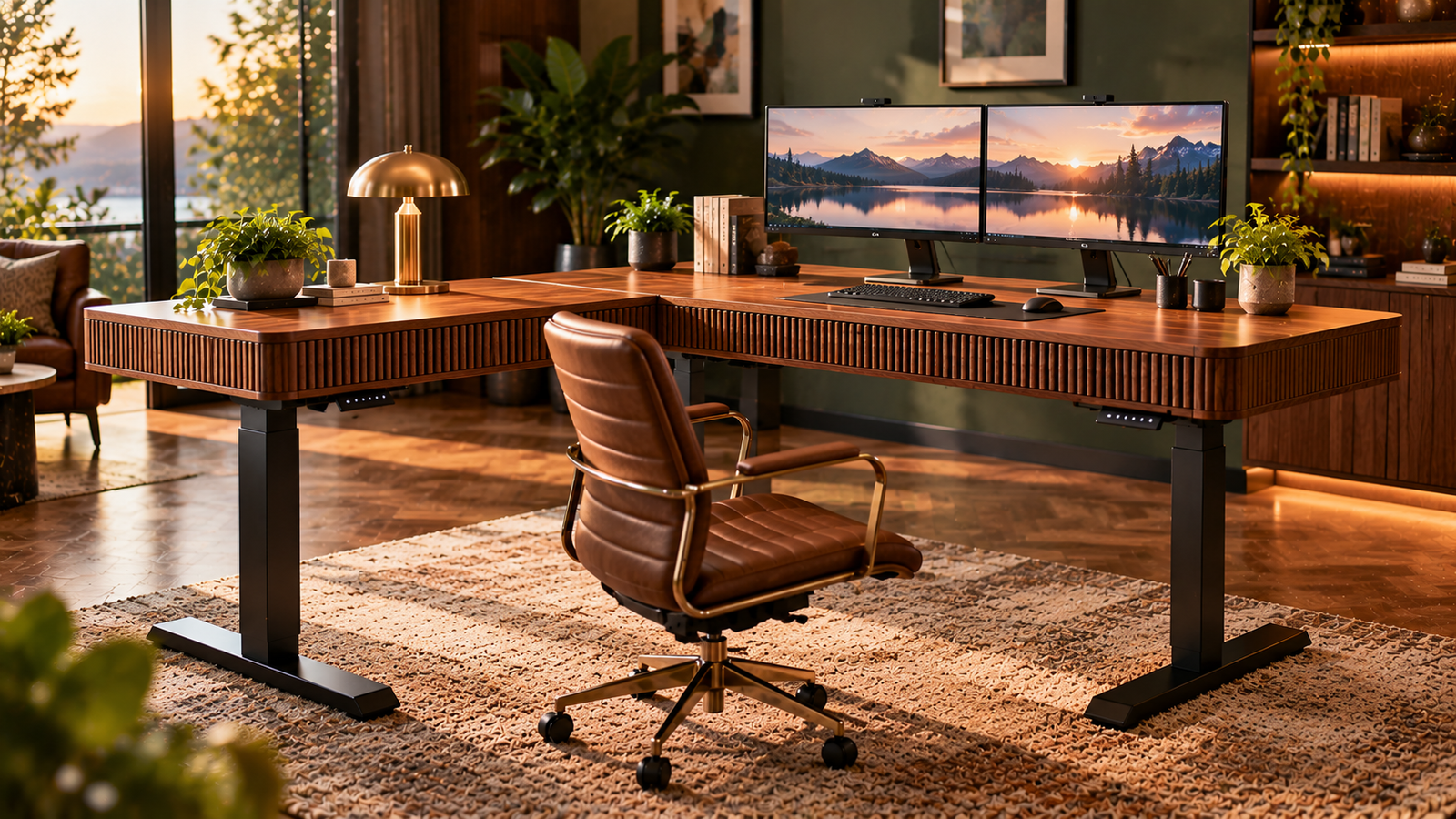
Every time the desktop rises, power cords, monitor cables, USB connections, charging leads, and network cables travel with it—or remain connected to something that does not. A cable arrangement that looks immaculate at seated height can become taut several seconds later. A bundle with generous slack can create the opposite problem, hanging into leg space or approaching moving frame components.
The objective is therefore not to hide every wire. Good standing-desk cable management creates controlled movement.
That requires planning the workstation as a connected system. Power sources, monitors, computers, peripherals, desk controls, and accessories all need predictable cable paths with enough movement available for the desk’s full adjustment range.
The process is easier when completed in the correct order.
Step 1: Map Every Cable Before Attaching Anything
The first stage should happen before cable trays, clips, ties, or sleeves are installed.
List every powered or connected device on the desk. A typical workstation may include:
- One or more monitors
- A desktop computer or laptop
- A docking station
- Keyboard and mouse connections
- Speakers
- Webcam
- Microphone
- Phone charger
- Headset charger
- Desk lamp
- Ethernet connection
- Monitor power supplies
- USB hubs
- The standing desk’s own electrical connections
Then identify where each cable starts and ends.
This distinction is more useful than sorting wires by appearance. A monitor cable connecting two objects that both move with the desktop behaves differently from a power cable running from the moving desktop to a wall outlet.
The first cable needs organization. The second needs organization plus movement allowance.
That difference governs almost everything that follows.
Step 2: Separate Moving and Stationary Connections
Standing-desk cables can be divided into two broad groups.
The first group connects equipment located entirely on the moving portion of the workstation. A DisplayPort cable between a monitor and a laptop dock mounted beneath the desktop is one example. Because both endpoints rise and fall together, the cable does not need to accommodate the desk’s full vertical travel.
The second group crosses between the moving desk and a stationary point.
The desk’s power cable is the obvious example. Ethernet cables connected to a wall socket can present the same issue. A desktop computer sitting on the floor while its monitors rise with the desk creates several more moving connections.
These crossing cables deserve the greatest attention.
A useful design objective is to minimize how many connections cross between the moving and stationary parts of the workstation.
Mounting a compatible power strip beneath the desktop, for example, can allow several devices on the desk to connect locally. The result can be one principal power connection traveling from the moving workstation toward the fixed outlet rather than several separate power cords descending independently.
Electrical equipment should always be installed and used according to its manufacturer’s instructions.
Step 3: Establish the Desk’s Full Movement Range
Cable management should never be finalized with the desk at only one height.
Move the desk to its lowest intended position and inspect the distance between the desktop, wall outlets, computer equipment, and other fixed connection points.
Then raise it to its highest intended position.
Do this before permanently fastening the cables.
The difference between these two positions determines how much movement the wiring must accommodate.
This simple test exposes one of the most common standing-desk mistakes: measuring cable reach while seated and assuming that reach will remain sufficient after the desk rises.
It may not.
The opposite error also occurs. Excessive cable length can create loops near the floor when the desk descends. Those loops can enter foot space, catch on furniture, or simply turn an otherwise organized installation into a tangle.
The goal is controlled slack rather than maximum slack.
Step 4: Decide Where the Main Power Distribution Will Live
Power distribution strongly influences the rest of the cable layout.
If multiple devices sit on the desktop, allowing every individual power cord to run separately toward the wall usually creates unnecessary complexity.
A compatible power strip secured appropriately beneath the desktop can centralize those connections. Monitors, chargers, speakers, and other devices can connect near the equipment, leaving fewer cables to travel toward the building’s electrical outlet.
Placement matters.
The strip should remain accessible enough that plugs can be removed without dismantling the workstation. It should also stay clear of frame components, lifting mechanisms, and areas where knees or legs could contact it.
Power strips should not be treated as improvised extension systems. Electrical load limits, manufacturer requirements, and local electrical-safety rules still apply.
The objective is organization, not increasing the amount of power available from a circuit.
Step 5: Build a Horizontal Cable Route Beneath the Desktop
Once power distribution has a location, create a horizontal route beneath the desk.
This is where cable trays can be particularly useful.
A tray can hold power adapters, excess cable, and wiring that would otherwise hang below the work surface. It can also keep the desktop itself clear.
The placement should account for ergonomics.
The Occupational Safety and Health Administration’s computer workstation guidance emphasizes adequate clearance under the work surface. A large tray positioned directly where the user’s knees need to go can solve a wiring problem by creating a physical one.
The better location is generally toward the rear of the desktop, provided that the desk frame and other hardware permit it.
Cable trays should also remain accessible. A system that requires removing the entire tray whenever a monitor is replaced will become irritating very quickly.
Step 6: Route Cables by Destination
After establishing a horizontal pathway, group cables according to where they go.
Monitor cables can travel together toward the computer or dock. Charging cables can follow another route. The principal power connection can be separated from signal cables where practical.
The purpose is not to create visually perfect bundles.
It is to make the system understandable.
When a monitor stops receiving a signal six months later, identifying its cable should not require dismantling an anonymous bundle of twelve nearly identical black wires.
Simple labels at one or both ends can save substantial time.
Reusable hook-and-loop ties are often preferable to permanently tightening every bundle. Workstations change. Monitors are replaced. Laptops gain different ports. Chargers disappear.
Cable management should allow revision.
Step 7: Create a Controlled Vertical Drop
Eventually, at least one cable usually has to leave the moving desk and reach a stationary location.
This vertical section is where standing-desk cable management differs most clearly from fixed-desk organization.
The cable needs enough freedom to follow the desktop upward without becoming taut.
At the same time, it should not form uncontrolled loops when the desk descends.
A cable sleeve or articulated cable-management spine can keep several compatible wires together along this route. The exact solution matters less than the movement principle: the bundle must bend and extend predictably.
The attachment points should not force cables into sharp bends.
Connections should also remain away from moving frame components.
Before securing the final arrangement, raise and lower the desk while watching the entire vertical route.
If a cable pulls against its connector, the layout needs more movement allowance.
If the bundle collapses into the user’s foot area at minimum height, its path needs better control.
Step 8: Give Monitor Cables Special Attention
Displays create several cable-management problems at once.
A monitor can require power, video, USB, and sometimes additional peripheral connections. Multiple monitors multiply those requirements.
Monitor arms can change the geometry further.
The OSHA guidance for monitor placement recommends positioning monitors so users can maintain comfortable viewing and head positions. Cable management should support that arrangement rather than dictate it.
A cable should never be so tightly managed that repositioning a display pulls against a connector.
Leave enough local slack near each monitor for ordinary adjustment.
With monitor arms, route cables according to the arm manufacturer’s instructions and verify that the wires can accommodate every intended arm position.
The desk’s vertical movement and the monitor arm’s movement are separate variables. Both need allowance.
Step 9: Consider Where the Computer Lives
Computer placement can simplify or complicate the entire installation.
A laptop or small computer located on the moving desktop naturally travels with the monitors and peripherals. Many connecting cables therefore remain within the moving system.
A desktop tower sitting on the floor behaves differently.
Its video, USB, audio, and other connections may have to bridge the changing distance between the stationary computer and moving desktop.
Long enough cables may solve the reach problem, but they still require controlled routing.
A compatible under-desk computer mount can keep some systems moving with the desktop, although weight limits, ventilation, mounting compatibility, and computer dimensions need to be checked carefully.
No single placement is universally correct.
The better arrangement is the one that minimizes strained connections while preserving ventilation, access, and safe equipment support.
Step 10: Keep Cables Away From Moving Hardware
Standing desks contain moving mechanical components.
Wires should not cross locations where frame parts travel, telescope, pivot, or create pinch points.
This rule applies even to cables that appear loose enough to move harmlessly.
A desk is adjusted repeatedly over its working life. A wire rubbing against a moving component may experience wear long before the problem becomes visible from above.
Inspect the underside of the workstation while changing height.
Watch the cables rather than the desktop.
Any wire that shifts toward a joint, column, motor housing, or moving frame component should be rerouted.
Cable ties should attach only to suitable stationary points on the moving desk assembly, not to components whose movement could tighten or crush the bundle.
Step 11: Avoid Overtightening Cable Bundles
Neatness can become counterproductive.
Pulling cable ties extremely tight can place unnecessary pressure on wires and make future changes difficult.
Signal and charging cables rarely need to be compressed into a rigid bundle.
The objective is restraint, not compression.
Reusable ties should hold wires together while allowing individual cables to move slightly and be removed without cutting the entire system apart.
This also makes troubleshooting easier.
A workstation is rarely static for years. New displays, chargers, docking stations, cameras, and computers eventually change the cable layout.
A modular arrangement handles those changes better than one built as a permanent installation.
Step 12: Test the Desk Under Real Working Conditions
The final test should involve more than raising the desk once.
Connect every device.
Place the chair in its normal position. Install monitors at their working locations. Put the computer where it will remain. Connect chargers and peripherals.
Then cycle the desk through its usable height range several times.
Watch for:
- Cables becoming taut
- Plugs shifting inside sockets
- Bundles contacting the frame
- Wires dragging across the floor
- Cable sleeves entering leg space
- Power adapters moving inside trays
- Monitor cables pulling during display adjustment
- Connections catching on furniture
- Excess loops appearing at low height
Correct these problems before considering the installation finished.
The test should also be repeated after adding significant new equipment.
Step 13: Make Cable Management Part of Desk Selection
Cable organization is easier when considered before the desk is purchased.
A useful standing desk buying guide should therefore look beyond motors, desktop dimensions, and adjustment controls.
Buyers should inspect the underside of the workstation.
Questions worth asking include:
- Is there space for a cable tray?
- Where is the frame located relative to the desktop edges?
- Can a power strip be mounted without reducing knee clearance?
- Are monitor-arm clamps compatible with the rear edge?
- Does the desk include or support a vertical cable-management route?
- Will a desktop computer remain on the floor or move with the desk?
- Are power outlets located close enough for the intended installation?
These details rarely receive the attention given to desktop finishes, yet they affect daily usability after the desk is installed.
Final Considerations
Organizing cables on a height-adjustable standing desk is fundamentally an exercise in managing movement.
The cleanest-looking installation is not necessarily the best one. A perfectly hidden cable that becomes taut at standing height is poorly managed. A visible wire with controlled slack and a safe path may be functionally superior.
The process should begin by mapping every connection, separating moving and stationary endpoints, and testing the desk at both extremes of its intended height range.
From there, power distribution can be centralized, horizontal wiring can be contained beneath the desktop, and the remaining vertical connections can be given controlled movement.
Monitor cables deserve additional slack for display adjustment. Floor-mounted computers require careful planning because their connections bridge stationary and moving equipment. Every cable should remain clear of mechanical components and pinch points.
The final installation should also remain editable.
Office technology changes faster than furniture. A cable-management system built around reusable ties, accessible trays, understandable routes, and sensible labels can accommodate those changes without requiring a complete rebuild.
A standing desk moves by design. Its cables should be organized with that movement in mind.