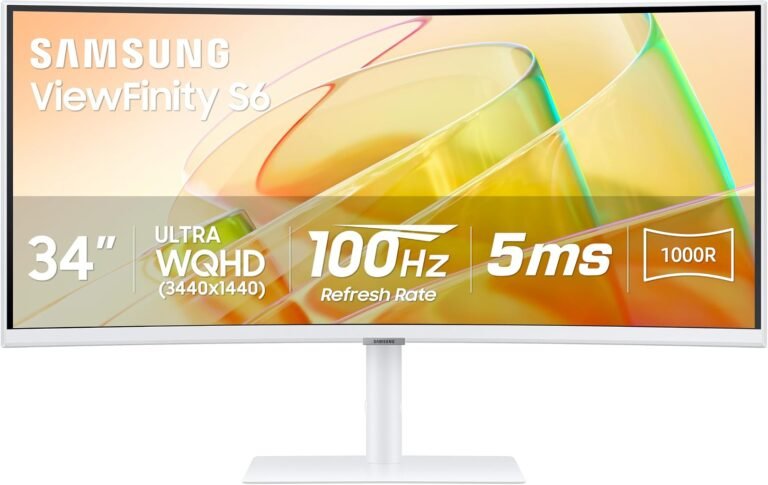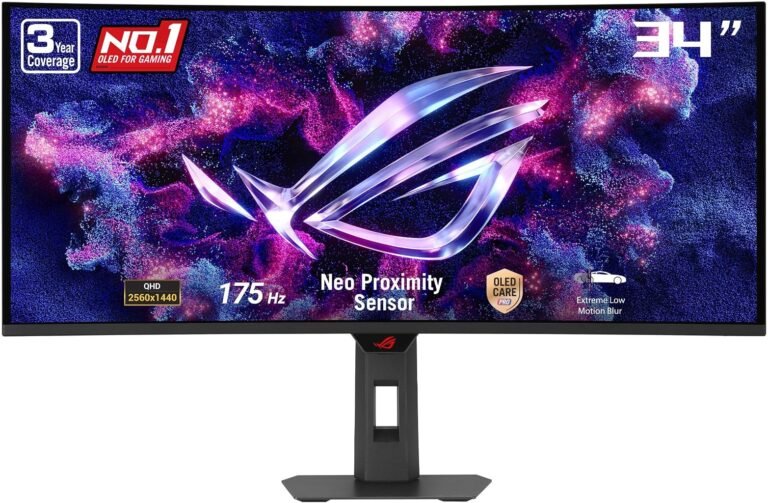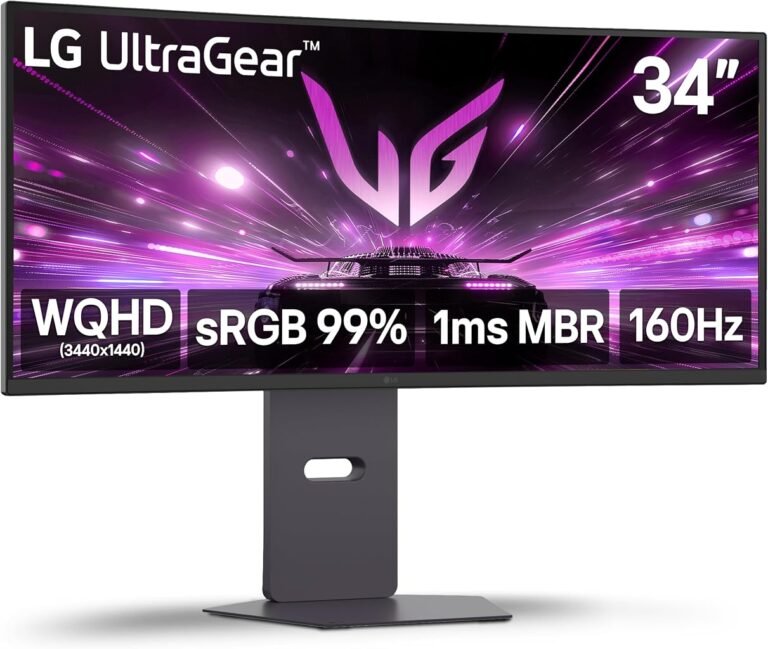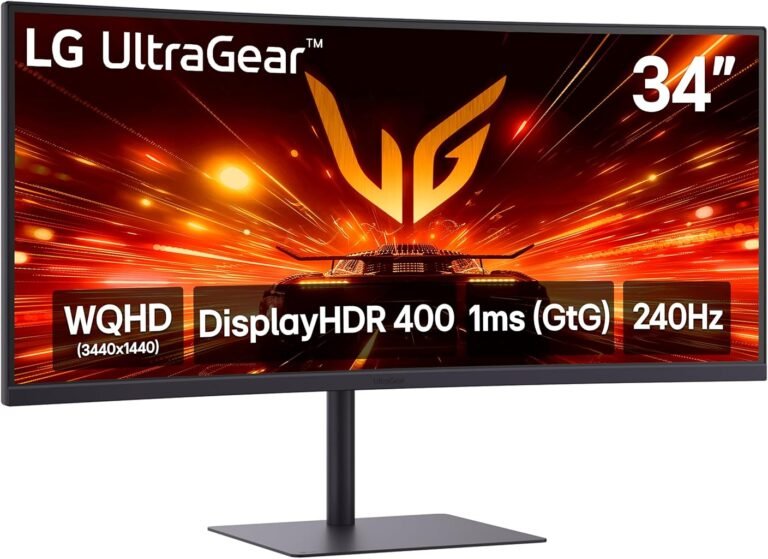
An ultrawide gaming monitor can produce a remarkably fluid view of a game while simultaneously placing unusual demands on the computer driving it. The extra horizontal resolution that creates a wider field of view also increases the number of pixels the GPU must render. A high refresh rate raises the performance target again. Variable refresh rate, frame-rate limits, pixel response, synchronization settings and display bandwidth then determine whether those frames reach the screen cleanly.
Smooth gameplay is consequently not created by a single setting.
A 3440 × 1440 monitor contains 4,953,600 pixels per frame, about 34.4 percent more than the 3,686,400 pixels of conventional 2560 × 1440. A 5120 × 1440 super-ultrawide contains 7,372,800 pixels, exactly twice the pixel count of 2560 × 1440 and about 88.9 percent of a 3840 × 2160 4K frame.
Those numbers explain why a game that runs comfortably at high frame rates on a standard 1440p display can behave differently after moving to ultrawide.
The objective is not to force the frame counter toward the largest possible number. It is to establish a stable rendering pipeline in which the GPU, monitor and synchronization system cooperate rather than fight one another.
Step 1: Confirm the Monitor Is Running at Native Resolution
Configuration should begin outside the game.
A 3440 × 1440 ultrawide should normally be configured at 3440 × 1440 in the operating system. A 5120 × 1440 model should likewise use its native resolution unless a deliberate performance compromise is being made.
Native resolution allows each rendered output pixel to correspond correctly with the display’s physical pixel structure.
Lower resolutions can increase performance, but conventional non-native scaling can soften the image. Modern game-side upscaling is generally a more sophisticated approach because technologies such as DLSS, FSR and XeSS can render internally at a lower resolution while reconstructing an image for the panel’s native output resolution.
Before adjusting anything else, verify that the desktop and game both identify the monitor correctly.
A game unexpectedly running at 2560 × 1440 on a 3440 × 1440 panel may show side bars, stretch the image or use a display mode different from the intended 21:9 presentation.
Native resolution establishes the baseline against which every later performance decision should be judged.
Step 2: Set the Monitor to Its Maximum Intended Refresh Rate
A high-refresh monitor does not necessarily start at its highest refresh rate.
Operating systems, graphics drivers, cables and monitor settings can leave a 144Hz, 165Hz, 175Hz or 240Hz display operating at 60Hz. The monitor remains functional, which makes the mistake easy to miss.
Refresh interval reveals how significant that difference can be:
- 60Hz: 16.67 milliseconds between refresh opportunities
- 100Hz: 10 milliseconds
- 144Hz: approximately 6.94 milliseconds
- 160Hz: 6.25 milliseconds
- 165Hz: approximately 6.06 milliseconds
- 175Hz: approximately 5.71 milliseconds
- 240Hz: approximately 4.17 milliseconds
A monitor running at 60Hz cannot display 165 unique complete refreshes each second merely because a game is rendering 165 frames per second.
The refresh rate should therefore be verified in Windows or the relevant operating-system display controls before launching a game.
The monitor’s own information screen can provide an additional check. Some displays report the incoming resolution and refresh rate directly through their on-screen menus.
Step 3: Check the Connection Before Blaming the GPU
A missing refresh-rate option is not always a graphics-performance problem.
DisplayPort, HDMI and USB-C connections have finite bandwidth. Resolution, refresh rate, color depth and chroma information all contribute to the amount of data that must cross the connection.
High-resolution ultrawides can push those requirements considerably higher.
Display Stream Compression can extend the modes available through suitable interfaces. VESA describes DSC as a low-latency, visually lossless display compression system that allows demanding display signals to operate within available link bandwidth.
This means compression appearing in a monitor’s signal path should not automatically be interpreted as an image-quality defect.
If a high-refresh mode is absent, the diagnostic sequence should examine:
- The GPU’s output capabilities
- The monitor input being used
- The DisplayPort or HDMI mode supported by that input
- The cable specification
- Color depth
- Whether DSC is supported and active where required
- Whether the monitor has an on-screen setting that enables its highest refresh mode
Only after the signal path is correct does it make sense to investigate rendering performance.
Step 4: Enable Variable Refresh Rate
Variable refresh rate, or VRR, is one of the most consequential settings for smooth gaming.
Without synchronization, the GPU and monitor can operate on independent schedules. The graphics processor may finish a new frame while the monitor is partway through displaying another one. The resulting image can contain portions of different frames, producing screen tearing.
VRR changes the relationship.
Instead of refreshing at a rigid interval regardless of GPU output, the monitor varies its refresh timing within a supported range to follow frame delivery.
AMD explains that FreeSync synchronizes display refresh with graphics output to provide tear-free gaming and smooth video playback. NVIDIA’s G-SYNC ecosystem addresses the same underlying synchronization problem.
VRR may need enabling in two places: the monitor’s on-screen menu and the graphics-driver software.
Simply owning a compatible monitor does not establish that the feature is currently active.
Step 5: Understand the Monitor’s VRR Range
Variable refresh rate works within boundaries.
A hypothetical monitor might support adaptive operation across a range such as 48-165Hz. Frames delivered inside that region can be synchronized directly with the display’s variable refresh behavior.
What happens below the lower boundary depends on the implementation.
Low Framerate Compensation, commonly abbreviated LFC, addresses this problem by displaying frames multiple times so the resulting refresh rate remains inside the monitor’s VRR operating range.
A game running at 40 fps, for example, can have each frame displayed twice so that the monitor operates at 80Hz when the display and synchronization system support appropriate low-frame-rate compensation.
This does not transform 40 fps into 80 unique rendered frames.
It keeps the display operating within an appropriate synchronization range.
For ultrawide gaming, LFC can matter because demanding scenes can produce large frame-rate drops. A 3440 × 1440 game averaging 90 fps may still descend substantially below that figure during complex sequences.
Average frame rate alone therefore does not describe the complete experience.
Step 6: Keep Frame Rate Inside the Useful VRR Region
A common configuration mistake is allowing the GPU to render substantially beyond the monitor’s maximum refresh rate while expecting VRR to manage everything.
Once frame rate exceeds the VRR ceiling, synchronization behavior changes.
Frame-rate limiting can therefore be useful even when the GPU is capable of producing more frames.
On a 165Hz monitor, for example, a limit slightly below the maximum refresh rate can help keep operation inside the VRR range. The exact configuration should follow the GPU vendor’s current guidance and the behavior of the individual game.
The broader principle is more durable than any one numerical cap: avoid repeatedly crashing into the synchronization ceiling if consistent VRR operation is the objective.
Step 7: Configure V-Sync in the Context of VRR
V-Sync has accumulated an unfortunate reputation because conventional V-Sync can increase latency when the rendering pipeline waits for display synchronization.
That does not mean the setting should always be disabled.
Its behavior depends on the surrounding configuration.
NVIDIA’s system-latency guidance explains how synchronization and low-latency controls interact. For users seeking tear-free variable-refresh operation, the relationship among V-Sync, frame-rate limits and latency controls deserves to be configured as a system rather than through one isolated toggle.
This is why generic advice to “always turn V-Sync off” is incomplete.
The appropriate configuration depends on whether VRR is enabled, whether tearing is acceptable, whether the game supports Reflex or another latency-management system, and whether frame rate frequently reaches the monitor’s refresh ceiling.
Smoothness and minimum possible latency are related goals, but they are not identical.
Step 8: Establish a Stable Frame-Rate Target
The next step is to determine what the computer can sustain.
A 165Hz monitor does not require every game to run at 165 fps.
For a graphically demanding single-player game, a stable 80-120 fps inside the VRR range can produce an excellent presentation. For a competitive shooter, reducing graphics settings to sustain much higher frame rates can make more sense.
The wrong approach is choosing the monitor’s maximum refresh rate as an arbitrary performance requirement.
Frame-time consistency matters.
At 60 fps, each frame has approximately 16.67 milliseconds to render. At 100 fps, the budget is 10 milliseconds. At 144 fps, it is about 6.94 milliseconds. At 165 fps, it is approximately 6.06 milliseconds.
A game alternating sharply between short and long frame times can feel uneven even when its average frame rate appears respectable.
This is why a stable 100 fps can sometimes look smoother than a nominal 130 fps workload punctuated by repeated heavy drops.
Step 9: Diagnose Whether the GPU or CPU Is the Limit
Lowering every graphics setting is not an efficient tuning method.
Different settings stress different parts of the system.
Resolution, ray tracing, anti-aliasing, shadows, volumetric effects and several post-processing features can place substantial pressure on the GPU. Simulation, object density, artificial intelligence and some physics workloads can increase CPU demand.
The distinction matters because lowering GPU-heavy settings will not necessarily fix a CPU bottleneck.
GPU utilization, frame-time graphs and CPU behavior can help identify which component is establishing the performance ceiling.
When GPU load is consistently near its limit and frame rate falls below the desired target, reducing GPU-intensive settings can recover performance.
When the GPU is underutilized while one or more CPU workloads constrain frame production, reducing resolution may accomplish very little.
Configuration should target the bottleneck rather than indiscriminately reducing image quality.
Step 10: Tune Expensive Graphics Settings First
Some settings produce large performance costs for relatively modest visual changes during normal gameplay.
Ray tracing can be particularly demanding. High shadow resolutions, volumetric effects and certain forms of ambient occlusion can also consume substantial GPU time.
The efficient tuning sequence is therefore selective.
Start with the native resolution and preferred image-quality preset. Measure performance in a demanding representative scene. Then reduce individual high-cost settings while watching both image quality and frame time.
Texture quality deserves separate treatment.
High-resolution textures primarily increase memory requirements rather than producing the same performance behavior as heavy real-time lighting effects. Reducing texture quality unnecessarily can make surfaces visibly worse without solving the actual frame-rate limitation.
A settings menu should be treated as a collection of separate rendering costs, not a single quality slider.
Step 11: Use Upscaling Before Abandoning Native Output Resolution
Modern reconstruction techniques are particularly useful on ultrawides because the GPU must shade millions of pixels per frame.
DLSS, FSR and XeSS can render the game internally below native resolution and reconstruct the result for the monitor’s output resolution.
This reduces rendering load while preserving the correct ultrawide output mode.
The trade-off is image reconstruction quality. Fine geometry, particles, transparencies, text and objects in motion can expose differences among techniques and quality modes.
Quality-oriented upscaling modes generally make more sense as the first intervention than aggressively low internal resolutions.
A 3440 × 1440 display already provides a large pixel target. Reducing the internal workload moderately can recover substantial GPU performance while keeping the monitor itself at its proper output resolution.
Step 12: Treat Frame Generation Separately From Base Frame Rate
Frame generation can raise the displayed frame rate by inserting generated frames between conventionally rendered frames.
That can make movement look smoother, especially on high-refresh displays.
It does not make the underlying game simulation respond as though every displayed frame were conventionally rendered from a new input sample.
This distinction matters for latency.
A game conventionally rendering 60 fps and using frame generation to produce a substantially higher displayed rate can look more fluid, but its control response should not be interpreted as equivalent to a game natively rendering at that higher rate.
Frame generation is therefore most useful when the base frame rate is already adequate for the intended control response.
For slower single-player games, that can be an attractive exchange. For latency-sensitive competitive gaming, conventionally rendered frame rate generally deserves greater attention.
Step 13: Enable Low-Latency Features Where Appropriate
System latency extends beyond the monitor.
A mouse input must be processed by the game, the CPU must prepare work, the GPU must render it, and the display must eventually show the resulting pixels.
Render queues can add delay within this chain.
NVIDIA Reflex Low Latency addresses CPU and GPU rendering latency in supported games.
This is especially relevant when the GPU is heavily utilized.
The practical configuration rule is straightforward: when a game supports a vendor-provided low-latency feature such as Reflex, its behavior should be considered alongside the frame cap and synchronization settings rather than treated as an unrelated toggle.
More frames do not automatically guarantee proportionately lower end-to-end latency if the rendering pipeline is queuing work inefficiently.
Step 14: Do Not Confuse Pixel Response With Refresh Rate
A 240Hz monitor refreshes every 4.17 milliseconds, but that number does not describe how quickly every pixel completes every color transition.
Refresh rate and pixel response are different measurements.
LCD pixels physically change state as liquid crystals move. Response speed can vary between transitions. Overdrive is used to accelerate those changes, but aggressive overdrive can push pixels beyond their intended values and produce inverse ghosting.
OLED behaves differently because individual emissive pixels generally transition much faster.
This distinction affects monitor configuration.
Many gaming LCDs provide several overdrive settings such as Off, Normal, Fast or Faster. The most aggressive setting is not automatically the cleanest.
A setting producing obvious bright or dark trails around moving objects is overshooting transitions rather than improving useful motion clarity.
The appropriate overdrive mode is the one that balances transition speed and overshoot across the refresh rates actually being used.
Step 15: Be Careful With Overdrive Under VRR
Variable refresh operation makes overdrive tuning more difficult because the monitor may operate across a broad range of refresh rates.
An overdrive setting that behaves well at 165Hz can become too aggressive at 70Hz on some displays.
This can produce visible inverse ghosting during frame-rate fluctuations.
Some monitors compensate dynamically by adjusting overdrive behavior with refresh rate. Others require a compromise setting that works acceptably across the expected VRR range.
This is one reason independent response-time testing can be useful when selecting among the best 34 inch ultrawide monitors. A refresh-rate specification reveals how often the display can update; it does not reveal whether pixel transitions remain clean throughout the variable-refresh range.
Once the monitor is installed, moving test scenes and actual games can reveal whether the chosen overdrive mode is producing distracting trails.
Step 16: Verify Ultrawide Aspect-Ratio Support
A technically smooth game can still look wrong if its aspect-ratio handling is poor.
A 3440 × 1440 monitor typically uses a 21:9-class format, while 5120 × 1440 displays use an even wider 32:9-class layout.
Games handle these formats differently.
Some render a genuinely wider horizontal field of view. Some crop vertically. Some support ultrawide gameplay but constrain menus or cinematics to 16:9. Competitive titles may deliberately restrict field of view or place side bars around the image.
Stretching a 16:9 picture across an ultrawide panel is rarely the correct fix.
If a game lacks proper ultrawide rendering, preserving the intended aspect ratio with side bars is preferable to distorting geometry.
Aspect-ratio behavior should therefore be verified separately from resolution.
Step 17: Set Field of View Conservatively
A wider display can justify a wider horizontal field of view, but excessive FOV can distort the edges of the image.
Objects near the outer portions of a very wide projection can appear stretched because a flat screen is displaying a perspective projection across a large horizontal angle.
This is not necessarily a monitor defect.
Increasing FOV aggressively can amplify the effect.
The appropriate value depends on the game, viewing distance, monitor curvature and the way the game’s FOV control is defined.
Rather than maximizing the slider, the player should choose a value that provides useful peripheral awareness without making central objects uncomfortably small or edge distortion distracting.
The monitor’s physical width already provides substantial peripheral information.
Step 18: Configure HDR Separately From Smoothness
HDR and high refresh rate solve different problems.
HDR concerns luminance range, tone mapping and color reproduction. Refresh rate concerns temporal presentation.
Enabling HDR does not inherently make motion smoother.
In some signal configurations, high resolution, high refresh rate and high color depth can collectively raise interface bandwidth requirements. This is another reason to confirm that the selected connection supports the desired combination.
HDR should be configured after the basic refresh and VRR pipeline is functioning correctly.
Games also vary considerably in HDR implementation. Calibration screens should be set according to the display’s actual capabilities rather than blindly maximizing peak-brightness sliders.
A poor HDR configuration can crush dark detail or clip highlights while having no positive effect on frame pacing.
Step 19: Test With a Demanding Repeatable Scene
Performance tuning requires repeatability.
A quiet room in a game can produce a misleading frame rate if the demanding sections involve large outdoor environments, combat, crowds or heavy effects.
Use a built-in benchmark when one is available.
Otherwise, choose a repeatable sequence that represents the heavier portions of actual gameplay.
Observe:
- Average frame rate
- Frame-time consistency
- Noticeable stutters
- GPU utilization
- VRAM usage where available
- CPU limitations
- VRR behavior
- Tearing
- Overdrive artifacts
Change one major setting at a time.
If five settings are altered simultaneously and performance improves by 25 percent, the user learns almost nothing about which change mattered.
Step 20: Investigate Stutter Instead of Assuming the Monitor Caused It
Not every visible hitch originates in the display.
Shader compilation, asset streaming, storage delays, CPU spikes, background applications and game-engine behavior can all produce frame-time interruptions.
VRR can smooth variations in frame delivery, but it cannot create a missing frame that the game did not produce on time.
A one-second hitch caused by asset loading will remain a hitch on a 240Hz monitor.
This distinction prevents endless monitor-setting changes from being used to chase a software problem.
If stuttering occurs at exactly the same location in a game despite changes to refresh rate and VRR settings, the source may lie elsewhere in the rendering or storage pipeline.
Smooth gameplay requires stable frame production before display synchronization can do its work.
Step 21: Decide Whether Maximum Frame Rate or Image Quality Matters More
Different games justify different profiles.
A competitive shooter can benefit from reduced graphics settings, high conventionally rendered frame rates and low latency.
A slower cinematic game can justify more demanding lighting, higher image quality and a lower frame-rate target inside the monitor’s VRR range.
A strategy game may be CPU-limited long before the graphics card reaches the monitor’s refresh ceiling.
There is no reason these games must share one graphics configuration.
The display’s maximum refresh rate is capacity, not an instruction.
A 240Hz ultrawide can display a 90 fps game perfectly well. The unused refresh headroom is not evidence that the system is configured incorrectly.
The better target is consistency appropriate to the game.
Step 22: Save a Known-Good Baseline
Once the system behaves correctly, its configuration should be recorded.
That baseline can include:
- Native resolution
- Refresh rate
- VRR status
- V-Sync configuration
- Frame-rate cap
- Monitor overdrive mode
- HDR status
- Color depth
- GPU driver settings
- Game graphics preset
- Upscaling mode
- Frame-generation status
- Low-latency setting
This record becomes useful after graphics-driver updates, game patches or monitor resets.
If performance suddenly changes, the system can be compared against a known configuration rather than rebuilt through guesswork.
A stable gaming setup is easier to maintain when its important variables are explicit.
Step 23: Judge Smoothness by Frame Delivery, Not a Single FPS Number
The frame counter is useful, but it is not the final judge.
Two systems can report the same average frame rate while delivering visibly different experiences.
One might produce frames at nearly even intervals. The other might alternate between rapid frames and long stalls while reaching the same mathematical average.
This is why frame-time graphs can be more revealing than average FPS.
At 100 fps, ideal frame time is 10 milliseconds. If a game spends most of its time near 10 ms but repeatedly jumps to 30 or 40 ms, those spikes can be perceived as stutter even though the average remains relatively high.
VRR helps the display follow variable frame delivery. It does not eliminate the underlying unevenness of large frame-time spikes.
Smoothness begins with consistency.
Final Considerations
Configuring an ultrawide gaming monitor is less about finding a mythical collection of universal settings than building a coherent pipeline from game engine to pixel.
The first stage is signal integrity. Native resolution, intended refresh rate, adequate interface bandwidth and a suitable cable must be established before graphics tuning begins. A 165Hz display accidentally running at 60Hz cannot recover its missing refresh opportunities through game settings.
The second stage is synchronization. Variable refresh rate allows the monitor to follow fluctuating GPU output within its supported operating range. Technologies such as FreeSync and G-SYNC exist precisely because game frame delivery is rarely perfectly fixed. Low Framerate Compensation can extend useful synchronized behavior when frame rate drops below the monitor’s direct VRR floor.
The third stage is frame production. Ultrawide resolution raises GPU workload substantially. A 3440 × 1440 frame contains about 34.4 percent more pixels than 2560 × 1440, while 5120 × 1440 doubles the pixel count of conventional 1440p. Those pixels have to be shaded repeatedly, making selective graphics tuning and modern upscaling particularly relevant.
The fourth stage is latency. Frame rate, render queues, synchronization and display refresh all contribute to how quickly input becomes visible. Low-latency systems such as NVIDIA Reflex address the rendering pipeline rather than simply demanding a larger FPS number.
Then comes the monitor itself. Refresh rate establishes how frequently the display can update. Pixel response determines how quickly those physical pixels move between states. Overdrive can improve LCD response, but excessive overdrive can replace ordinary ghosting with inverse ghosting. The fastest setting in an on-screen menu is therefore not necessarily the cleanest one.
Ultrawide geometry introduces another variable. Correct aspect-ratio support matters. Field of view matters. A game that renders 21:9 properly can expose substantially more horizontal scenery, while one designed around 16:9 may require side bars or other compromises. Stretching an unsupported image does not create genuine ultrawide rendering.
Finally, smoothness should be measured through behavior rather than prestige numbers.
A 240Hz monitor does not require every game to reach 240 fps. A demanding title running consistently at 100 fps inside a well-configured VRR range can provide more coherent motion than a nominally faster configuration suffering repeated frame-time spikes. A competitive game may justify sacrificing visual effects for higher conventionally rendered frame rates. A cinematic game may justify the opposite exchange.
The useful configuration is the one in which frame production, synchronization and display behavior reinforce one another.
Once that relationship is established, the ultrawide stops being merely a large, fast panel. Its extra width, high refresh capability and variable-refresh system begin working as parts of the same visual pipeline-and smooth gameplay becomes a repeatable configuration rather than an accident.