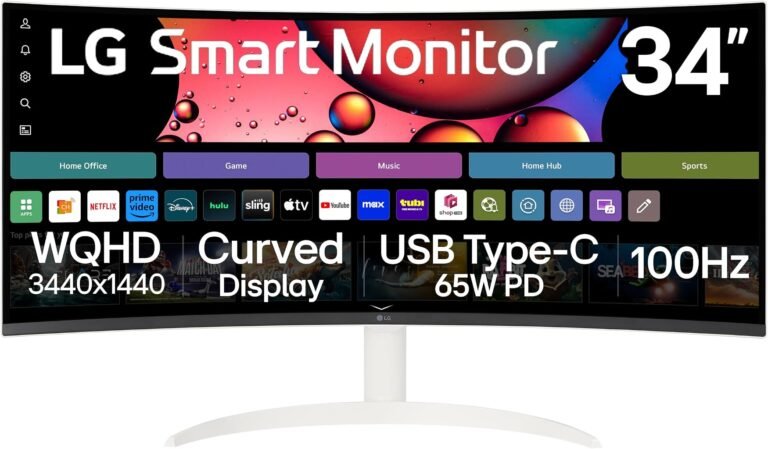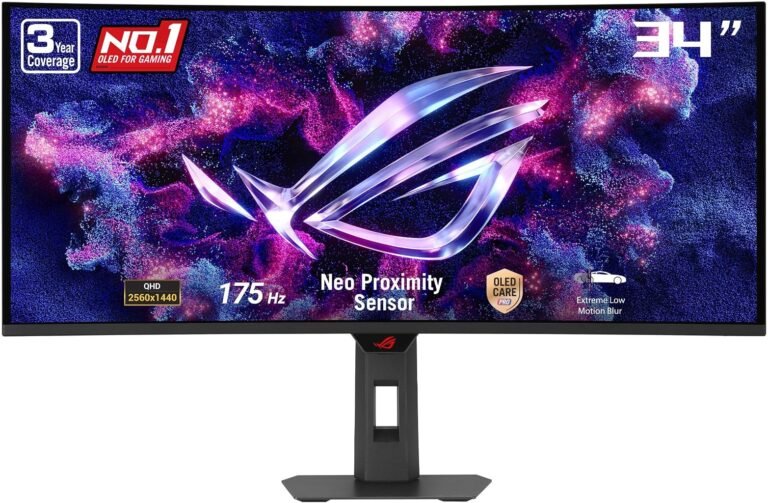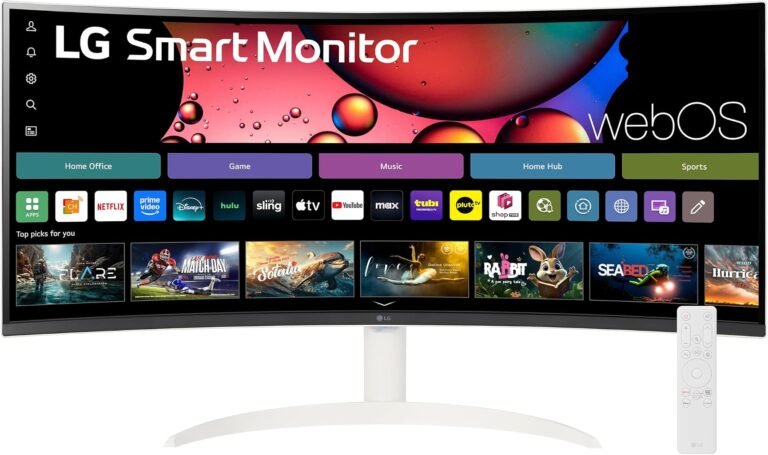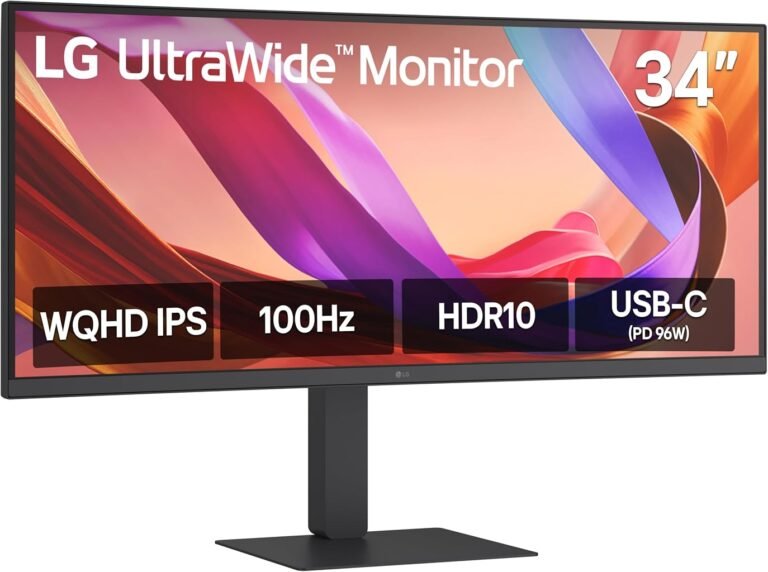
A 34-inch ultrawide monitor promises an appealing proposition: enough horizontal room to replace the visual fragmentation of a two-monitor desk with one continuous workspace. Yet simply placing a wide screen on a desk rarely produces the productivity improvement expected from it.
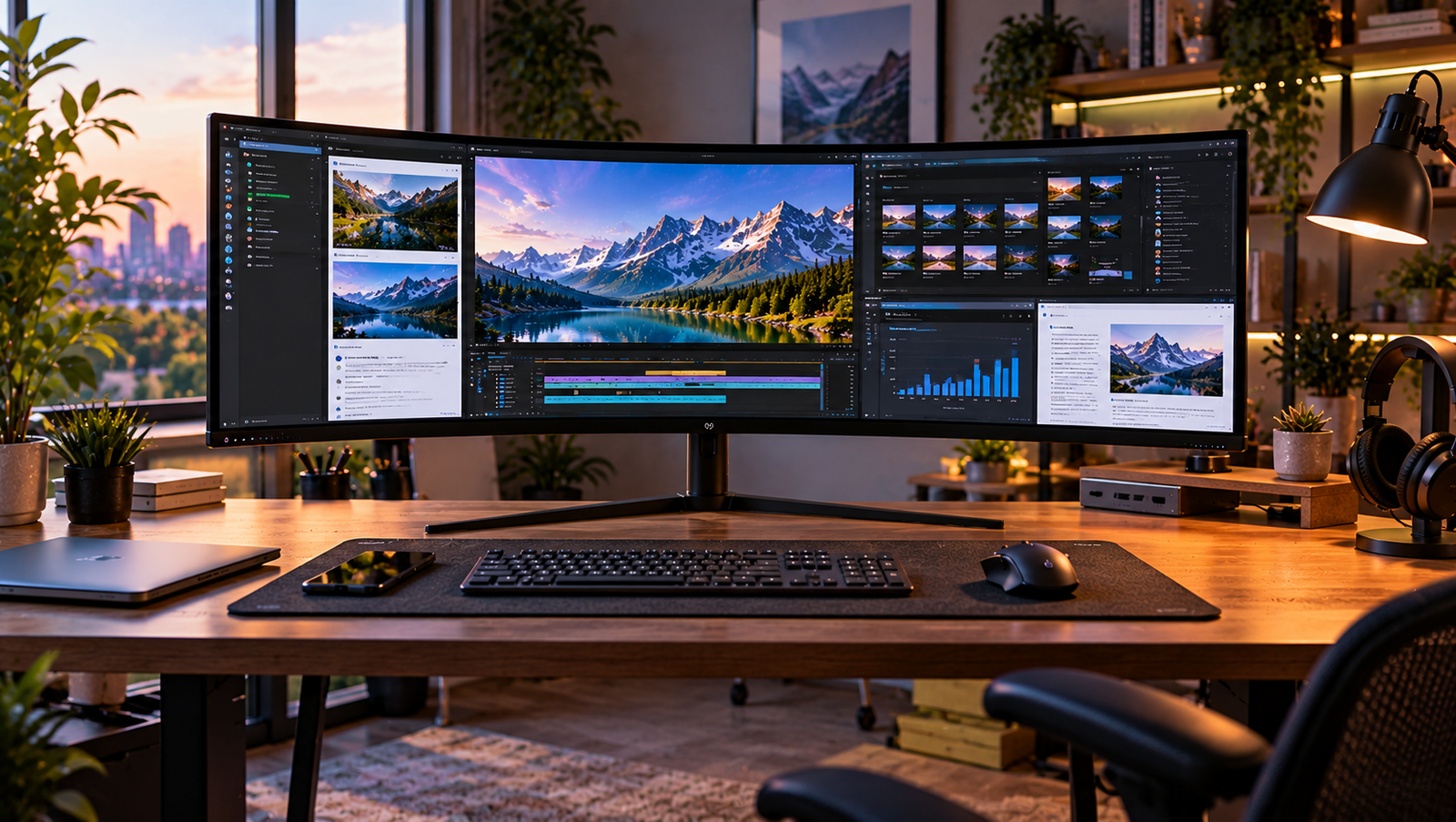
The physical display is only the raw material.
A productive ultrawide workstation depends on viewing distance, monitor height, native resolution, interface scaling, window placement, application hierarchy, input-device position and cable routing. Get those elements wrong and the extra width becomes a place where windows accumulate. Get them right and the screen can function less like one enormous monitor and more like several carefully organized work areas without bezels dividing them.
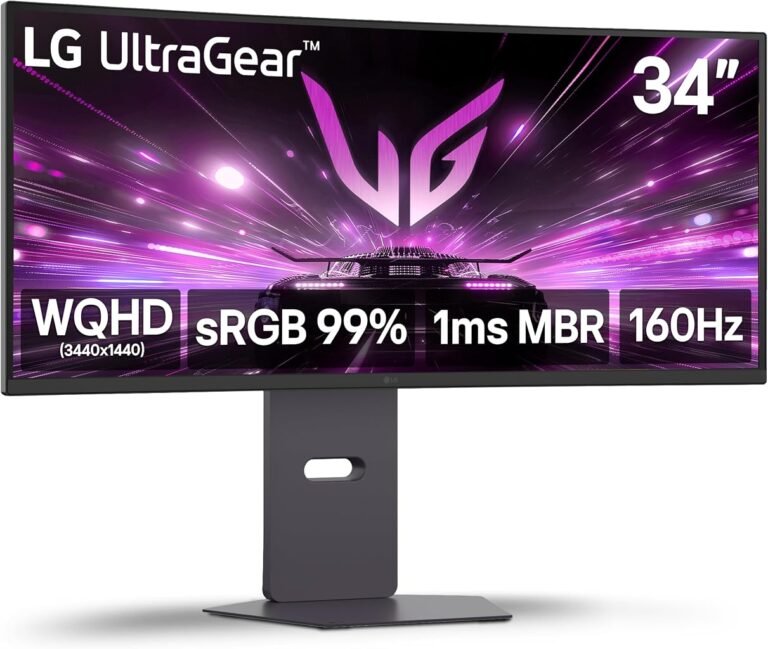
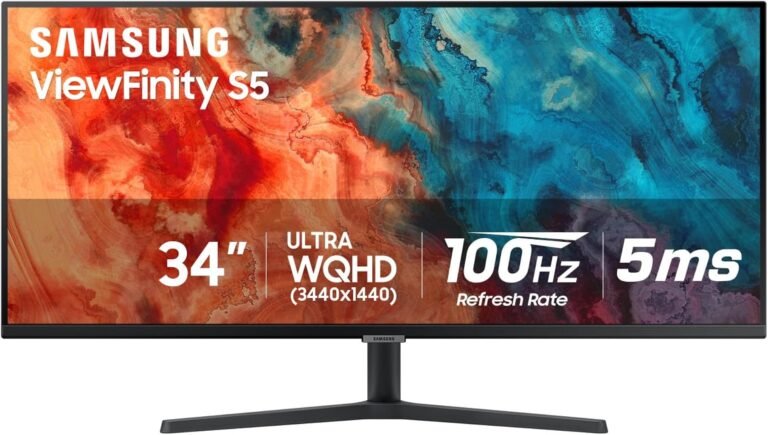
The 34-inch 21:9 format is particularly well suited to this approach. A common 3440 × 1440 configuration contains 4,953,600 pixels, giving it 880 more horizontal pixels than a 2560 × 1440 display while retaining the same vertical resolution. At approximately 110 pixels per inch, a 34-inch 3440 × 1440 panel also has a pixel density broadly comparable with a 27-inch 2560 × 1440 monitor.
The useful difference is width.
The setup process should therefore begin by deciding how that width will be viewed and divided, not by opening every application and maximizing it.
Step 1: Start With the Chair, Not the Monitor
Monitor setup begins with the user’s normal working posture.
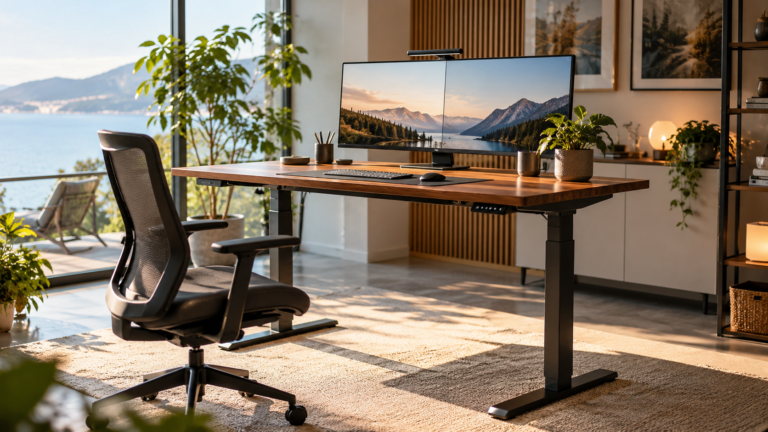
The chair should be adjusted before monitor height because the screen needs to fit the person rather than forcing the person to fit the screen. Once the chair, desk, keyboard and pointing device allow a reasonably neutral working position, the display can be placed relative to the resulting eye level.
This sequence matters because monitor adjustments made first can be undone later when chair height changes.
The U.S. Occupational Safety and Health Administration recommends placing a monitor directly in front of the user and generally gives a preferred eye-to-screen distance of 20 to 40 inches, or roughly 50 to 100 centimeters. OSHA also recommends placing the top line of the screen at or below eye level.
A 34-inch ultrawide makes direct centering particularly significant.
If the monitor sits noticeably to one side, the user can spend hours rotating the head and torso toward the primary working area. The wide panel then magnifies an alignment error that might have been less apparent on a smaller display.
The center of the monitor should align with the user’s normal forward-facing position.
That does not mean every application needs to sit in the center. It means the body’s neutral position should point toward the physical center of the display.
Step 2: Establish the Viewing Distance Before Fine-Tuning Height
A 34-inch screen is wide enough that sitting too close changes how the outer sections are used.
At a short viewing distance, the left and right edges spread farther into peripheral vision. The user may begin turning the head repeatedly to read peripheral windows. Move too far away, however, and text can become small enough to encourage leaning forward.
The correct distance is therefore a balance between width and readability.
OSHA’s 50-100 cm range is broad because eyesight, screen dimensions and text size vary. For a 34-inch ultrawide, a sensible setup process starts somewhere around ordinary arm’s-length territory and then adjusts from there.
The test is practical:
- Sit with the back supported and the head in a neutral position.
- Read normal interface text without leaning toward the display.
- Look toward the outer working zones without repeatedly moving the torso.
- Move the monitor backward if the edges feel excessively close.
- Increase interface scaling or application text size rather than pulling an overly large display toward the face simply to read small text.
Desk depth matters here.
A shallow desk can force a 34-inch monitor closer than intended, particularly when the supplied stand projects far forward. A monitor arm can recover desk depth by moving the support structure away from the central working surface.
The goal is not to maximize distance. It is to establish a distance at which the entire screen feels usable without compromising text readability.
Step 3: Set the Screen Height Around the Normal Line of Sight
Once viewing distance is comfortable, height becomes easier to establish.
OSHA recommends that the top of the monitor sit at or slightly below eye level and states that the center of a computer monitor should normally sit approximately 15 to 20 degrees below the horizontal eye line.
This guidance fits a 34-inch ultrawide well because the format is much wider than it is tall.
The monitor should not be raised simply because it is physically large. Raising it excessively can force the neck backward, particularly when reading material near the top of the screen.
A useful setup test is to open a full-height document or browser window in the center of the display. The user should be able to read from the upper portion toward the middle without lifting the chin.
People using bifocal or progressive lenses may need the monitor lower. OSHA specifically notes that bifocal users can tilt their heads backward when a display is positioned too high and recommends adjusting the monitor accordingly.
Height should therefore follow actual viewing behavior rather than a decorative preference for having the monitor stand tall above the desk.
Step 4: Run the Monitor at Its Native Resolution
A 3440 × 1440 monitor should normally operate at 3440 × 1440.
Lowering the resolution to make interface elements larger sacrifices image sharpness because the operating system must map a lower-resolution image onto the panel’s fixed physical pixel grid.
Microsoft recommends using the display resolution marked as recommended in Windows, noting that lower-than-native resolutions can make text less sharp or produce scaling and positioning problems.
Interface size should generally be adjusted through scaling, application zoom or font controls rather than by reducing native resolution.
This distinction matters on ultrawides because the entire advantage of a 3440 × 1440 workspace comes from having nearly five million individually addressable pixels available.
Reducing resolution throws away some of that working area before any application is opened.
Step 5: Adjust Scaling for Readability, Not Maximum Workspace
The temptation with a large display is to make everything small so more information fits.
That approach can be counterproductive.
A productivity display is useful only when information can be read without forward leaning, squinting or constant application zoom adjustments. The purpose of additional screen area is to display useful information simultaneously, not merely more information.
Windows provides display scaling under Settings > System > Display > Scale & layout. Microsoft generally recommends the scaling option identified by the operating system as recommended.
The appropriate setting depends on viewing distance, eyesight and application behavior.
A 34-inch 3440 × 1440 monitor often works comfortably without aggressive scaling because its pixel density is around 110 ppi. Yet that should not become a rule. If text is difficult to read from a neutral sitting position, increasing scaling or application font size is preferable to moving the entire monitor uncomfortably close.
Scaling is not wasted space when it prevents physical compensation.
Step 6: Verify the Refresh Rate
Productivity does not require extreme gaming refresh rates, but the monitor should still operate at the refresh rate for which the workstation was configured.
A 100Hz, 144Hz, 160Hz or 165Hz ultrawide accidentally running at 60Hz gives up part of its capability.
Higher refresh rates make scrolling, pointer movement, window dragging and interface animations appear smoother. On a wide display, mouse-pointer travel can cover thousands of horizontal pixels, making the difference easier to notice during ordinary navigation.
Windows exposes refresh-rate controls through display settings. On a Mac, Apple states that external-display settings can be used to configure resolution and refresh rate, subject to the capabilities of the Mac, connection and display.
If the desired refresh rate is unavailable, the connection deserves examination. HDMI and DisplayPort versions, USB-C DisplayPort Alt Mode, adapters, docks and cables can establish different bandwidth limits.
The monitor’s on-screen menu may also require a particular input mode before its maximum refresh rate becomes available.
Step 7: Stop Maximizing Every Window
A 34-inch ultrawide is poorly used when every application automatically fills 3440 horizontal pixels.
Most productivity applications do not benefit from extreme width.
A word processor stretched across an entire 34-inch display can create excessively long lines or leave enormous unused margins. A messaging application rarely needs one-third of five million pixels. Even web pages commonly constrain their content width.
The productive approach is to treat the display as zones.
A basic three-zone structure works well for many workflows:
- Left zone: reference material, file browser, notes or communication.
- Center zone: primary application, document, editor or browser.
- Right zone: secondary reference, messaging, calendar, preview or monitoring tools.
The center zone can be wider than the two peripheral areas because primary work benefits from remaining near the user’s neutral line of sight.
This arrangement also exploits a characteristic of ultrawide displays that dual-monitor setups cannot reproduce: the central working area is uninterrupted by a bezel.
Step 8: Use Windows Snap Layouts Before Installing Anything Else
Windows 11 already includes useful window-management tools.
Microsoft’s Snap Layouts can be opened by hovering over a window’s maximize button or pressing Win + Z. Microsoft specifically supports three side-by-side windows on sufficiently large landscape displays.
That makes Snap Layouts particularly relevant to 21:9 monitors.
A user can place the primary application in a larger region and supporting applications alongside it without manually resizing each window every morning.
The important change is behavioral: applications should have predictable homes.
A browser used for research should repeatedly appear in the same region. Messaging should not drift across the center of the display. A reference PDF should not cover the primary editor whenever it is opened.
Spatial consistency reduces window-management effort.
The screen starts functioning as a workspace rather than a pile of overlapping rectangles.
Step 9: Use FancyZones When Standard Layouts Become Restrictive
Some workflows need more control than the operating system’s standard layouts provide.
Microsoft’s PowerToys FancyZones utility allows users to create custom snapping regions and automatically position windows within them.
This is particularly useful on a 3440-pixel-wide desktop because equal thirds are not always the most efficient arrangement.
A writing setup might use approximately half of the screen for the primary document and divide the remaining width between research and communication. A software-development workspace might reserve a broad central editor with narrow regions for documentation and application output. Financial work might prioritize a large spreadsheet while retaining smaller fixed spaces for source documents and communication.
FancyZones supports grid and canvas layouts, adjustable gaps and keyboard-based movement between zones.
The useful principle is simple: window zones should reflect the workload rather than symmetry.
A perfectly symmetrical desktop can look orderly while allocating space poorly.
Step 10: Use macOS Tiling as a Workspace System
Modern macOS versions also provide built-in window tiling.
Apple’s window-tiling controls allow windows to be dragged to screen edges or arranged through the green window button. Available arrangements include halves, quarters and configurations combining a larger region with smaller windows.
That makes a 34-inch ultrawide more manageable without requiring every application to be manually positioned.
A practical Mac workspace can keep the main application centered or in the larger tiled area while secondary applications remain at the edges.
Mission Control and multiple Spaces provide another organizational layer. One Space might hold communication and planning applications, another the main work environment, and another reference or administrative material.
The objective is not to keep every available application visible simply because the monitor is wide enough.
Screen area is useful when it reduces switching. Beyond that point, simultaneous visibility can become visual competition.
Step 11: Give the Center to the Highest-Attention Task
The central portion of an ultrawide should normally belong to the work receiving the most sustained attention.
This reduces repeated head rotation and keeps the highest-value information close to the natural forward gaze.
For a writer, that might mean the document editor.
For a programmer, it may be the code editor.
For financial work, it could be the active spreadsheet.
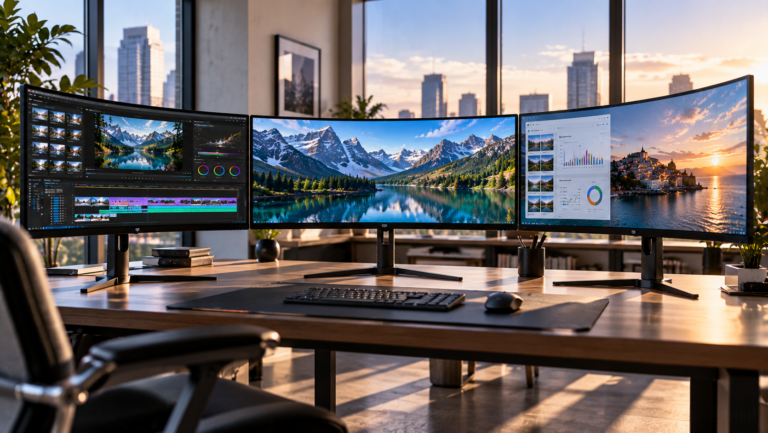
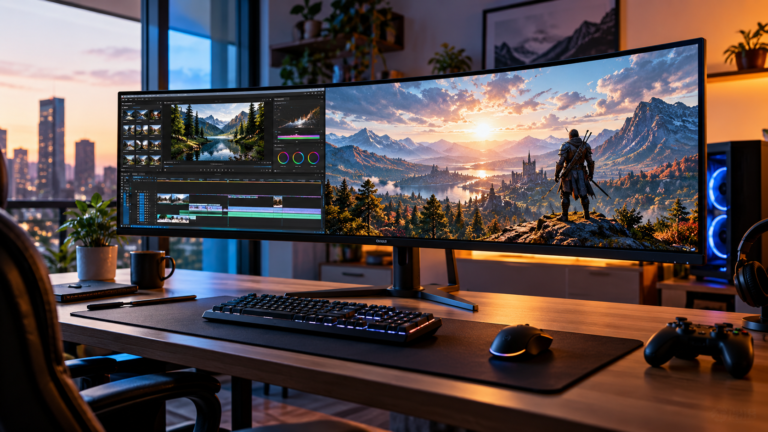
For video editing, the timeline and primary viewer may dominate the central region.
Peripheral applications should support the central task rather than compete with it.
This is a major difference between an organized ultrawide and a screen that merely contains many windows. Productivity is not proportional to the number of applications simultaneously visible.
The screen should express a hierarchy.
Step 12: Decide Whether Communication Deserves Permanent Screen Space
Email, team chat and notifications are common candidates for a narrow side column.
They are also capable of becoming permanent distractions.
A 34-inch ultrawide makes it technically easy to keep communication visible throughout the day. That does not make doing so productive.
A better arrangement for concentration-heavy work may assign communication applications to a separate desktop, Space or temporarily hidden zone. They can then be checked deliberately rather than remaining visually active beside the primary task.
For coordination-heavy work, the opposite arrangement can be appropriate.
The relevant question is functional: does permanent visibility help complete the primary task, or does it continuously redirect attention?
Ultrawide setup should answer that question deliberately rather than allowing application defaults to decide.
Step 13: Position the Taskbar or Dock With Horizontal Space in Mind
A 21:9 display has abundant horizontal space but less vertical resolution than its physical width might suggest.
At 3440 × 1440, every persistent horizontal interface strip consumes part of the 1,440-pixel vertical workspace.
Some users therefore benefit from automatically hiding the Windows taskbar or macOS Dock. Others prefer permanent visibility because rapid application switching matters more than recovering a small amount of screen height.
On macOS, the Dock can also be positioned at the left or right edge. That can exploit the monitor’s abundant horizontal space while preserving more vertical working area.
The correct choice follows the applications being used.
Spreadsheets and documents often benefit from vertical space because more rows or text become visible. Video timelines and horizontally oriented editing tools can benefit more from width.
Interface placement should follow those demands.
Step 14: Treat Curvature as a Positioning Aid
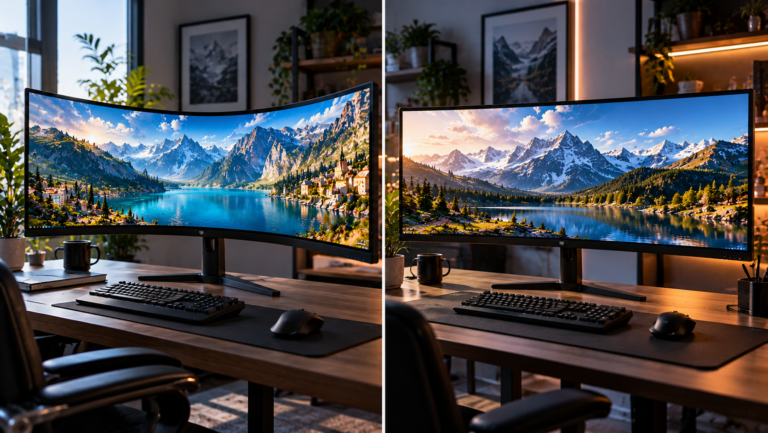
Many of the best 34 inch ultrawide monitors use curved panels.
Curvature does not create additional workspace. Its practical function is geometric: the outer portions of a wide screen are turned toward a centrally positioned viewer.
That makes centering even more relevant.
A curved ultrawide positioned substantially off-center defeats part of the geometry the curve is intended to create. The user should normally sit near the center of the arc rather than treating the screen as a secondary monitor positioned diagonally across the desk.
Flat 34-inch ultrawides remain perfectly workable, particularly at greater viewing distances or in environments where several people frequently look at the display.
In either case, the physical center of the monitor should correspond closely with the primary seated position.
Step 15: Control Windows and Reflections Before Adjusting Brightness
A monitor facing uncontrolled daylight can encourage users to raise brightness unnecessarily.
OSHA recommends positioning monitors perpendicular to windows as part of its workstation guidance. This arrangement can reduce direct glare from windows in front of the user and strong reflections from windows behind the user.
A 34-inch ultrawide presents a large reflective surface, so poor lighting geometry can become visible across a substantial area.
Before increasing brightness aggressively:
- Check whether a window is reflecting directly from the panel.
- Reposition lamps that create visible highlights.
- Avoid placing a bright uncovered window directly behind the display.
- Use blinds or shades when daylight varies dramatically during the working day.
- Set monitor brightness to suit the room rather than treating maximum output as a default.
Brightness should make the display comfortable to read in its environment, not force the eyes to adapt to a glowing rectangle in a dim room.
Step 16: Place the Keyboard According to the Primary Screen Zone
A wide monitor can accidentally encourage asymmetric input positioning.
If the keyboard sits left of center while the main working window sits in the middle, the torso and arms can gradually twist in different directions. A similar problem occurs when a laptop remains open beside the ultrawide and becomes the visual focus while the external keyboard remains centered on the large monitor.
The keyboard should normally align with the user’s primary working position.
If the ultrawide is the main display, that usually means centering the keyboard relative to the screen and chair.
The mouse or trackpad should remain close enough that reaching does not require repeated shoulder movement.
The monitor’s width should not dictate wider input-device placement.
Step 17: Decide Whether the Laptop Screen Helps or Hurts
A laptop connected to a 34-inch ultrawide creates a second display by default, but more screens do not automatically produce a better workspace.
If the laptop display is used constantly, placing it far to one side can create repeated neck rotation. If it is used only occasionally, leaving it open may add visual clutter without providing much value.
Several arrangements can work:
- Keep the laptop closed and use the ultrawide as the sole display.
- Place the laptop on a stand near the ultrawide and use it for low-attention information.
- Position the laptop below the main display when the desk and monitor height allow comfortable viewing.
- Use the laptop only when a genuinely separate screen benefits the workflow.
The primary display should remain directly aligned with the user’s main working posture.
A second screen should solve a specific problem rather than exist simply because it is available.
Step 18: Simplify the Cable Path
Cable organization affects how easily the workstation can be adjusted.
A monitor arm cannot provide much positional flexibility if short cables pull against it. A laptop cannot be moved freely if display, power, Ethernet and USB cables all approach from different directions.
USB-C can simplify the arrangement when the monitor supports display input, data and adequate Power Delivery through one connection. In that configuration, peripherals can remain attached to the monitor while a single cable connects the laptop.
For desktop computers, DisplayPort or HDMI may remain the more appropriate display connection, with USB handled separately.
Whatever the interface, cables should include enough slack for monitor height and depth adjustment without hanging across the main working area.
Cable management should support movement, not permanently lock the first monitor position in place.
Step 19: Build Layouts Around Tasks, Not Applications
A highly effective ultrawide workflow can use different layouts for different kinds of work.
A research layout might use:
- 50 percent for the primary document
- 30 percent for browser research
- 20 percent for notes or references
A development layout might use:
- 55 percent for the editor
- 25 percent for documentation
- 20 percent for terminal or application output
A meeting layout might use:
- 50 percent for the video call
- 25 percent for notes
- 25 percent for reference material
The exact percentages are less significant than the principle.
Applications should be arranged according to their function during a task. The same browser might deserve half the display during research and only a narrow side region during writing.
Microsoft FancyZones can store custom layouts, while macOS tiling and Spaces can support different arrangements.
A productive ultrawide is therefore dynamic without being chaotic.
Step 20: Use Full-Screen Mode Selectively
The availability of 34 inches does not prohibit single-task work.
Some tasks benefit from removing every peripheral window. Writing, proofreading, detailed image inspection and complex analytical work can all benefit from a temporary full-screen environment.
The ultrawide advantage remains available when needed; it does not have to be exercised continuously.
This is particularly useful when applications themselves contain multiple panels. Video editors, development environments, CAD software and data-analysis applications can already make extensive use of horizontal space internally.
Adding unrelated windows beside them can reduce rather than increase usable area.
Window management should therefore switch between multi-zone and focused modes according to the task.
Step 21: Save the Setup Once It Works
After several days of adjustment, the workstation should become repeatable.
Record or retain:
- The monitor’s height and approximate viewing distance.
- Operating-system scaling.
- Native resolution and refresh rate.
- Preferred window-zone layouts.
- Application zoom levels.
- Taskbar or Dock position.
- Monitor brightness appropriate to normal room lighting.
- Cable connections and input assignments.
The reason is practical. Firmware updates, graphics-driver changes, docking changes or moving the workstation can disturb settings that previously worked well.
A stable setup removes repeated micro-decisions.
The user should be able to sit down, connect the computer and begin work without rebuilding the desktop each morning.
Step 22: Reassess the Setup After Real Work, Not Five Minutes
Monitor positioning is difficult to judge immediately.
A screen that looks impressive during setup can prove too close after three hours. A three-column arrangement can seem efficient until the user discovers that the outer columns demand constant head movement. Text that looked acceptably small during configuration can become tiring during a long reading session.
The workstation should therefore be evaluated after sustained use.
Watch for behavioral signals:
- Repeatedly leaning toward the display suggests readability or distance needs adjustment.
- Turning the torso to use side windows suggests the primary work area is misplaced.
- Constant manual resizing suggests the window layout does not match the workload.
- Ignoring one side of the display suggests too much width has been assigned to low-value applications.
- Persistent reflections indicate that lighting or monitor orientation needs correction.
- Repeatedly moving the monitor closer for reading suggests scaling or font size should be revisited.
These behaviors are more informative than whether the desk looks symmetrical.
Final Considerations
A 34-inch ultrawide monitor is productive when its width has a purpose.
The first requirement is physical. The display should sit directly in front of the user, at a distance that keeps text readable without leaning and at a height that allows a neutral head position. OSHA’s workstation guidance places the preferred viewing distance broadly between 50 and 100 centimeters and recommends keeping the top of the display at or below eye level. Those measurements provide a starting range rather than a substitute for observing actual posture.
The second requirement is digital. Native resolution should normally be preserved, while scaling and application text controls handle readability. The monitor should operate at the intended refresh rate, and the computer connection must provide enough bandwidth for the selected resolution and refresh combination.
The third requirement is spatial organization. A 3440 × 1440 desktop becomes far more useful when applications receive repeatable zones instead of being randomly resized across nearly five million pixels. Windows Snap Layouts, PowerToys FancyZones and macOS tiling tools all provide mechanisms for turning horizontal space into predictable work regions.
The center deserves special treatment. It should normally contain the application receiving sustained attention, while peripheral areas support that work with references, communication, previews or utilities. That arrangement respects both the geometry of a wide display and the physical reality that repeated head rotation carries a cost.
The fourth requirement is restraint.
An ultrawide can display many applications simultaneously, but simultaneous visibility is not synonymous with productivity. Email does not need permanent screen space merely because there is room for it. A messaging window does not become more useful by remaining visible during concentration-heavy work. Full-screen mode does not become obsolete simply because the monitor is wide.
A well-configured 34-inch ultrawide alternates between breadth and focus.
Its real advantage is not that it can show everything. It is that it can show the right combination of information without forcing the user to stack, minimize and retrieve windows continuously.
That distinction turns 34 inches of horizontal glass from extra desktop area into a working system.