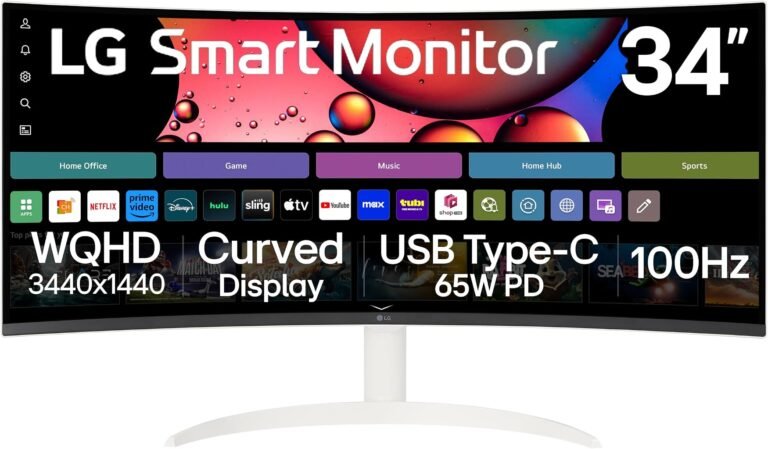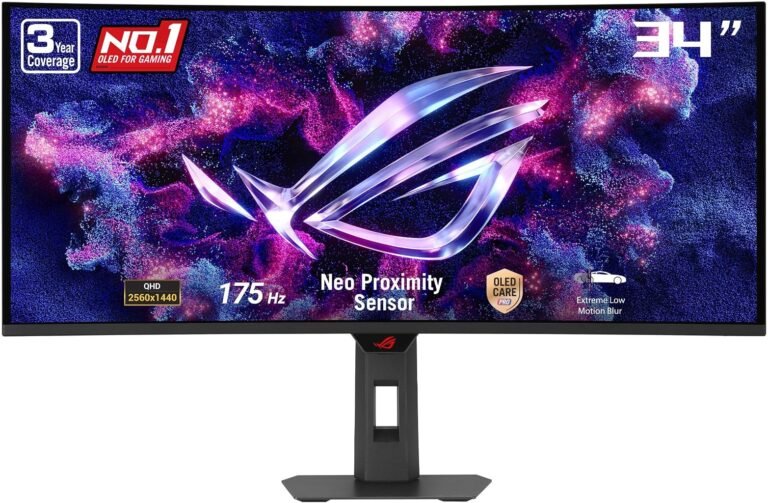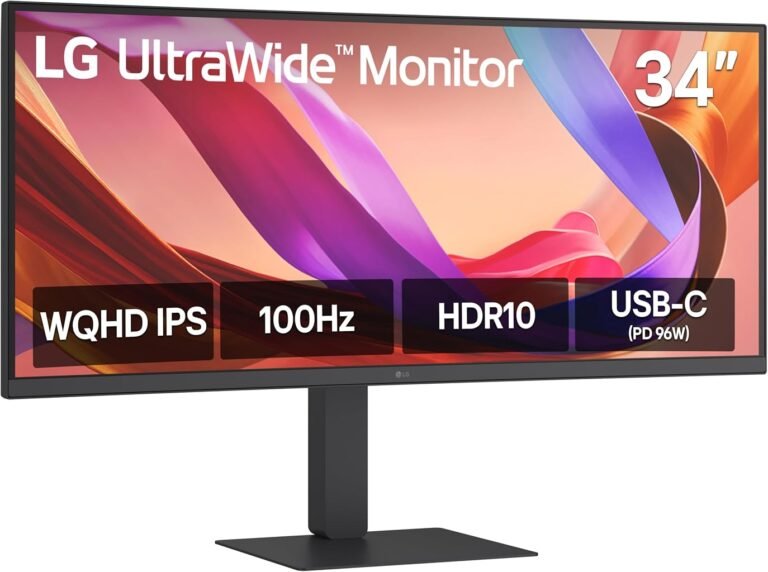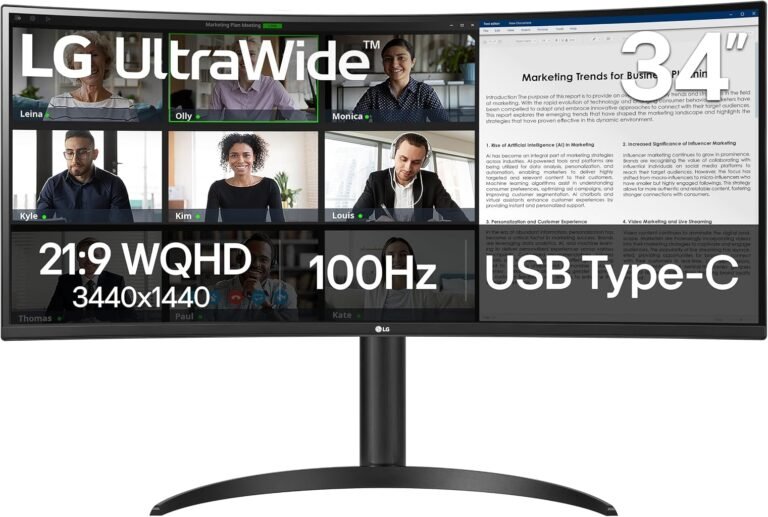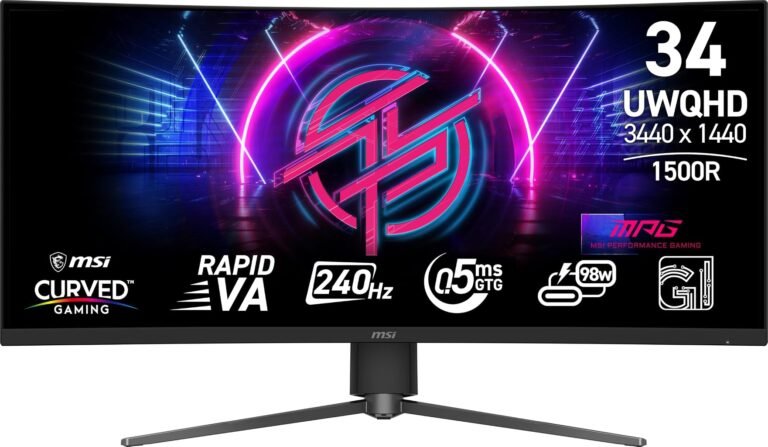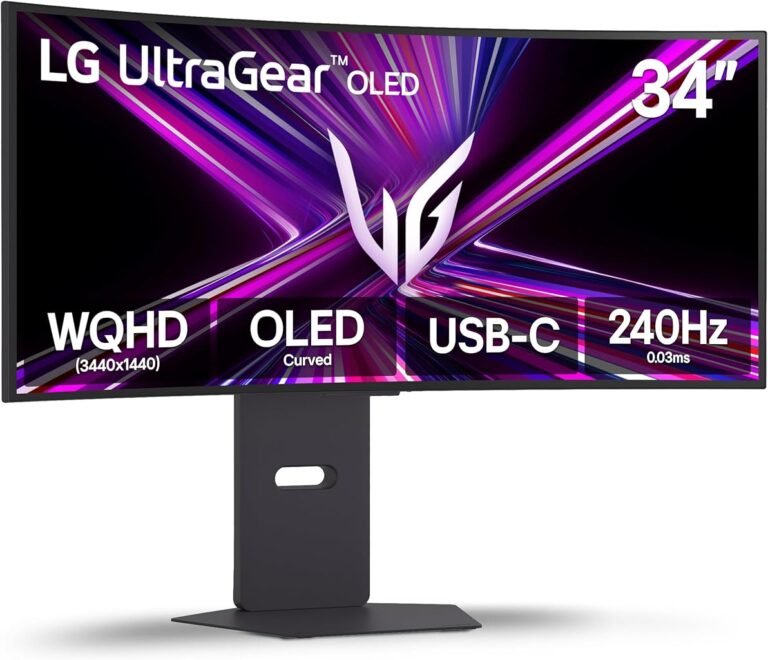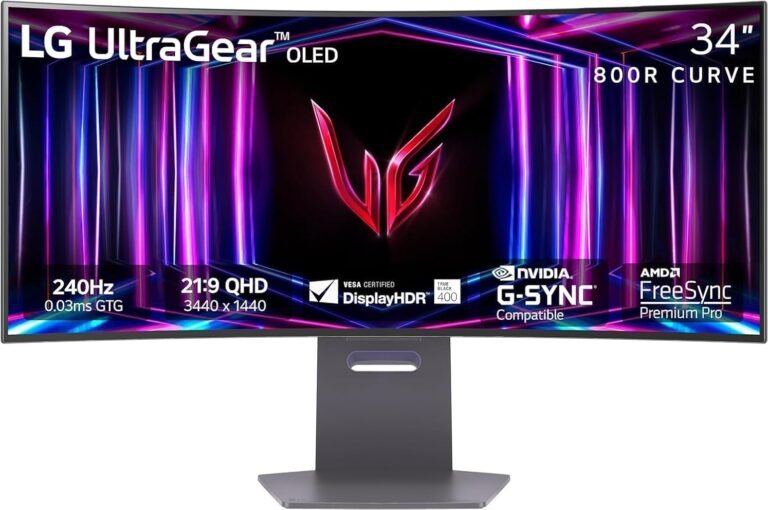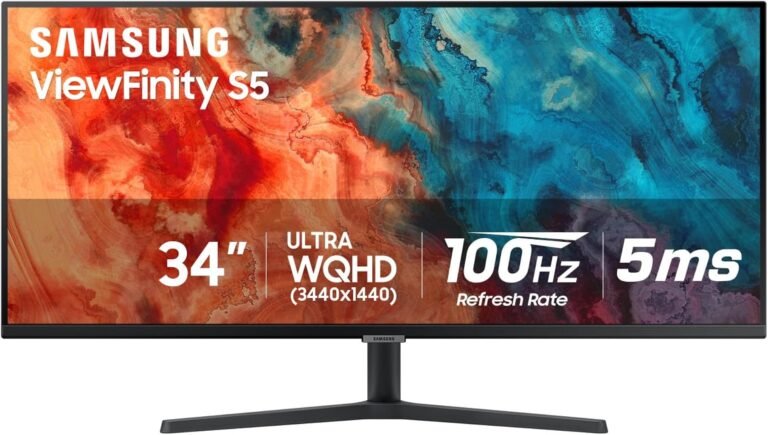
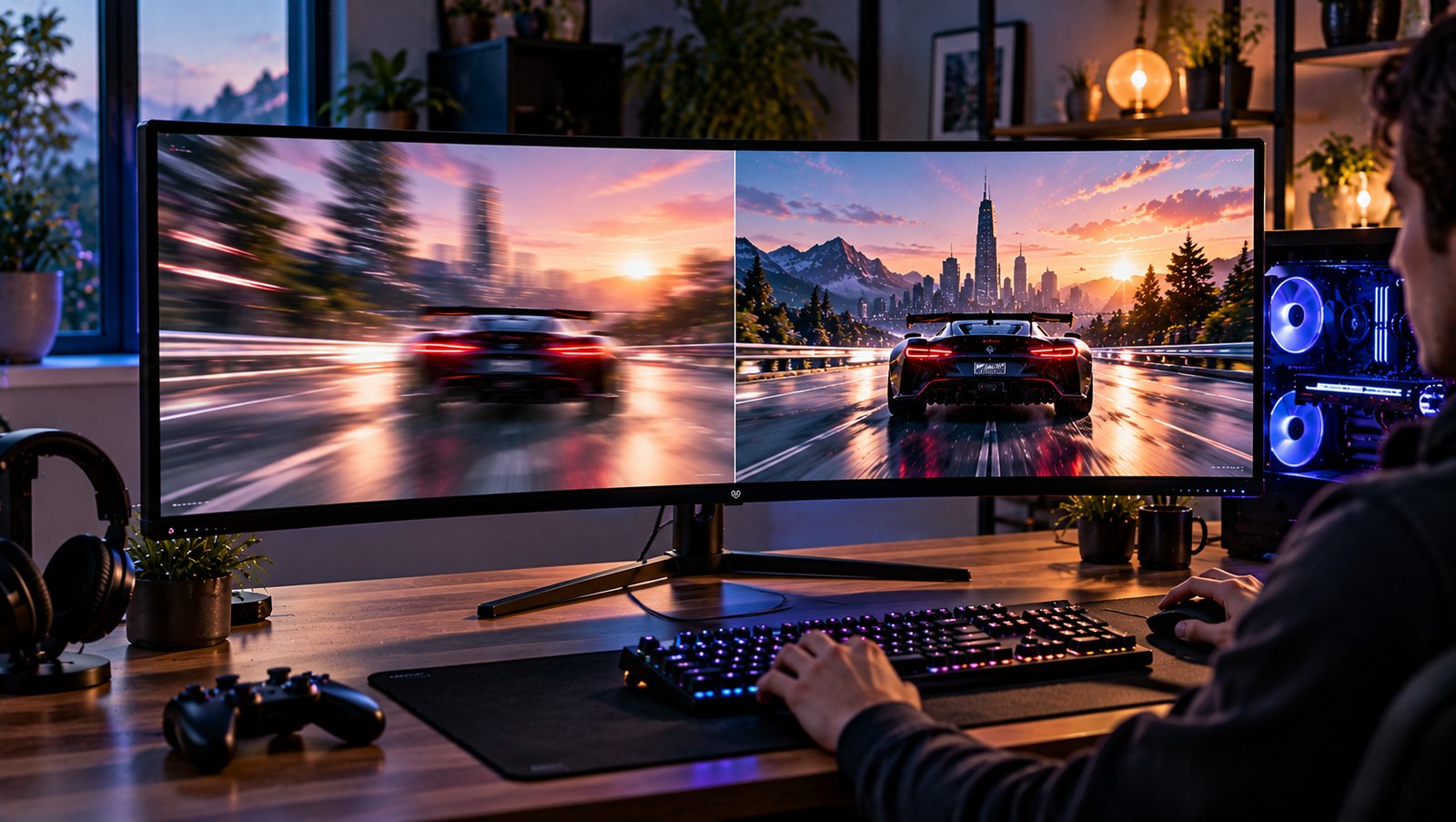
A 165Hz ultrawide running at 60Hz can look perfectly functional. The desktop appears. Games launch. Windows move normally. Nothing necessarily flashes an error explaining that more than half of the display’s refresh capability is sitting unused.
That is what makes refresh-rate problems deceptively frustrating.
The monitor is only the final component in a signal chain involving the graphics processor, operating system, driver, physical output, cable, adapters or docks, monitor input, resolution, color format and display firmware. Every component has to support the requested video mode.
Ultrawides make this more demanding because their resolutions contain more pixels than conventional 16:9 displays. A 3440 × 1440 image contains 4,953,600 pixels, about 34.4 percent more than 2560 × 1440. At 5120 × 1440, the display contains 7,372,800 pixels per frame. Sending those images 144, 165, 175 or 240 times each second requires substantial link capacity.
The productive troubleshooting strategy is therefore not to randomly change graphics settings. It is to locate where the intended display mode disappears from the signal chain.
Step 1: Establish What “Full Refresh Rate” Actually Means
The advertised refresh rate needs context.
Some monitors support their highest refresh rate only through a particular input. A display might offer its maximum mode through DisplayPort while an older HDMI implementation provides a lower ceiling. Another may require Display Stream Compression. Some monitors expose an additional high-refresh or overclock setting through their on-screen menu.
Resolution matters as well.
A monitor may support one refresh rate at native resolution and a higher figure at a lower resolution. Color depth and HDR can alter bandwidth requirements too.
The first task is therefore to identify the exact target mode:
- Native resolution
- Desired refresh rate
- Connection type
- Color depth
- HDR status
- Whether variable refresh rate is enabled
“3440 × 1440 at 165Hz” is a useful target. “The monitor should be faster” is not.
The monitor manual should identify which input and settings support that combination.
Step 2: Check the Refresh Rate Windows Is Actually Sending
Do not judge refresh rate from mouse movement alone.
Windows provides the actual active display information under Settings > System > Display > Advanced display. Microsoft states that this panel shows the current resolution and refresh rate for the selected display, along with information about variable-refresh support.
Select the ultrawide if multiple monitors are connected and inspect the active mode.
If a 165Hz monitor reports 60Hz, open Choose a refresh rate and look for the intended option.
If 165Hz is present, select it and confirm the change.
If the intended rate is absent, the problem becomes more interesting. Windows generally lists modes available through the detected display and connection. A missing option therefore points toward the signal path, driver, monitor configuration or supported display modes rather than merely a forgotten Windows selection.
Microsoft also warns that some refresh-rate choices are tied to particular resolutions.
That relationship becomes particularly relevant on high-resolution ultrawides.
Step 3: Verify the Monitor’s Own Information Screen
The operating system is one source of information. The monitor itself is another.
Many gaming and professional ultrawides include an information page in the on-screen display that reports the incoming resolution and refresh rate.
This can answer a basic diagnostic question: what signal is physically arriving?
Suppose Windows appears configured for 3440 × 1440 at 165Hz and the monitor reports the same mode. The basic signal path is functioning, and a perceived smoothness problem should be investigated elsewhere.
If the monitor reports 60Hz, however, the problem exists before the image reaches the panel.
This distinction prevents refresh rate from being confused with frame rate. A monitor can operate at 165Hz while a game renders at 60 frames per second. Conversely, a game can render at 200 fps while the display remains configured at 60Hz.
Refresh rate describes the display. Frame rate describes rendered frames.
They need separate diagnosis.
Step 4: Confirm the Correct Resolution Is Selected
Resolution and refresh rate compete for link bandwidth.
A lower resolution contains fewer pixels per frame, so the same connection may support a higher refresh rate at that reduced resolution.
This can create misleading menus.
A 240Hz option might appear at 2560 × 1440 but disappear at 3440 × 1440. Selecting the higher rate can sometimes cause the operating system to switch resolution as well.
Microsoft explicitly notes that its refresh-rate list can identify rates that do not support the current resolution and that selecting one can change the screen resolution.
The intended configuration should therefore be verified as a pair:
resolution + refresh rate
For a native 3440 × 1440 monitor, check that both 3440 × 1440 and the desired refresh rate remain active after applying the setting.
A high refresh rate achieved by silently reducing resolution is not the same display mode.
Step 5: Check NVIDIA or AMD Display Controls
Graphics-driver software can provide another view of the available modes.
In the NVIDIA Control Panel, the relevant area is generally Display > Change resolution. NVIDIA’s documentation instructs users to select the display and then choose the desired refresh rate from the available list.
AMD provides corresponding display controls, and AMD provides controls for adjusting display resolution and refresh rate through its graphics software.
The driver interface can also help identify the connector and available resolutions.
If the intended mode appears in the graphics control panel but not elsewhere, applying it there can resolve a configuration mismatch.
If it is absent from both Windows and the graphics driver, attention should move toward connection bandwidth, monitor settings and display detection.
Step 6: Inspect the Cable Before Changing Dozens of Settings
Cables are one of the least glamorous parts of a high-refresh system and one of the easiest to overlook.
A cable is not merely a passive piece of decoration connecting two ports. It has to carry the requested signal reliably.
High-resolution, high-refresh ultrawides can push substantial data through DisplayPort, HDMI or USB-C. An unsuitable cable can result in a lower available refresh rate, intermittent blanking, flickering, signal loss or instability.
The first cable test should be simple: use the cable supplied with the monitor when that cable is specified for the display’s maximum operating mode.
If a third-party cable is being used, verify its actual certification and supported standard rather than relying on connector shape.
All DisplayPort cables have DisplayPort-shaped connectors. They are not necessarily equal in certified performance.
The same principle applies to HDMI and USB-C.
If changing to a known suitable cable immediately restores the missing refresh-rate option, software troubleshooting was never going to solve the underlying problem.
Step 7: Check Which Port Is Being Used
A graphics card and monitor can contain several physically similar ports with different practical capabilities.
The monitor manual may specify that maximum refresh rate is available only through a particular connection.
An ultrawide that reaches its full mode through DisplayPort might support a lower refresh rate through an older HDMI implementation. A laptop’s USB-C port may carry DisplayPort video, while another USB-C port on the same machine may have different display capabilities.
The same issue can arise at the GPU.
A computer connected through an older output standard cannot gain newer interface bandwidth merely because the monitor supports it.
The entire path operates according to mutually supported capabilities.
That makes port identification an early troubleshooting step, not a final technical curiosity.
Step 8: Remove Docks and Adapters From the Test Path
Laptop setups frequently add another layer: USB-C hubs, Thunderbolt docks, KVM switches and video adapters.
Each intermediate device can impose its own display limits.
A laptop may support the monitor’s full refresh rate when connected directly but fall back to a lower mode through a dock. The dock may lack sufficient display bandwidth, divide bandwidth among multiple displays or support the required resolution only at a lower refresh rate.
Troubleshooting should temporarily simplify the path:
GPU or laptop → suitable cable → monitor
Remove the dock, KVM, USB-C hub and unnecessary adapter.
If full refresh rate appears during the direct connection, the monitor and computer have demonstrated that they can negotiate the desired mode. The removed device then becomes the primary suspect.
This test can save hours.
Step 9: Understand Why USB-C Can Create Unexpected Limits
USB-C describes a connector, not one fixed display capability.
A USB-C connection carrying DisplayPort Alternate Mode can allocate high-speed lanes to display traffic while retaining other lanes for USB data. The exact arrangement affects available display bandwidth.
A monitor functioning as a USB hub can therefore present trade-offs between high-speed USB peripheral operation and maximum display capability under some implementations.
This can produce a strange symptom: changing a monitor’s USB mode can alter which refresh rates become available.
The behavior is hardware-specific, so the monitor manual should be consulted rather than assuming every USB-C display operates identically.
USB4 and Thunderbolt can handle display and data traffic differently, but the same diagnostic principle applies.
The connector’s physical shape cannot establish the display mode.
Step 10: Check the Monitor’s On-Screen Settings
Some monitors do not expose their highest-performance mode until it is enabled internally.
Possible settings include:
- DisplayPort version or compatibility mode
- HDMI compatibility mode
- High-refresh or overclock mode
- Adaptive-Sync
- DSC-related behavior
- USB bandwidth priority
- Input-specific performance options
The names vary by manufacturer.
A DisplayPort compatibility setting intended for older hardware, for example, can restrict the connection to an earlier operating mode and consequently reduce the maximum resolution-refresh combination.
A factory reset can also change these settings.
If a monitor previously operated at full refresh rate and suddenly stopped after a reset or firmware change, the on-screen configuration deserves inspection before replacing hardware.
Step 11: Account for Color Depth and HDR
A display signal contains more than resolution and refresh rate.
Color depth contributes to bandwidth.
An 8-bit RGB signal carries less color information per pixel than a 10-bit signal. High refresh rate, high resolution and increased color depth can therefore combine to push a connection beyond a mode that would work at lower settings.
HDR commonly operates with higher color-depth requirements, making this interaction particularly relevant.
If the full refresh rate disappears only after HDR or 10-bit output is enabled, the connection’s available bandwidth should be investigated.
The answer is not automatically to abandon HDR. A different input, cable or DSC-capable path may support the desired combination.
Step 12: Understand Display Stream Compression
Display Stream Compression, usually shortened to DSC, exists because modern displays can demand more raw video bandwidth than an interface can otherwise carry conveniently.
DSC compresses the display stream so higher combinations of resolution, refresh rate and color depth can pass through suitable connections.
A high-refresh ultrawide may rely on DSC for its maximum mode.
That means the GPU, monitor and signal path all need to support the required behavior.
A dock or adapter inserted between two DSC-capable devices can become the component that prevents the mode from appearing.
This is another reason direct connection is such a useful diagnostic test.
When the desired refresh rate appears over direct DisplayPort but disappears through an adapter, the monitor itself is no longer the logical first suspect.
Step 13: Check Whether Windows Dynamic Refresh Rate Is Interfering
Windows 11 includes Dynamic Refresh Rate, or DRR, on supported hardware.
DRR automatically adjusts refresh rate according to activity to reduce power consumption while retaining smoother operation when appropriate.
That is useful on mobile hardware, but it can complicate troubleshooting.
Microsoft states that DRR requires a display supporting variable refresh rate and at least 120Hz. More importantly for diagnosis, Microsoft warns that DRR can limit the maximum refresh rate of some games and recommends disabling DRR if a game appears to be running at a lower refresh rate.
If a high-refresh display behaves differently between desktop applications and games, check Settings > System > Display > Advanced display and inspect Dynamic Refresh Rate.
Temporarily disabling it removes another variable from the diagnostic chain.
Step 14: Check Laptop Power and Graphics Routing
Laptops create complications that desktop systems often avoid.
An external display output may be connected to the integrated GPU rather than directly to the discrete graphics processor. Hybrid graphics systems can route rendered frames through different hardware paths.
The physical port may also have limits established by the laptop manufacturer rather than the theoretical maximum capability of the GPU silicon.
Power modes can alter behavior as well.
A laptop operating on battery may prioritize efficiency. Windows itself acknowledges that lowering refresh rate can reduce power consumption, and its battery guidance includes reducing screen refresh rate among ways to reduce power use.
When troubleshooting a gaming laptop:
- Connect its normal power adapter.
- Disable aggressive battery-saving modes temporarily.
- Confirm which GPU drives the external output.
- Check the laptop manufacturer’s specifications for that physical port.
- Connect the monitor directly rather than through a generic hub.
The presence of a powerful discrete GPU does not guarantee that every laptop port exposes all of its display capabilities.
Step 15: Update the Graphics Driver
Display-mode detection depends partly on graphics drivers.
A driver problem can produce missing resolutions, incorrect refresh options or unusual display identification.
Update the driver from the GPU or computer manufacturer as appropriate, then restart the system and check the available modes again.
Driver updates are particularly relevant after changing monitors or when a newly released display uses modes that older software handles poorly.
A clean driver installation can sometimes resolve persistent detection problems, but it should not be the first response to an obvious bandwidth mismatch.
No graphics driver can turn an insufficient physical link into a higher-bandwidth connection.
Software repair and hardware capability need to remain separate in the diagnosis.
Step 16: Power-Cycle the Monitor and Rebuild the Connection
Digital displays exchange capability information with the computer during connection and startup.
Occasionally, that negotiation can fail or retain an undesirable state.
A proper power cycle is therefore worth performing:
- Shut down the computer.
- Turn off the monitor.
- Disconnect the display cable.
- Remove monitor power briefly.
- Reconnect power and the display cable.
- Start the monitor.
- Start the computer.
- Recheck the available resolution and refresh modes.
This is more useful than repeatedly clicking the same refresh-rate menu while leaving the physical connection unchanged.
It forces the signal chain to renegotiate from a cleaner state.
Step 17: Test One Monitor at a Time
Multi-monitor configurations can introduce additional constraints.
The GPU has finite display resources and link capabilities. Docks may share bandwidth among several outputs. Mirroring can force displays toward mutually compatible modes.
If the ultrawide refuses to expose its maximum refresh rate while several other displays are connected, disconnect the secondary monitors temporarily.
Then test the ultrawide alone.
If the missing mode appears, reconnect the other displays individually.
This identifies whether the problem emerges from a particular output combination.
Duplicated displays deserve special attention because mirrored operation can restrict the available modes to those supported by both screens.
Step 18: Do Not Jump Straight to Custom Resolutions
Custom resolutions can be useful diagnostic and specialist tools, but they should not be the first fix for a monitor’s advertised native refresh rate being absent.
If a 3440 × 1440 165Hz monitor is officially designed to run at that mode, the normal connection should ordinarily expose it without manually inventing display timings.
Custom modes make more sense after the ordinary path has been checked:
- Correct input
- Correct cable
- Direct connection
- Correct monitor mode
- Current driver
- Appropriate resolution
- Suitable color depth
- Adequate bandwidth
Using custom timings to disguise a connection problem creates a fragile setup rather than repairing it.
Step 19: Distinguish Refresh-Rate Problems From Game FPS Problems
One of the most common diagnostic mistakes occurs after the display has already been fixed.
The monitor reports 165Hz, Windows reports 165Hz, but the game still runs at 80 fps.
That is not evidence that the monitor has fallen back to 80Hz.
A variable-refresh monitor may synchronize itself near the game’s frame rate while VRR is active, but its configured maximum remains 165Hz.
Game performance is determined by CPU workload, GPU rendering cost, graphics settings, resolution and game-engine behavior.
At 3440 × 1440, the GPU must process about 34.4 percent more pixel positions per frame than at 2560 × 1440.
A system producing 130 fps at standard 1440p should not automatically be expected to produce the same figure after moving to ultrawide.
The best 34 inch ultrawide monitors cannot create frames the computer did not render.
Step 20: Investigate Unexpected 100Hz, 120Hz or 144Hz Ceilings
A specific lower ceiling can provide diagnostic clues.
A monitor advertised at 165Hz but stopping at 144Hz may be operating through a connection mode that supports 144Hz at the current resolution and color configuration but not 165Hz.
A 100Hz or 120Hz ceiling can similarly point toward an interface, adapter or bandwidth restriction.
The exact figures should not be used as universal fingerprints because monitor implementations differ.
Still, a repeatable ceiling is useful evidence.
If changing from HDMI to the monitor’s specified DisplayPort connection immediately changes the available maximum, the problem was not Windows arbitrarily refusing to cooperate. The signal path changed.
Troubleshooting becomes much faster when every change is treated as an experiment with one variable.
Step 21: Test a Different GPU Output
Graphics cards commonly provide several display outputs.
If one port produces intermittent blanking or refuses the intended mode, move the cable to another equivalent output.
This can identify a damaged connector or unusual port-specific behavior.
The same logic applies to monitor inputs.
Where the monitor provides multiple suitable inputs, test another one while preserving the same cable standard and display settings where possible.
A refresh-rate problem that follows one specific physical port is very different from a problem that follows the monitor across every connection.
Step 22: Look for Signal Instability After the Refresh Rate Appears
Getting 165Hz into the menu is not enough.
The mode must remain stable.
Warning signs include:
- Intermittent black screens
- Brief signal loss
- Flickering unrelated to ordinary VRR behavior
- Colored pixel artifacts
- Display reconnection sounds
- Refresh rate repeatedly falling back after restart
These symptoms can indicate marginal signal integrity even when the desired mode initially appears.
A shorter or properly certified cable can resolve problems that only become visible at high bandwidth.
The relevant test is not whether a cable can display an image. Almost any functioning link can pass some image mode.
The question is whether it can carry the requested ultrawide mode reliably for sustained use.
Step 23: Separate Refresh Rate From Pixel Response
A monitor can operate correctly at 165Hz and still show motion blur or ghosting.
That is not necessarily a refresh-rate failure.
At 165Hz, a new refresh begins approximately every 6.06 milliseconds. The physical pixels must still transition between values quickly enough to make good use of those refresh opportunities.
LCD monitors commonly provide overdrive controls to accelerate pixel transitions.
An excessively slow overdrive mode can increase visible trailing. An overly aggressive setting can create inverse ghosting through overshoot.
OLED displays generally have much faster pixel transitions, but refresh rate remains a separate specification.
If Windows and the monitor both confirm the correct refresh rate, motion artifacts should be investigated through response behavior and overdrive rather than repeatedly changing the connection.
Step 24: Know When the Computer Is the Limiting Device
Sometimes every component is functioning exactly as designed.
The monitor supports 3440 × 1440 at 165Hz. The cable supports the necessary link. The desktop GPU could drive it. The laptop being used, however, exposes an output limited to a lower display mode.
No software toggle can remove that hardware boundary.
The options then become practical:
- Use another output on the computer if one supports the desired mode.
- Connect directly instead of through a constrained dock.
- Reduce color depth where appropriate and supported.
- Use DSC when the hardware supports it.
- Accept a lower refresh rate.
- Use a computer with an output capable of the desired signal.
The monitor cannot receive a mode the source is unable to transmit.
A Fast Diagnostic Order
Refresh-rate troubleshooting becomes much easier when performed in a fixed sequence rather than through random experimentation.
A practical order is:
- Identify the monitor’s documented native-resolution maximum refresh rate.
- Check the current resolution and refresh rate in Windows.
- Confirm the incoming mode in the monitor’s on-screen information panel.
- Select the correct refresh rate if it is already available.
- Verify the intended DisplayPort, HDMI or USB-C input.
- Use a known suitable cable.
- Connect the computer directly to the monitor.
- Remove docks, adapters, KVM switches and hubs temporarily.
- Check monitor-side compatibility, high-refresh and DisplayPort settings.
- Test HDR and color-depth configurations if bandwidth appears constrained.
- Disable Dynamic Refresh Rate temporarily on supported Windows systems.
- Update the graphics driver.
- Power-cycle the monitor and computer.
- Disconnect secondary displays.
- Test another GPU output or monitor input.
- Only then investigate custom resolutions or deeper timing adjustments.
This sequence moves from simple configuration errors toward increasingly specialized causes while preserving evidence at each stage.
Final Considerations
An ultrawide monitor failing to reach its full refresh rate is rarely mysterious once the display path is treated as a chain rather than a collection of unrelated settings.
Start with the actual mode.
Windows Advanced display identifies the resolution and refresh rate currently configured, while many monitors can independently report the incoming signal. Those two readings immediately separate a true refresh-rate problem from a game-performance problem.
Then inspect bandwidth.
Ultrawides move large images. A 3440 × 1440 frame contains almost five million pixels. At 165 refreshes per second, the display is accepting more than 817 million active pixel positions each second before blanking intervals, encoding and color information are considered. At 5120 × 1440, the active-pixel count at 165Hz exceeds 1.2 billion per second.
Resolution, refresh rate and color depth therefore cannot be treated independently from the connection carrying them.
DisplayPort, HDMI and USB-C can all be appropriate interfaces, but their specific implementations matter. So do cables. So do docks and adapters. A monitor’s maximum specification describes what the display can accept under the appropriate conditions; it does not guarantee that every port on every connected computer can generate that signal.
Software then establishes another layer. Windows may simply be set to 60Hz. Dynamic Refresh Rate can alter behavior on supported systems. Graphics drivers can expose or lose display modes. Monitor firmware and on-screen compatibility settings can change which link mode is negotiated.
The fastest repair is often surprisingly mundane: select the correct refresh rate, move to the correct input, replace an unsuitable cable or remove a constrained dock.
More difficult cases still respond to the same logic.
If the mode exists at lower color depth but disappears at higher color depth, bandwidth is implicated. If it works through direct DisplayPort but not through a dock, the intermediate device deserves scrutiny. If it works with one computer but not another, the source hardware becomes the differentiating variable. If Windows and the monitor both confirm 165Hz while a game renders at 70 fps, the display is no longer the problem.
That methodical separation is what prevents a refresh-rate issue from becoming an afternoon of unrelated driver reinstalls and graphics-menu experiments.
The monitor, GPU, port, cable and software must agree on one display mode. Find the point where that agreement breaks, and the missing hertz usually stop being mysterious.