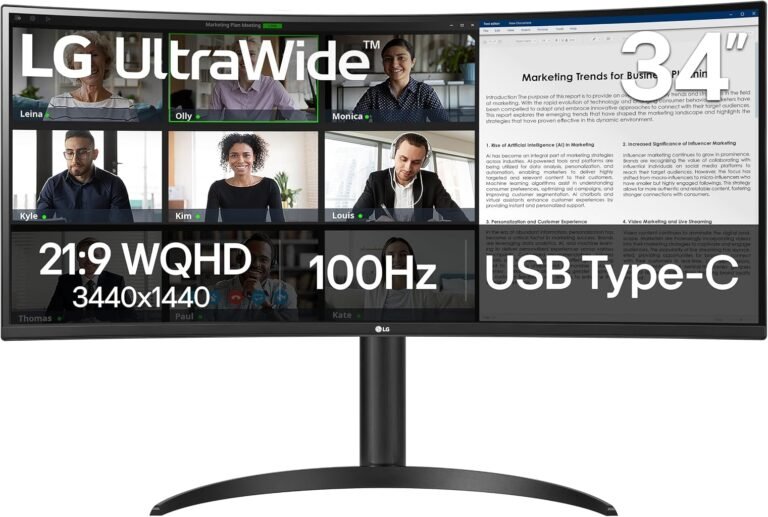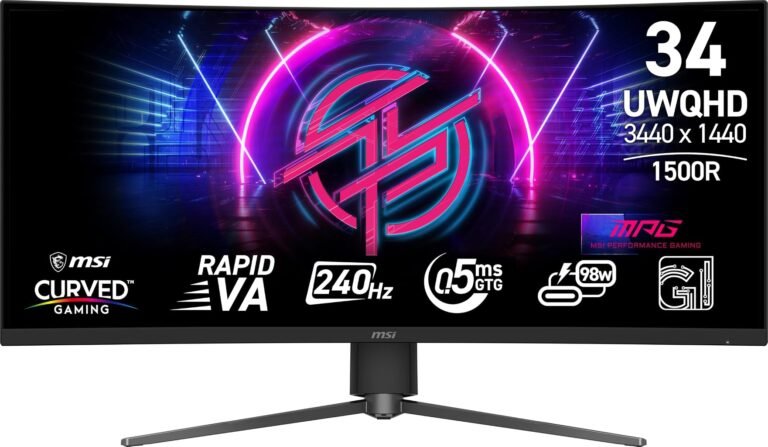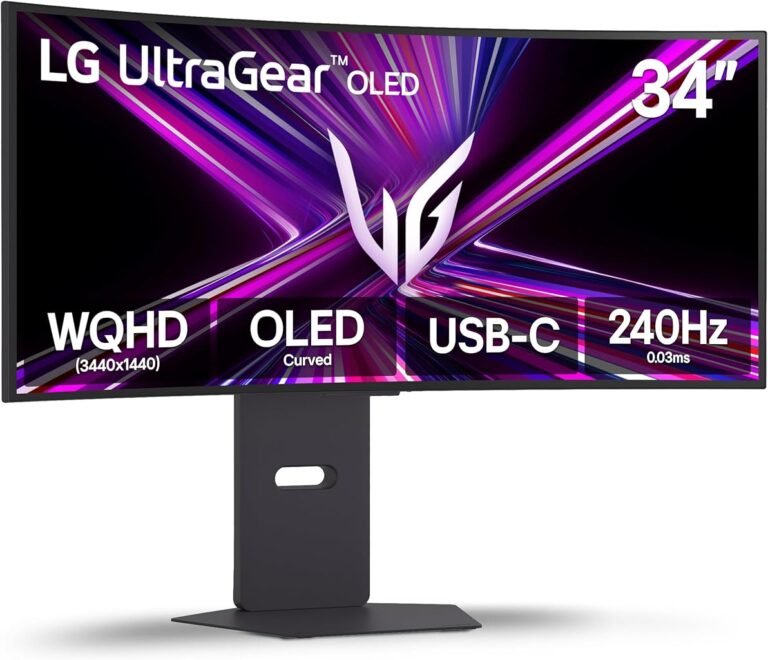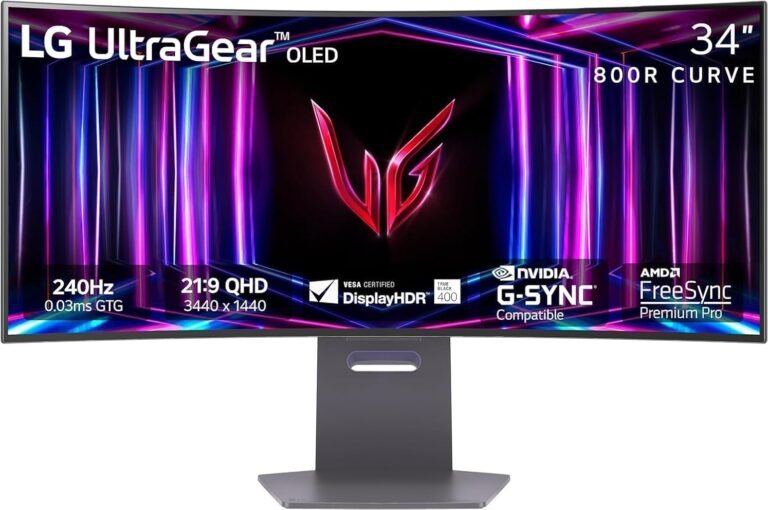
USB-C has turned an ordinary monitor port into something much more ambitious. On a properly equipped ultrawide monitor, one cable can carry the picture from a laptop, send keyboard and mouse data in the opposite direction, connect external storage or networking, and return enough electrical power to charge the computer.
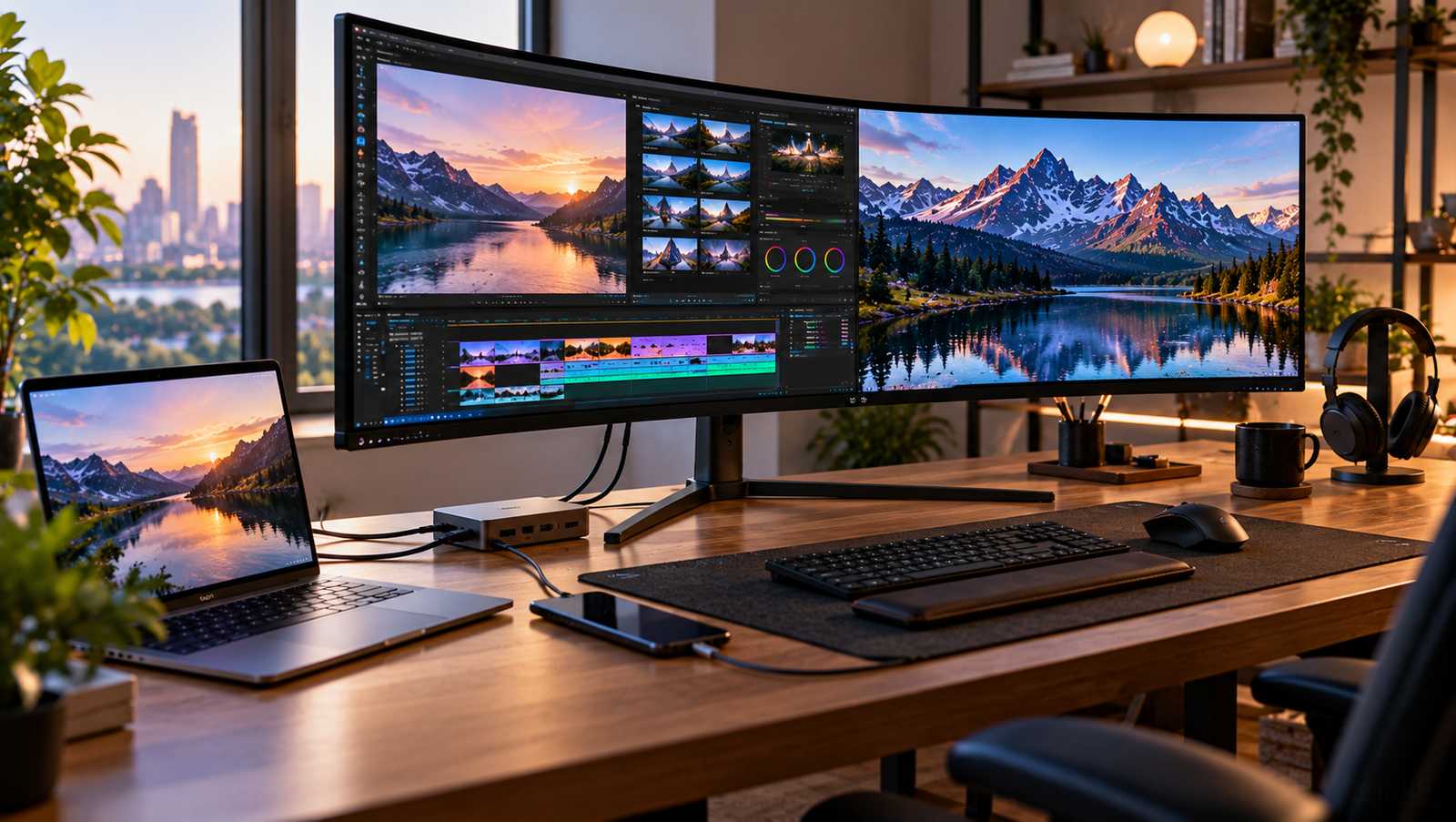
The attraction is obvious. A laptop arrives at a desk, one cable is connected, and a sprawling 34-inch or 40-inch display becomes the center of a desktop workstation. The separate charger can remain in a bag. A conventional docking station may disappear. Several peripheral cables can remain permanently attached to the monitor rather than being reconnected every morning.
Yet USB-C is also unusually easy to misunderstand because the connector’s physical appearance says remarkably little about its capabilities. Two identical USB-C ports can support different data speeds, different charging wattages and different display functions. A cable that charges a laptop may not provide the desired display bandwidth. A monitor capable of delivering 90W cannot necessarily supply enough power for every workstation-class notebook.
The practical question is therefore not whether an ultrawide “has USB-C.” It is what that particular USB-C implementation can do.
USB-C Is a Connector, Not a Performance Specification
USB Type-C describes a reversible connector system. The connector can carry several technologies, but the presence of the socket alone does not promise all of them.
Depending on the hardware at both ends, a USB-C connection can carry ordinary USB data, DisplayPort video, USB4 traffic and USB Power Delivery. Thunderbolt also uses the USB-C connector on recent generations.
That flexibility created the single-cable workstation. It also created a labeling problem.
A USB-C port might support charging but no display output. Another can handle video and data but provide little charging power. A third can combine high-resolution display output, fast data and substantial Power Delivery.
This is why the specification sheet matters more than the connector photograph.
The distinction dates back to USB-C’s early development. In September 2014, VESA announced DisplayPort Alternate Mode for USB Type-C, allowing the connector to carry DisplayPort audio and video while also supporting USB data and power. The organization explained that the system could repurpose some or all of USB-C’s four high-speed lanes for DisplayPort.
That lane-sharing architecture remains central to understanding USB-C monitors.
DisplayPort Alt Mode Is What Makes Many USB-C Monitors Work
A USB-C monitor does not necessarily receive a conventional USB video stream. In many implementations, the computer sends a native DisplayPort signal through USB-C using DisplayPort Alternate Mode.
This matters because DisplayPort Alt Mode can allocate high-speed lanes differently depending on the implementation.
VESA’s original technical overview described configurations in which all four high-speed USB-C lanes could carry DisplayPort. It also described two-lane DisplayPort operation alongside high-speed USB data. USB 2.0 and Power Delivery use separate wiring and can remain available in either arrangement.
That creates a bandwidth trade-off.
Suppose an ultrawide monitor needs substantial display bandwidth for a high resolution, high refresh rate and high color depth. Allocating more USB-C lanes to DisplayPort can help carry that signal, but fewer lanes may remain available for high-speed USB data under some Alt Mode arrangements.
Conversely, preserving faster USB peripheral connectivity can constrain the display configuration if the connection relies on lane sharing.
The exact behavior depends on the DisplayPort version, monitor implementation, host hardware and whether compression is used. The phrase “USB-C display input” therefore cannot establish the monitor’s maximum resolution and refresh rate by itself.
For a 60Hz productivity ultrawide, these constraints may be barely noticeable. On a 3440 × 1440 monitor running at a high refresh rate, or a 5120 × 2160 display carrying 10-bit color, connection bandwidth deserves much closer examination.
USB4 Changes the Bandwidth Model
USB4 moves beyond the older concept of simply assigning fixed USB-C lanes to one function.
According to USB-IF, USB4 can dynamically share a high-speed connection among multiple data and display protocols. Current USB4 specifications support operation up to 80Gbps over appropriate certified cables, while retaining compatibility with earlier USB technologies.
That flexibility matters for monitor-based docking.
Instead of treating display and peripheral traffic as entirely separate physical functions, USB4 can manage several traffic types across the available link. A high-resolution monitor, external storage and other peripherals can therefore share the connection more intelligently.
USB4 Version 2.0 doubled the earlier maximum aggregate USB bandwidth to enable USB 80Gbps performance, explicitly targeting higher-performance displays, storage, hubs and docks.
Even then, the presence of USB4 does not make bandwidth infinite. A high-resolution display can consume a substantial portion of the available capacity, especially at elevated refresh rates and color depths.
The practical rule remains the same: verify the monitor’s supported display modes and upstream connection rather than inferring them from the shape of the socket.
Thunderbolt Uses the Same Connector but Sets Different Expectations
Thunderbolt adds another source of confusion because modern Thunderbolt ports use the USB-C connector.
Intel states that Thunderbolt 4 provides 40Gbps of bidirectional bandwidth and can simultaneously support data transfer, display output and power delivery through the USB-C connector.
For an ultrawide monitor, Thunderbolt can make integrated docking particularly attractive. A monitor may accept the display signal from a laptop while exposing downstream connections for peripherals or additional devices.
But a USB-C monitor is not automatically a Thunderbolt monitor, and a Thunderbolt-capable computer does not turn every USB-C display into a Thunderbolt device.
The protocols supported by both endpoints establish what happens after the cable is connected.
This is one reason a technically careful workstation specification should distinguish among “USB-C,” “DisplayPort Alt Mode,” “USB4” and “Thunderbolt” rather than treating the labels as interchangeable.
Power Delivery Is a Separate Negotiation
Display capability and charging capability are related only because they can share the same physical cable. Electrically, they are separate functions.
USB Power Delivery allows compatible devices to negotiate how much power should be transferred.
The modern ceiling is much higher than the familiar 60W, 90W and 100W figures associated with many monitors. USB-IF states that USB Power Delivery Revision 3.1 raised supported power to as much as 240W over a full-featured USB Type-C cable and connector. Earlier USB PD implementations were limited to 100W.
The expanded system introduced fixed voltage levels of 28V, 36V and 48V, corresponding to power levels reaching 140W, 180W and 240W respectively.
That does not mean a USB-C monitor automatically provides 240W.
The specification establishes what the ecosystem can support. Each monitor manufacturer chooses how much power the monitor actually supplies.
A display rated for 65W Power Delivery provides up to its stated limit. A 90W model can provide more. A 140W implementation can support more demanding compatible computers. The laptop, monitor and cable must also negotiate compatible power behavior.
The charging figure on the monitor’s specification sheet is therefore one of the first numbers a laptop user should inspect.
65W, 90W and 100W Are Not Equivalent in Daily Use
For a thin ultraportable notebook, 65W can be enough for ordinary operation and charging.
A more powerful laptop can require substantially more. If the computer expects a higher-wattage adapter, a lower-powered monitor connection may charge slowly, stop the battery from gaining charge during heavy workloads or allow the battery to discharge while connected.
The exact behavior is computer-specific.
This creates an easily overlooked distinction between “USB-C charging works” and “USB-C can fully replace the computer’s normal power adapter.”
A workstation that draws 40W during routine office work may operate happily from a 65W monitor. The same computer under sustained CPU and GPU load can behave differently.
For buyers evaluating the best 34 inch ultrawide monitors for laptop use, Power Delivery should therefore be treated as a workload specification rather than a convenience checkbox.
The relevant comparison is straightforward: examine the wattage of the laptop’s normal power supply and compare it with the monitor’s stated USB Power Delivery output.
A large mismatch deserves investigation before assuming the monitor can become the computer’s sole power source.
The Cable Can Become the Weakest Link
A monitor and laptop can both support advanced USB-C functions while the cable prevents them from working correctly.
USB-C cables vary in data capability and power rating. Some are primarily intended for charging. Others support high-speed data. Some support the power levels required for Extended Power Range operation.
USB-IF created certified cable power-rating logos specifically to distinguish appropriate cables. Its 240W certification guidance states that the 240W logo is reserved for cables that have passed the relevant USB Power Delivery 3.1 Extended Power Range and USB Type-C testing requirements.
Cable length can also affect which high-speed modes are practical.
The safest workstation approach is to use the monitor’s supplied USB-C cable when it is specified for the monitor’s full capabilities. When replacing it, the new cable should explicitly support the required data rate, display behavior and charging power.
A generic statement such as “USB-C charging cable” is not enough for a high-bandwidth ultrawide connection.
A USB-C Ultrawide Can Function as a Dock
The strongest argument for USB-C on an office ultrawide has surprisingly little to do with the image.
It is the monitor’s ability to become a docking station.
A well-equipped display can provide USB-A or USB-C downstream ports for a keyboard, mouse, storage or webcam. Some add Ethernet, audio connections and a built-in KVM switch. The laptop then needs only the upstream USB-C connection.
This changes the physical desk.
Instead of connecting a display cable, charger, USB hub and network adapter separately, the user connects one cable to the computer. Peripherals remain attached to the monitor.
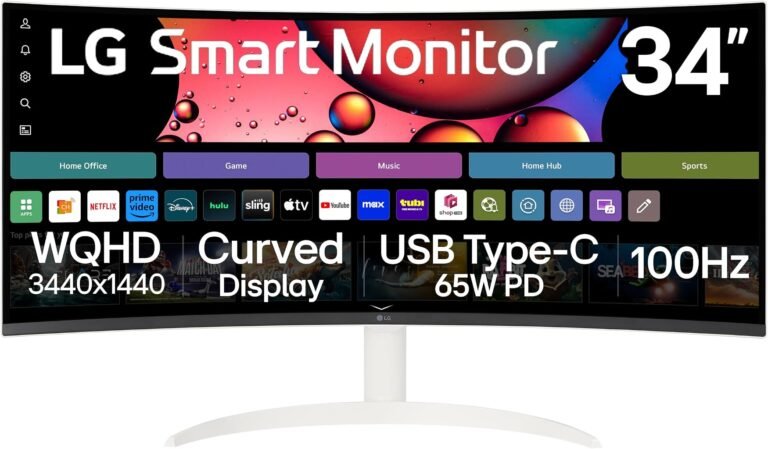
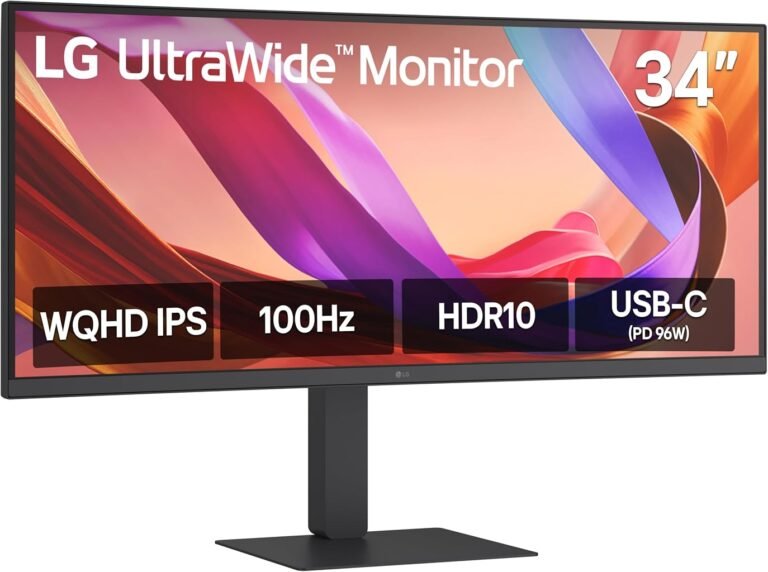
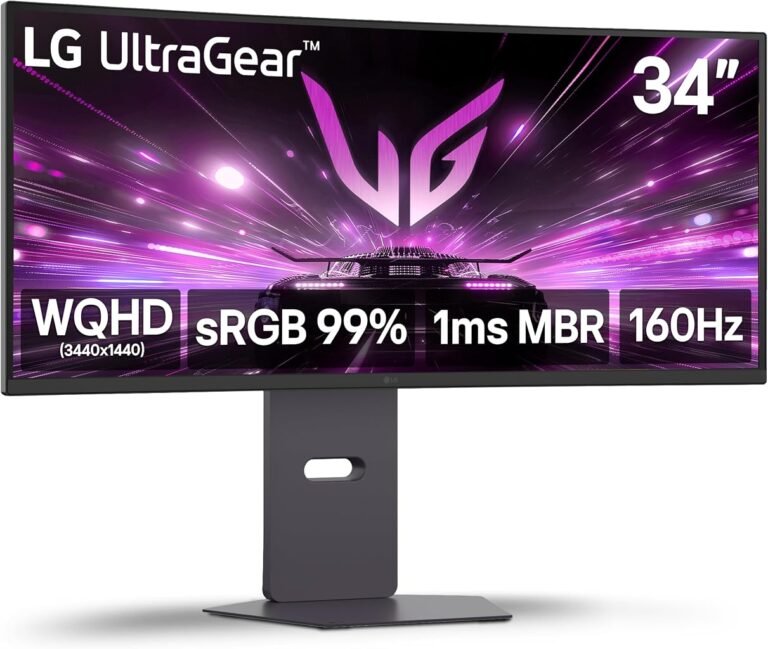
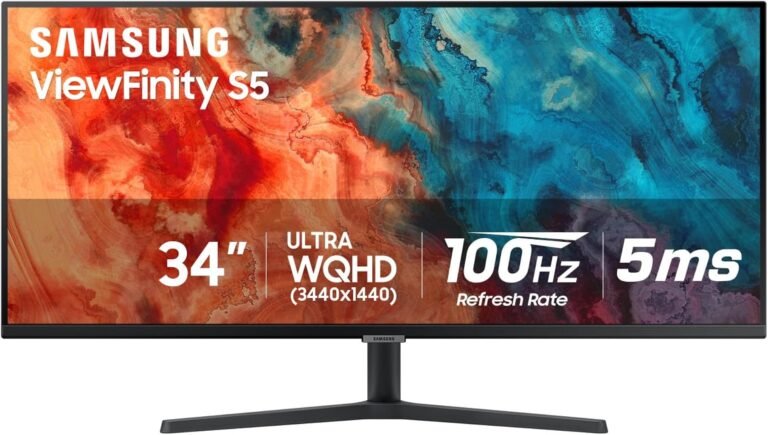
Commercial products demonstrate how far this idea has developed. One 34-inch ultrawide from LG combines 3440 × 1440 resolution with USB-C carrying image, data and 90W charging, plus four USB-A connections.
The significance is not the individual model. It is the architecture: the monitor is no longer merely an endpoint for pixels.
It can become the desk’s connection hub.
KVM Support Makes USB-C More Useful With Two Computers
A keyboard-video-mouse switch, usually shortened to KVM, allows the same display and peripherals to work with more than one computer.
This is particularly useful on ultrawides because large screens are often used in hybrid workstations containing a company laptop and a personal desktop.
Without KVM functionality, switching machines can mean changing monitor input and then physically moving a keyboard, mouse, webcam or USB hub.
With a correctly implemented monitor KVM, the peripherals can remain attached to the display. Selecting another computer changes both the video source and the USB host.
USB-C fits naturally into this arrangement. The work laptop can connect through one USB-C cable for display, peripherals and charging, while a desktop graphics card uses DisplayPort or HDMI and a separate USB upstream connection.
For anyone planning this setup, the monitor manual deserves close reading. KVM behavior varies: some displays automatically associate USB upstream connections with specific video inputs, while others require manual configuration.
Ethernet Can Remove Another Adapter
Some docking-oriented ultrawides include an RJ45 Ethernet port.
The network connection travels from the monitor to the laptop through USB data, allowing a wired network to become part of the same one-cable setup.
This is useful for thin laptops that omit built-in Ethernet.
Yet network performance depends on the USB connection available to the monitor’s hub. A high-resolution display consuming USB-C lanes alongside peripheral traffic can create a different bandwidth environment from a dedicated Thunderbolt or USB4 dock.
For ordinary gigabit networking, keyboards and mice, this may have little practical effect. High-speed external SSDs, multi-gigabit networking and other demanding peripherals make bandwidth allocation more consequential.
A monitor’s hub should therefore be evaluated like any other hub: by its upstream connection, downstream port speeds and the traffic expected to pass through it.
High Refresh Rates Make USB-C Selection Harder
USB-C docking is easiest when the display target is moderate: 3440 × 1440 at 60Hz, for example.
High-refresh ultrawides raise the bandwidth requirement substantially.
Resolution establishes how many pixels need to be transmitted. Refresh rate establishes how often the image is updated. Color depth adds more data. HDR workflows can increase requirements further.
A monitor may therefore support its maximum refresh rate over DisplayPort but a lower configuration through a particular USB-C mode. Another may use Display Stream Compression to achieve a higher mode.
The correct question is not merely whether USB-C supports the monitor’s native resolution. It is whether the USB-C input supports the desired combination of native resolution, refresh rate, color depth and HDR.
This matters for users trying to combine docking convenience with gaming performance.
A USB-C port that produces a perfect 3440 × 1440 60Hz office desktop is not necessarily the connection that should be used for a 240Hz gaming desktop.
Display Stream Compression Can Extend What the Link Carries
Display Stream Compression, or DSC, allows a display connection to transport demanding video modes using compression designed for display applications.
This can make high-resolution, high-refresh configurations practical within a connection’s available bandwidth.
DSC should not automatically be treated as a defect. It exists specifically to expand the display modes that interfaces can support without requiring a proportional increase in raw link capacity.
For an ultrawide buyer, the more relevant question is compatibility. The GPU, connection path and monitor need to support the required configuration.
A specification stating 3440 × 1440 at 240Hz may rely on different transport behavior from the same monitor running at 60Hz.
The connection table in the monitor manual can therefore reveal more than the headline product page.
Mac and Windows Laptop Compatibility Requires More Than a USB-C Port
A laptop having USB-C does not guarantee that it can drive every ultrawide mode.
The host needs appropriate display-output support. Its GPU must support the desired resolution and refresh rate. The operating system must expose the mode correctly, and the cable and monitor input must support the necessary transport.
Scaling can create another issue.
A 3440 × 1440 ultrawide and a 5120 × 2160 ultrawide place very different demands on both bandwidth and interface scaling. A machine capable of driving the resolution may still produce an interface size that requires adjustment for comfortable use.
Multiple-display support adds another host-specific constraint. Some computers support several external displays; others impose limits unrelated to the physical number of available USB-C ports.
USB-C should therefore be viewed as the path between computer and display, not proof that every desired display topology is supported.
Desk Setup Is Where USB-C Delivers Its Most Persistent Benefit
The greatest USB-C advantage is rarely dramatic. It appears every time a laptop arrives or leaves.
A conventional workstation might require four actions: connect power, connect the monitor, connect a USB hub and connect networking.
A USB-C monitor with an appropriate integrated hub can reduce that sequence to one connection.
That simplicity matters in hot-desking, shared offices and home workstations where the computer moves frequently.
It can also improve cable routing. The monitor’s power cable remains behind the desk. Keyboard, mouse and network cables terminate at the monitor. Only one USB-C cable needs to reach the laptop.
The arrangement becomes especially clean when the monitor is mounted on an arm and peripheral cables are routed along that arm.
This is one case where connectivity affects ergonomics indirectly. Fewer cables around the laptop create more freedom to position the computer, keyboard and pointing device without working around several short connections.
A Practical USB-C Ultrawide Checklist
A useful buying assessment can be reduced to several questions:
- Does the USB-C input support DisplayPort video? A USB-C socket alone does not guarantee display input.
- What native resolution and refresh rate are supported through USB-C? This may differ from DisplayPort or HDMI.
- How much USB Power Delivery does the monitor provide? Compare that figure with the laptop’s power requirements.
- What USB data speed is available while the display is operating at the desired mode? Lane allocation can matter.
- Which downstream ports are included? USB-A, USB-C, Ethernet and audio can reduce the need for a separate dock.
- Is there a KVM switch? This matters when two computers share the same keyboard and mouse.
- Does the supplied cable support the monitor’s full feature set? Replacement cables should meet the same display, data and power requirements.
- Does the laptop support the required display mode? Host capabilities remain part of the connection.
- Will the monitor replace a dock completely, or only partly? High-speed storage, multiple additional displays or specialized networking can still justify a dedicated dock.
- Can the monitor deliver enough power under sustained laptop load? A charging icon alone does not answer that question.
These checks reveal far more about daily usability than the presence of a USB-C logo.
Final Considerations
USB-C changes an ultrawide monitor most profoundly when it stops being treated as merely another video input.
The connector can carry display traffic, peripheral data and electrical power simultaneously. DisplayPort Alt Mode made that single-cable arrangement practical early in USB-C’s history, while USB4 expanded the architecture for dynamically shared display and data traffic at much higher bandwidth. USB Power Delivery separately expanded the electrical side of the connection, with the specification now supporting levels reaching 240W on suitable hardware and cables.
None of those maximum capabilities is automatically present merely because a monitor has the familiar reversible socket.
A 65W USB-C productivity monitor, a 90W docking display and a USB4 ultrawide can all look similar from the back while behaving very differently after a laptop is connected.
For ordinary office work, the most useful configuration is often surprisingly modest: enough display bandwidth for the monitor’s native resolution and refresh rate, enough Power Delivery for the laptop, and a hub capable of handling keyboard, mouse and networking. That combination can eliminate a charger and a separate dock from the desk.
High-performance use raises the requirements. High-refresh ultrawides need more display bandwidth. Powerful laptops need more charging capacity. Fast external storage competes for data bandwidth. Two-computer workstations benefit from KVM support. High-end mobile workstations can exceed the charging capability of monitor implementations that are perfectly adequate for thin notebooks.
The cable completes the system. A sophisticated monitor and laptop cannot recover capabilities that an unsuitable cable does not carry.
USB-C is therefore best evaluated as an architecture rather than a port. The monitor, laptop and cable negotiate what can actually happen across that connection. Display bandwidth establishes the image. Power Delivery establishes whether the computer can remain charged. USB bandwidth establishes how useful the monitor is as a peripheral hub.
When those three pieces are matched correctly, an ultrawide can become something more useful than a large display: it can become the physical center of a laptop workstation, with one cable handling the transition between portable and desktop computing.