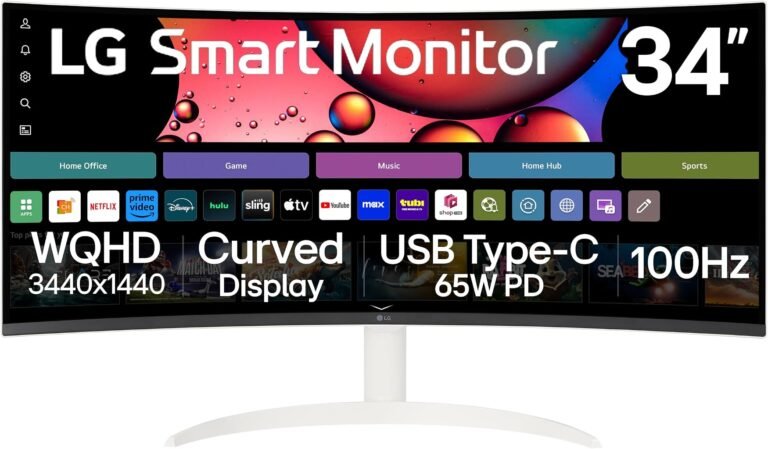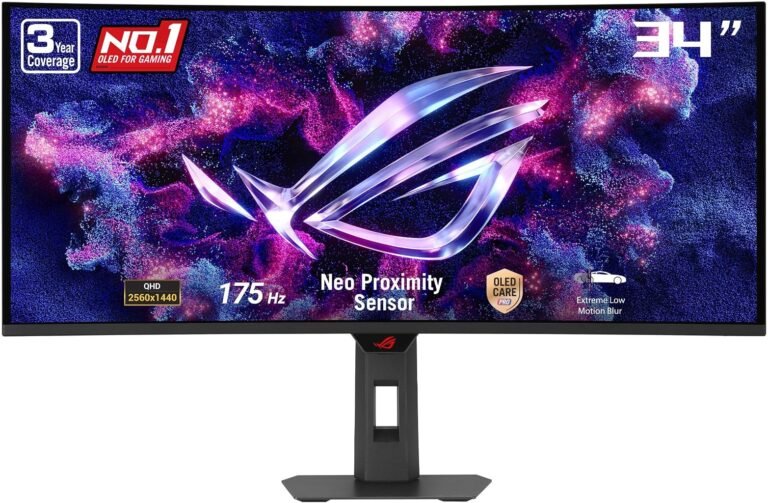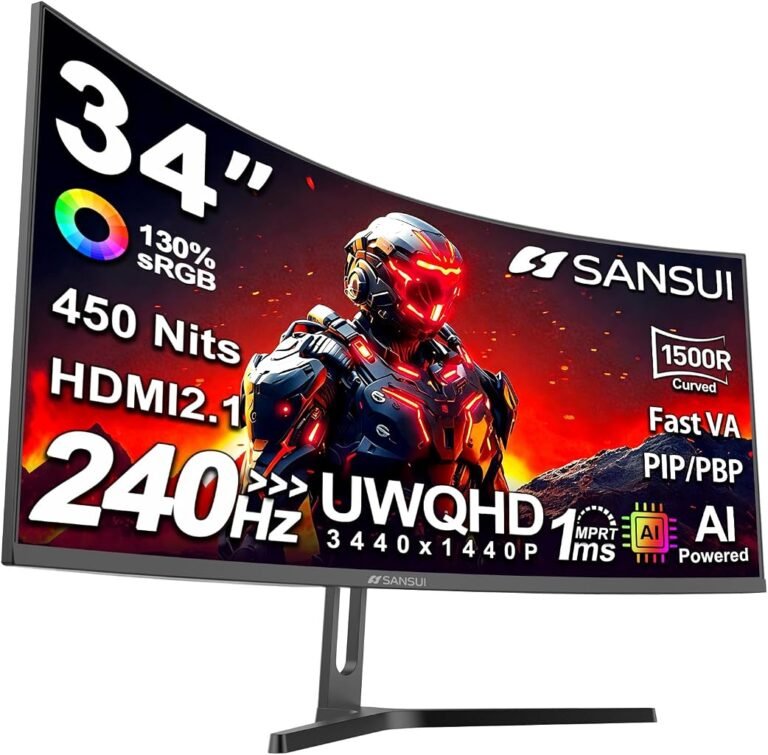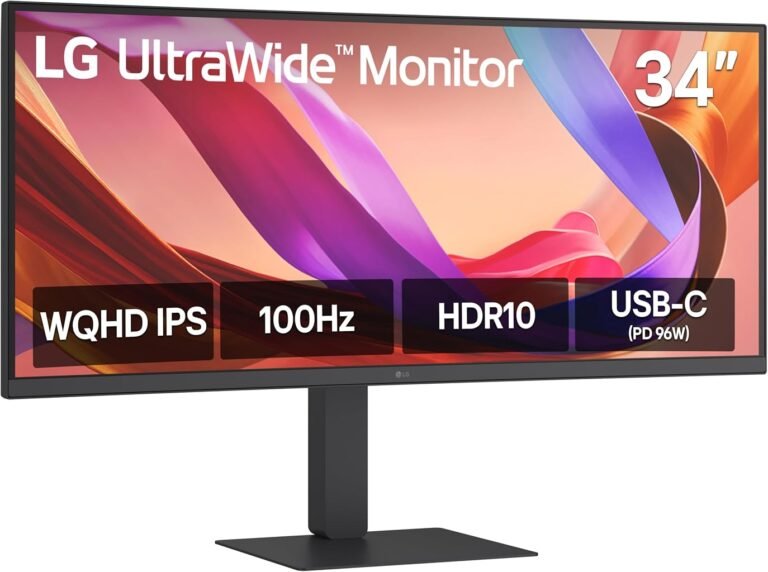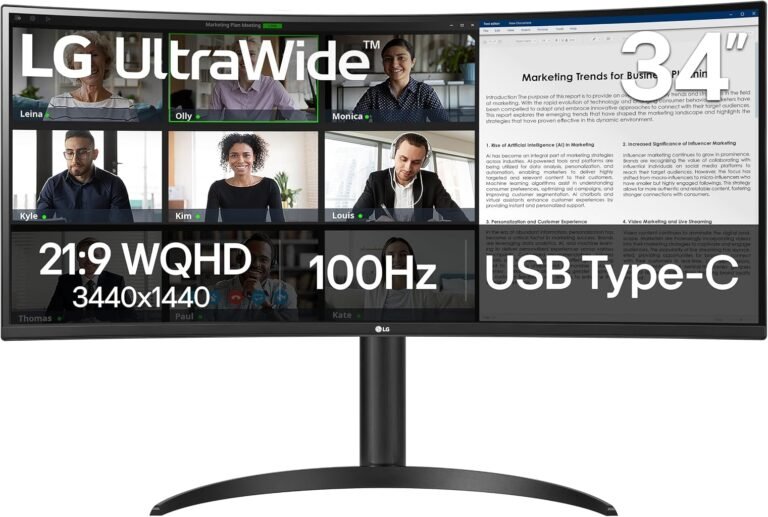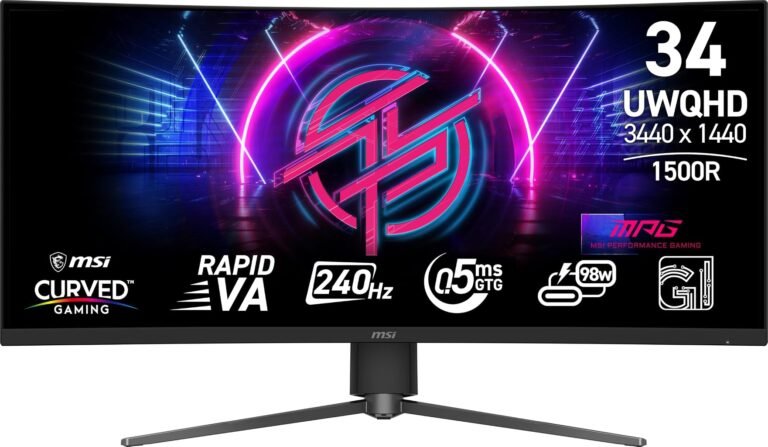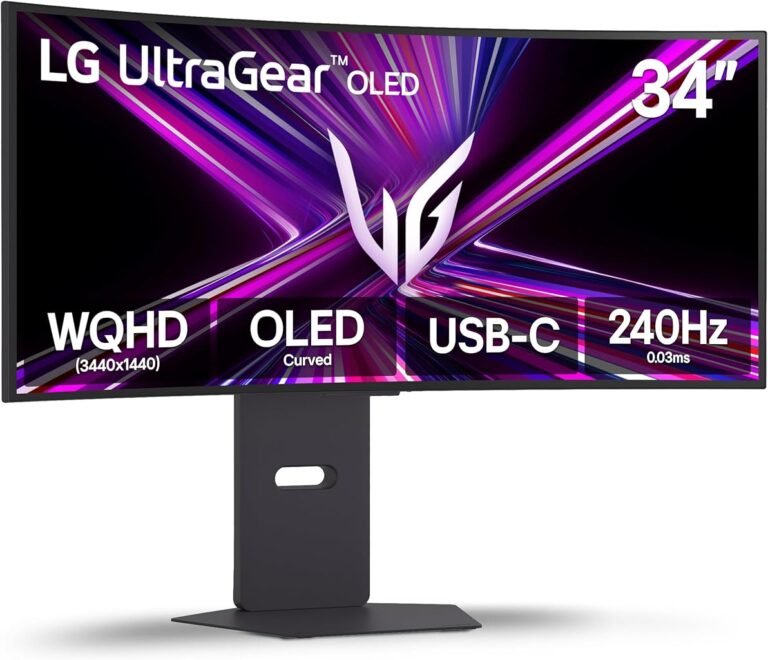
Shopping for a 34-inch ultrawide monitor should be a simple exercise in reading two numbers. Instead, the market presents buyers with QHD, WQHD, UWQHD, Ultra-WQHD, 1440p and occasionally descriptions that use several of those labels for the same screen.
The confusion is understandable because monitor nomenclature has never been as disciplined as the underlying mathematics. A product name can be abbreviated differently by manufacturers and retailers, but a panel’s native pixel grid is fixed. A screen described as 3440 × 1440 contains 4,953,600 addressable pixels regardless of whether its packaging calls the resolution UWQHD, Ultra-WQHD, WQHD or simply ultrawide QHD.
For 34-inch ultrawides, that distinction matters because the dominant resolution is 3440 × 1440, while conventional 27-inch QHD monitors generally use 2560 × 1440. Both have 1,440 vertical pixels. They are not the same resolution.
The ultrawide version contains approximately 34% more pixels and provides a 21:9-class workspace rather than conventional 16:9. That changes gaming performance, desktop space, media presentation and the graphics hardware required to drive the monitor.
Resolution labels are therefore useful shorthand, but pixel dimensions deserve the final authority.
QHD Usually Means 2560 × 1440
QHD stands for Quad High Definition. In ordinary monitor usage, it refers to 2560 × 1440.
The “quad” description comes from the relationship with 1280 × 720 HD. Doubling both dimensions from 1280 × 720 produces 2560 × 1440, which contains four times as many pixels.
The arithmetic is straightforward:
- 1280 × 720 = 921,600 pixels
- 2560 × 1440 = 3,686,400 pixels
- 3,686,400 is exactly four times 921,600
That historical relationship explains QHD more accurately than the vague idea that it sits somewhere between Full HD and 4K.
QHD is also commonly called 1440p in consumer discussions, although that shorthand describes the vertical dimension rather than the complete pixel grid.
A conventional 2560 × 1440 monitor normally uses a 16:9 aspect ratio.
That distinction becomes critical when comparing it with an ultrawide monitor carrying the same 1,440-pixel vertical dimension.
A 3440 × 1440 screen is not merely a stretched 2560 × 1440 image. It has 880 additional horizontal pixels. Software can use those pixels to display additional content rather than enlarging the existing image.
WQHD Is Where Naming Becomes Messy
WQHD generally expands to Wide Quad High Definition and is commonly associated with 2560 × 1440.
The word “wide” can create confusion because 2560 × 1440 is already a conventional widescreen 16:9 format. It does not mean ultrawide.
This is one reason buyers should avoid making purchasing decisions from acronyms alone.
A monitor advertised as WQHD may be 2560 × 1440. Another retailer may loosely apply WQHD to a 3440 × 1440 ultrawide because that display is also wide and retains 1,440 vertical pixels.
The reliable solution requires almost no technical expertise: find the actual native resolution.
If the specification reads 2560 × 1440, the display contains about 3.69 million pixels and is normally 16:9.
If it reads 3440 × 1440, the display contains about 4.95 million pixels and belongs to the familiar 34-inch ultrawide class.
The pixel dimensions remove the ambiguity immediately.
UWQHD Usually Means 3440 × 1440
UWQHD commonly refers to Ultra-Wide Quad High Definition, most often 3440 × 1440.
Manufacturers also write it as Ultra-WQHD or UltraWide QHD.
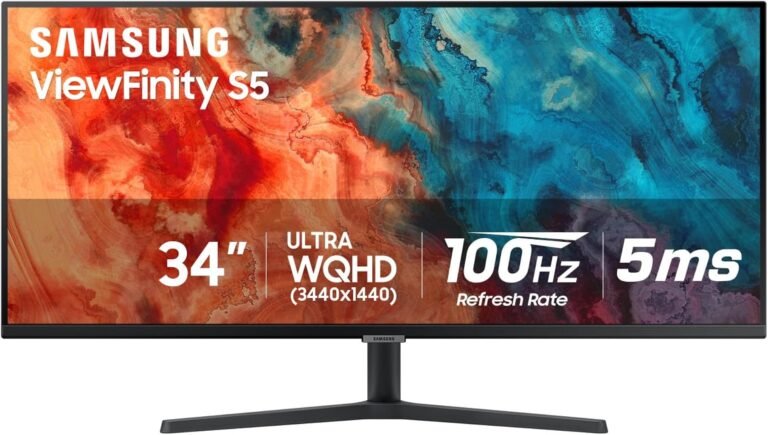
Samsung’s 34-inch ViewFinity specifications provide a useful real-world example: Samsung describes its 3440 × 1440 21:9 display as “Ultra-WQHD.”
The mathematics again matter more than the label.
A 3440 × 1440 panel contains:
3,440 × 1,440 = 4,953,600 pixels.
A 2560 × 1440 panel contains:
2,560 × 1,440 = 3,686,400 pixels.
The difference is 1,267,200 pixels.
That means 3440 × 1440 contains approximately 34.4% more pixels than 2560 × 1440.
Nearly all of that difference is horizontal because both resolutions retain 1,440 vertical pixels.
This explains why moving from a 27-inch 2560 × 1440 display to a 34-inch 3440 × 1440 ultrawide can feel like extending the desktop sideways without fundamentally changing its vertical workspace.
Why 34 Inches and 3440 × 1440 Fit Together So Well
The relationship between screen size and resolution determines pixel density.
A 34-inch 3440 × 1440 display has a pixel density of roughly 110 pixels per inch, depending on the exact viewable diagonal.
A 27-inch 2560 × 1440 display is also around 109 pixels per inch.
This similarity is one of the most useful facts in the entire ultrawide category.
It means a typical 34-inch 3440 × 1440 monitor can produce text and interface elements at roughly the same physical size and density as a familiar 27-inch QHD monitor. The ultrawide does not primarily increase pixel density. It adds horizontal territory.
That has practical consequences.
Someone comfortable using a 27-inch QHD monitor at 100% operating-system scaling will often find a 34-inch 3440 × 1440 screen similarly manageable, assuming comparable viewing distance and eyesight.
A 34-inch ultrawide can therefore provide additional working space without requiring the scaling adjustments frequently associated with high-density 4K monitors.
This helps explain why 3440 × 1440 has remained so persistent at this size.
It is not the sharpest resolution available. It is a highly practical compromise among physical dimensions, usable workspace, GPU demand and interface scale.
3440 × 1440 Is Not 4K
One of the more persistent purchasing mistakes is treating 3440 × 1440 ultrawide as roughly equivalent to 4K because both sound like premium resolutions.
The difference is substantial.
A 3840 × 2160 4K UHD display contains:
3,840 × 2,160 = 8,294,400 pixels.
A 3440 × 1440 display contains 4,953,600.
4K therefore contains approximately 67% more pixels than 3440 × 1440.
Viewed from the opposite direction, 3440 × 1440 requires rendering roughly 40% fewer pixels than 4K.
That difference can be highly consequential for gaming.
A graphics card targeting 100 frames per second at 3440 × 1440 has considerably fewer pixels to generate than at 3840 × 2160, even before differences in game settings, ray tracing, upscaling and scene complexity are considered.
This does not mean frame rate will automatically increase by 67% when moving from 4K to ultrawide WQHD. GPU performance does not scale perfectly with pixel count because many other workloads are involved.
The arithmetic does explain why 3440 × 1440 can offer a broad, high-detail image without imposing the full rendering burden of 4K.
GPU Workload Changes Dramatically at High Refresh Rates
Pixel count becomes even more revealing when refresh rate enters the equation.
At 3440 × 1440 and 60Hz, the display can present nearly 297 million pixel positions per second.
At 100Hz, that rises to approximately 495 million.
At 144Hz, the figure exceeds 713 million.
At 165Hz, it reaches roughly 817 million.
At 240Hz, it approaches 1.19 billion pixel positions per second.
These figures are simple resolution-by-refresh arithmetic, not measurements of GPU processing operations. A modern game requires much more work than merely assigning final pixel values. Geometry, physics, shadows, lighting, textures, shaders and post-processing all consume computing resources.
The calculation nevertheless demonstrates why a 3440 × 1440 240Hz monitor can be demanding.
Buying a 240Hz ultrawide does not guarantee 240fps gaming. The graphics system must produce frames quickly enough to exploit that refresh ceiling.
For buyers evaluating the best 34 inch ultrawide monitors, resolution and refresh rate should therefore be considered together rather than independently.
A 3440 × 1440 100Hz monitor and a 3440 × 1440 240Hz monitor contain the same number of pixels. Their performance targets can be radically different.
Why Ultrawide Provides More Workspace Rather Than Larger Content
Resolution and physical size are frequently confused.
Adding horizontal pixels does not automatically make applications larger. It creates room for more information, assuming operating-system scaling remains unchanged.
A 3440 × 1440 desktop can place two substantial windows side by side with fewer compromises than 2560 × 1440.
For spreadsheets, the extra width exposes more columns.
For video editing, timelines can display a longer span.
For audio production, more tracks or controls can remain visible.
For programming, an editor can sit beside documentation, a browser, console or secondary code window.
For writing and research, a source document can remain open next to the working draft.
The absence of a physical bezel through the center distinguishes a single ultrawide from two conventional monitors.
Dual monitors remain more flexible in some respects. Each can display independent full-screen applications, one can be rotated vertically, and operating systems naturally understand their boundaries.
An ultrawide creates a continuous workspace instead.
Neither arrangement is universally superior. The correct choice depends on whether the user values continuity or independent displays.
21:9 Is a Convenient Label Rather Than Exact Mathematics
Most 3440 × 1440 monitors are marketed as 21:9 displays.
Strictly dividing 3440 by 1440 produces approximately 2.389:1.
An exact 21:9 ratio equals approximately 2.333:1.
The familiar “21:9” label is therefore a convenient category description rather than a mathematically exact expression of the pixel grid.
That does not create a practical problem. It simply illustrates another case where consumer display terminology favors memorable labels over mathematical precision.
The same broad category includes several ultrawide resolutions.
What matters during purchasing is the actual pixel grid and the software support for that shape.
For most 34-inch desktop monitors, 3440 × 1440 is the reference point.
Gaming Benefits Depend on Proper Ultrawide Support
A 3440 × 1440 monitor can display a wider game view than 2560 × 1440 when the software supports ultrawide presentation correctly.
That qualification matters.
Many PC games handle 21:9 well, expanding the visible horizontal scene. Racing games, flight simulations, open-world titles and first-person games can make particularly effective use of the width.
Others may limit cutscenes, menus or gameplay to 16:9.
Competitive games may deliberately restrict aspect ratios or field-of-view behavior for fairness.
Poorly supported older software can stretch interfaces or place black bars at the sides.
The monitor cannot force a game to create image information that the software does not render.
This means ultrawide compatibility is partly an application question rather than a monitor specification.
Anyone buying primarily for a small number of games should verify those games’ current ultrawide behavior before assuming 3440 × 1440 will be fully utilized.
Consoles Complicate the Ultrawide Argument
A 34-inch 3440 × 1440 monitor is fundamentally a PC-oriented format.
Mainstream game consoles are designed around conventional television aspect ratios rather than native 21:9 ultrawide output.
When a 16:9 source is displayed correctly on a 21:9 monitor, unused horizontal space can appear at the sides.
Stretching the image to fill the panel distorts geometry. Cropping can fill the screen but removes part of the original image.
Neither is equivalent to genuine native ultrawide rendering.
HDMI 2.1, 120Hz support and variable refresh capabilities can make a 34-inch ultrawide technically compatible with modern consoles, but connectivity does not change the aspect-ratio mismatch.
A buyer using a monitor predominantly with a console should therefore place less value on the extra horizontal pixels than a PC gamer would.
Video Content Creates Similar Aspect-Ratio Questions
Ultrawide displays can be excellent for films because many movies use wider cinematic aspect ratios than 16:9 television.
When source content closely matches the ultrawide panel, more of the screen can be used without the large horizontal letterboxing associated with displaying wide cinema on a 16:9 monitor.
Television programs, online video and other 16:9 material behave differently.
A 16:9 video displayed at its correct aspect ratio on a 21:9-class screen leaves unused space at the sides.
Again, resolution does not solve an aspect-ratio mismatch.
A 3440 × 1440 monitor can have enough pixels to reproduce 1440p video sharply while still leaving part of its physical width unused because the content itself is narrower.
Understanding this before purchase prevents the mistaken expectation that every video will automatically fill an ultrawide display.
Pixel Density Matters More Than Resolution Alone
A resolution number cannot describe sharpness without physical screen dimensions.
3840 × 2160 sounds sharper than 3440 × 1440, and at the same physical size it generally is because more pixels are packed into each inch.
But comparing a small high-resolution screen with a much larger display changes the equation.
Pixel density, commonly expressed as pixels per inch, connects resolution with physical size.
A typical 34-inch 3440 × 1440 ultrawide sits around 110 PPI.
A 27-inch 2560 × 1440 monitor is around 109 PPI.
A 32-inch 3840 × 2160 monitor is approximately 138 PPI.
That 32-inch 4K display can therefore render finer detail, but text and interface elements also become physically smaller at native scaling. Operating-system scaling is commonly used to restore comfortable sizing.
The 34-inch ultrawide’s roughly 110-PPI density often permits comfortable native scaling while still delivering considerably more workspace than 1080p-class monitors.
That balance is one of 3440 × 1440’s strongest practical characteristics.
QHD, WQHD and UWQHD Should Never Be Used as the Final Buying Check
The safest purchasing process is remarkably simple.
Ignore the acronym temporarily and read the native resolution.
A buyer can interpret common listings using this framework:
- 2560 × 1440: conventional QHD or WQHD, usually 16:9.
- 3440 × 1440: commonly UWQHD, Ultra-WQHD or ultrawide QHD, usually sold as 21:9.
- 3840 × 2160: 4K UHD, usually 16:9.
- 5120 × 1440: dual-QHD-class super-ultrawide resolution, commonly associated with 32:9 displays.
- 5120 × 2160: higher-resolution ultrawide format combining substantial horizontal width with 2,160 vertical pixels.
Those pixel dimensions are far more informative than marketing labels.
They immediately reveal approximate GPU workload, available desktop space and aspect-ratio category.
Resolution Does Not Describe Panel Quality
Another purchasing mistake is allowing resolution to stand in for overall image quality.
Two 3440 × 1440 monitors can behave very differently.
One may use IPS, another VA and another OLED. They can differ in contrast, response behavior, brightness, HDR capability, color gamut, viewing characteristics and refresh rate.
Resolution describes the number of pixels.
It does not describe how accurately those pixels reproduce color, how quickly they change, how dark they become or how brightly they can illuminate.
Likewise, a 3440 × 1440 OLED gaming monitor at 240Hz is not interchangeable with a 3440 × 1440 VA productivity monitor at 100Hz simply because both share the same pixel grid.
Resolution should therefore be treated as one layer of the buying decision.
Panel technology, refresh rate, connectivity, curvature, ergonomics and intended workload form the rest.
When 3440 × 1440 Is the Right Choice
A 34-inch 3440 × 1440 monitor makes particular sense when:
- Horizontal workspace matters more than maximum pixel density.
- Two large applications frequently need to remain visible together.
- A single continuous desktop is preferred over a dual-monitor bezel.
- PC games with good ultrawide support are a major use case.
- The graphics card can handle more than standard QHD but 4K performance would be unnecessarily demanding.
- Roughly 110-PPI pixel density suits the desired viewing distance.
- 100% operating-system scaling is preferred where practical.
- A broad timeline is useful for video, audio or development work.
It makes less sense when:
- Console gaming is the dominant use.
- Most important software does not support ultrawide presentation properly.
- Maximum text sharpness is more important than horizontal workspace.
- Geometry-sensitive work makes a strongly curved model undesirable.
- Desk width is limited.
- A dual-monitor setup provides more useful independent screen organization.
- 4K video editing requires full-resolution preview space as a priority.
Final Considerations
The confusion surrounding QHD, WQHD and UWQHD is largely a naming problem rather than a technical one.
QHD and WQHD most commonly refer to 2560 × 1440, a 16:9 resolution containing approximately 3.69 million pixels.
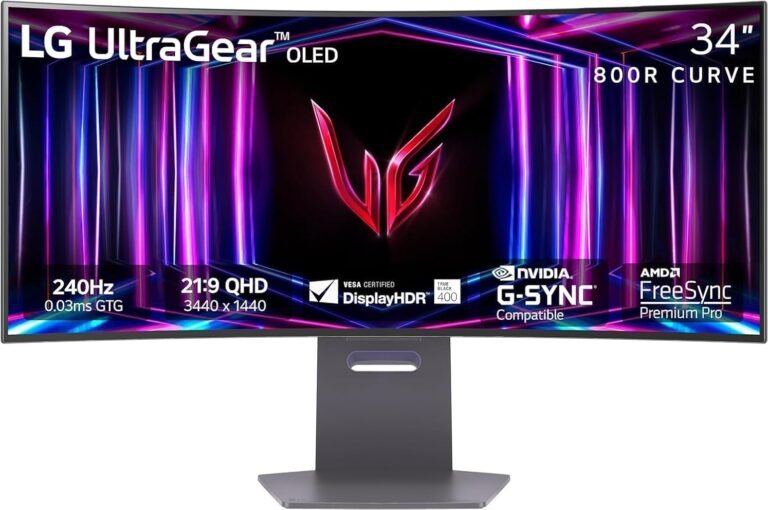
UWQHD, Ultra-WQHD and ultrawide QHD commonly describe 3440 × 1440, a 21:9-class format containing approximately 4.95 million pixels.
The difference is substantial: 3440 × 1440 carries about 34% more pixels than 2560 × 1440, almost entirely through additional horizontal resolution.
That horizontal expansion explains the format’s usefulness.
A 34-inch 3440 × 1440 monitor delivers roughly the same pixel density as a 27-inch 2560 × 1440 screen—around 110 pixels per inch—but extends the desktop sideways. It can therefore preserve familiar interface sizing while creating considerably more working room.
Compared with 4K UHD, the trade changes direction. A 3840 × 2160 screen contains approximately 8.29 million pixels, around 67% more than 3440 × 1440. It offers higher potential detail and pixel density at comparable sizes but creates a heavier graphics workload and often makes operating-system scaling more desirable.
For gaming, 3440 × 1440 occupies a particularly useful performance position. It demands more GPU work than conventional QHD but substantially less than 4K. At high refresh rates, however, the workload remains formidable: a 240Hz 3440 × 1440 display can present nearly 1.19 billion pixel positions each second.
For productivity, the attraction is simpler. The additional 880 horizontal pixels over 2560 × 1440 create room for documents, spreadsheets, timelines, browser windows and development tools without introducing a bezel through the center of the workspace.
Aspect ratio remains equally important. PC software can make excellent use of ultrawide space, but console games and 16:9 video cannot automatically create additional image information merely because the monitor is wider.
That leads to the most reliable buying rule in the category: treat QHD, WQHD and UWQHD as shorthand, then verify the actual pixel dimensions.
A specification reading 2560 × 1440 identifies the familiar 16:9 QHD class. A specification reading 3440 × 1440 identifies the common 34-inch ultrawide format. Those numbers say more about the display than an acronym ever can.
For buyers seeking the best 34 inch ultrawide monitors, understanding that distinction turns a confusing specification sheet into a much simpler decision. Resolution establishes the workspace and graphics workload. Aspect ratio determines how that workspace is shaped. Pixel density explains how sharp and physically large its contents appear.
Once those three ideas are separated, the alphabet soup largely disappears.